

GCalExtras
Bulk edit Google Calendar from the side panel.
GCalExtras is a Google Workspace add-on that brings extra features to Google Calendar: show and hide groups of calendars, copy or move a whole range of events in a few clicks, and attach private notes.
See it in action
Quick clone, copy & move
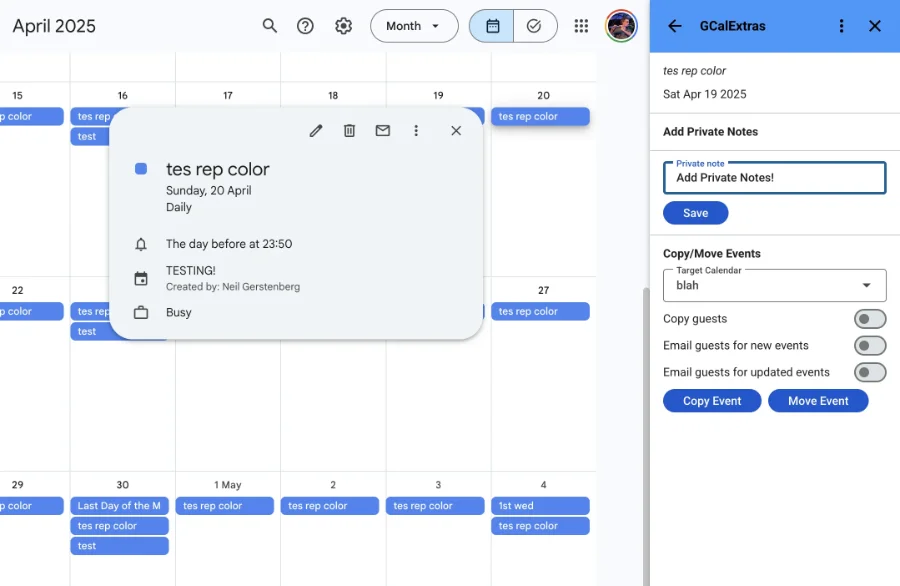
Click any event to see its details plus Copy and Move buttons. Move an individual event to another calendar in as few as two clicks.
Calendar presets
Save custom groups of calendars, for example "Work" and "Personal", and switch between them instantly instead of checking and unchecking calendars every time.
Mass copy / move events
Copy or move an entire date range of events to a new start date and calendar. Ideal for shift work, recurring lessons or repeating schedules. Guests are carried over without sending email notifications.
Private notes
Add a private note to any event, stored in a Google Sheet that you own. Because the notes live in your own Sheet, they stay private (unless you choose to share it) and are never lost - Sheets keeps version history. Edit notes in the add-on or directly in the sheet.
Mass delete events
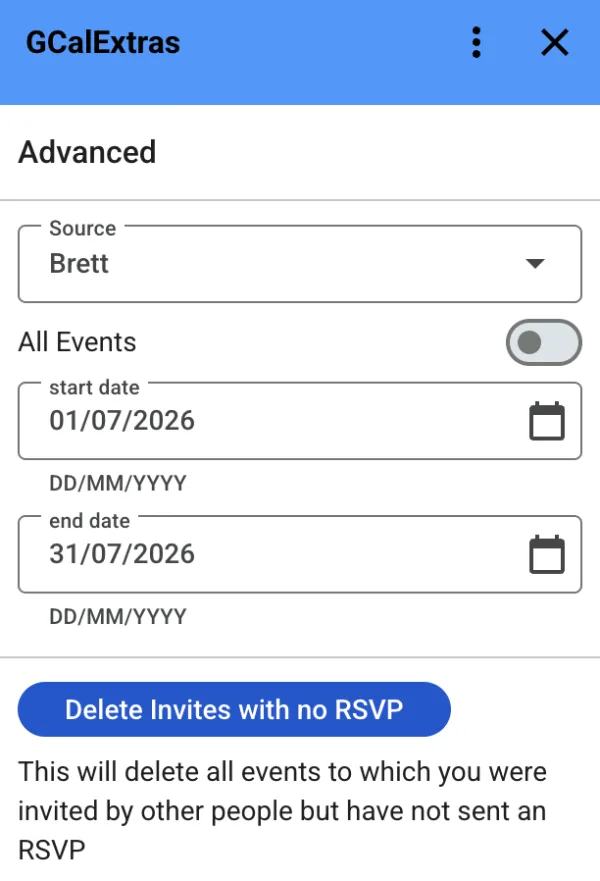
Clear out a whole date range in one go. Delete every event in the selected range on a calendar, or tidy up your invites by removing all events you were invited to but never responded to.
Simple pricing
Free: up to 3 presets, copy/move in batches of 10 events, and notes up to 256 characters.
Paid (one-time, €20): unlimited presets, batches of 80 events, and notes of any length. Your membership never expires.
A closer look
How to use GCalExtras
Getting started
After installing the add-on and authorising access to your calendars and spreadsheets, open GCalExtras by clicking its icon in the right-hand add-ons panel in Google Calendar.
Calendar presets
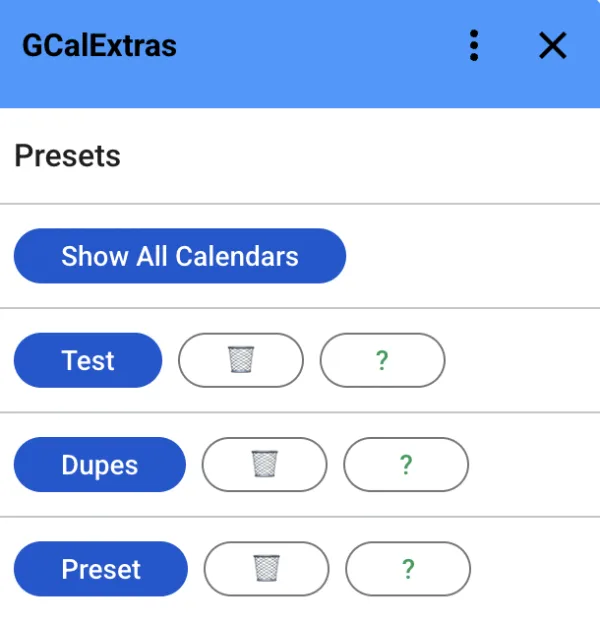
Click Show All Calendars to quickly select all your Google Calendars (except Tasks and Reminders) so they display in the main calendar view. Choose the combination you want, click Add Preset, give it a name and click Save to add it to your list of presets.
For example, you might have several calendars for "Work" and others for "Personal" use. Presets let you switch to a whole group in one click, instead of checking and unchecking calendars every time.
Mass copy / move events
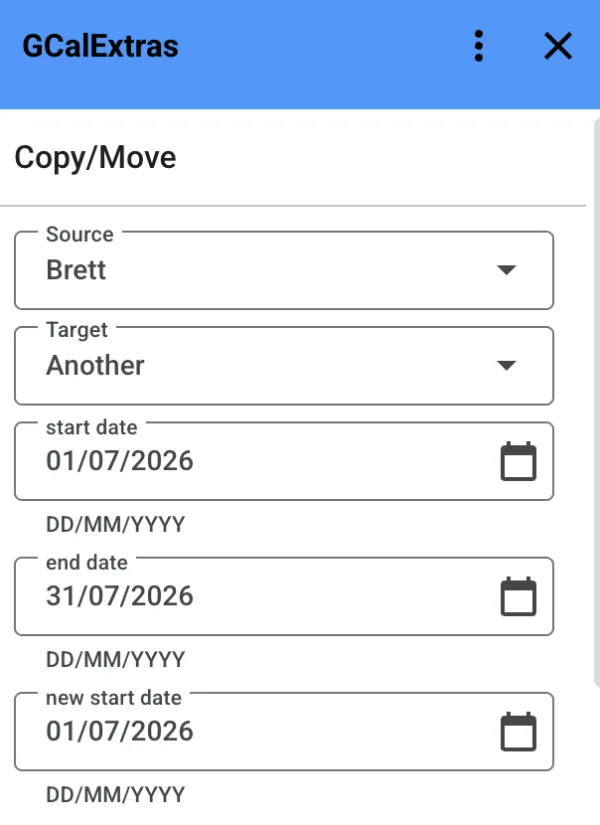
Click Copy/Move Events in the sidebar menu to open the copy/move window. For example, set the Start Date to today, the End Date to a week from today, and the New Start Date to next month - to copy or move all of next week's events to the corresponding week next month. This is ideal for shift work, regular lessons or irregular repeat schedules across different calendars and dates.
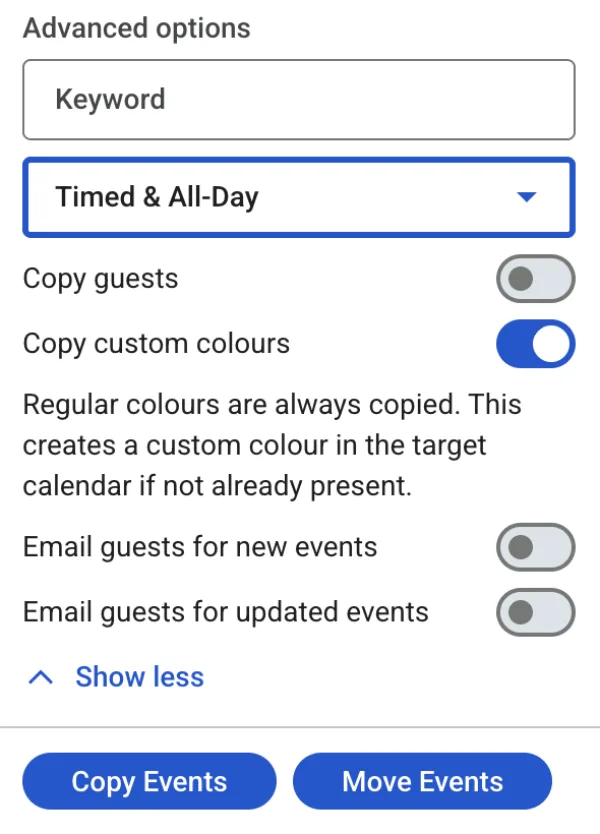
Every single event within the chosen dates is copied or moved from the source calendar to the target calendar. Occurrences of repeating events that fall in the range are also copied, but without the repeat rule. Guests are carried over and the new events appear on the calendar of anyone with access, where they can accept or decline.
No email notifications are sent to guests for new or moved events, so let them know yourself - unless you turn on the "notify all guests" option. Conference data such as Zoom calls and Google Meet links can't be copied, so add any meetings to the new events manually.
To stay within Google's add-on quota limits, copy/move runs in batches: 10 events at a time on the free version and 80 on the paid version. Click Continue to keep working through a larger date range. (Batches larger than 80 risk run-time errors, as the script can take too long to process.)
Private notes
When you open any event, GCalExtras shows its details plus a section to add a private note. Notes are stored in a new spreadsheet called "GCalExtras" (which you can rename and move). Alongside each note, the basic details of the event - calendar name, title, start date, description and location - are saved for easy reference.
You can edit notes directly in the sheet and the changes appear back in GCalExtras. Changes to the other fields have no effect (they're for reference only); updating a note also refreshes those details.
Because the notes live in a Sheet you own, they stay private unless you choose to share it, and they're never lost - Google Sheets keeps version history and backups.