
Sheets2GCal: Import All Events or a Date Range
Sheets2GCal imports a Google Calendar into Google Sheets in two ways: all events, where each repeating series is a single row, or a date range, where every occurrence in that range gets its own row. Import all events to edit whole series, and a date range to see and change single occurrences.
This guide imports the same calendar both ways and then extends the date range.
1. The calendar
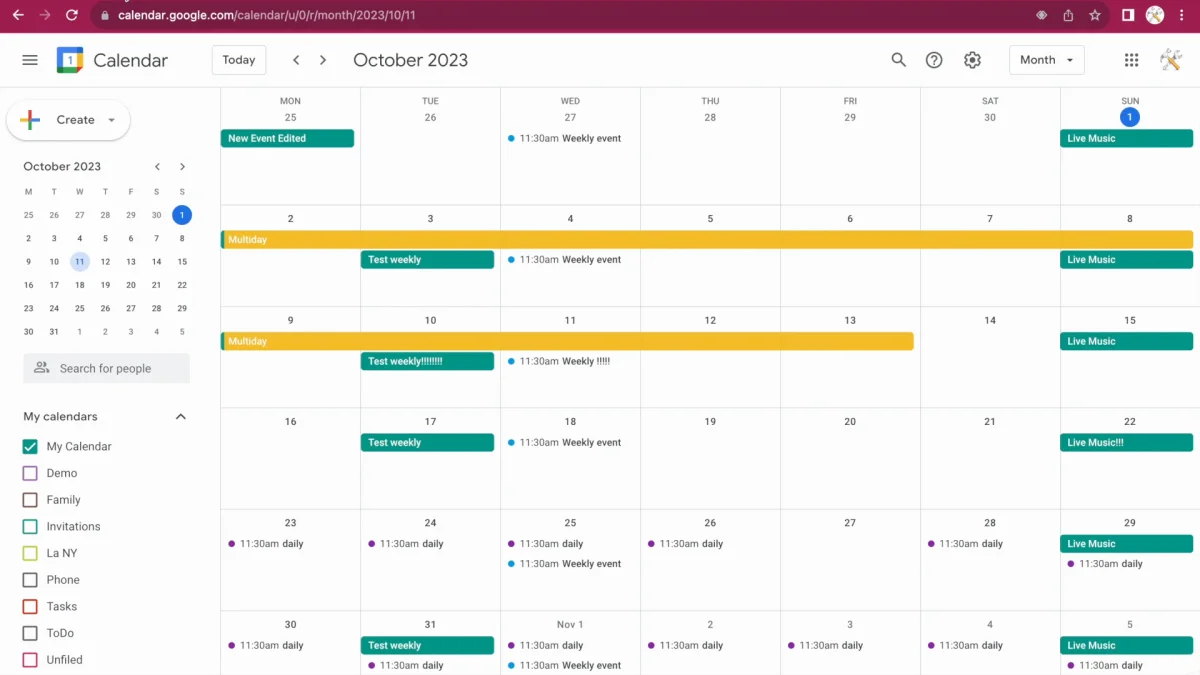
Here's the calendar for October, with several repeating events, weekly and daily.
2. Import all events
In the Sheets2GCal sidebar, "Import Calendar to Sheet", choose the calendar and keep "All events" ticked, then click "Clear Sheet & Import Calendar". It's a full download of the calendar: each repeating event is a single row, marked with its repeat, for example weekly.
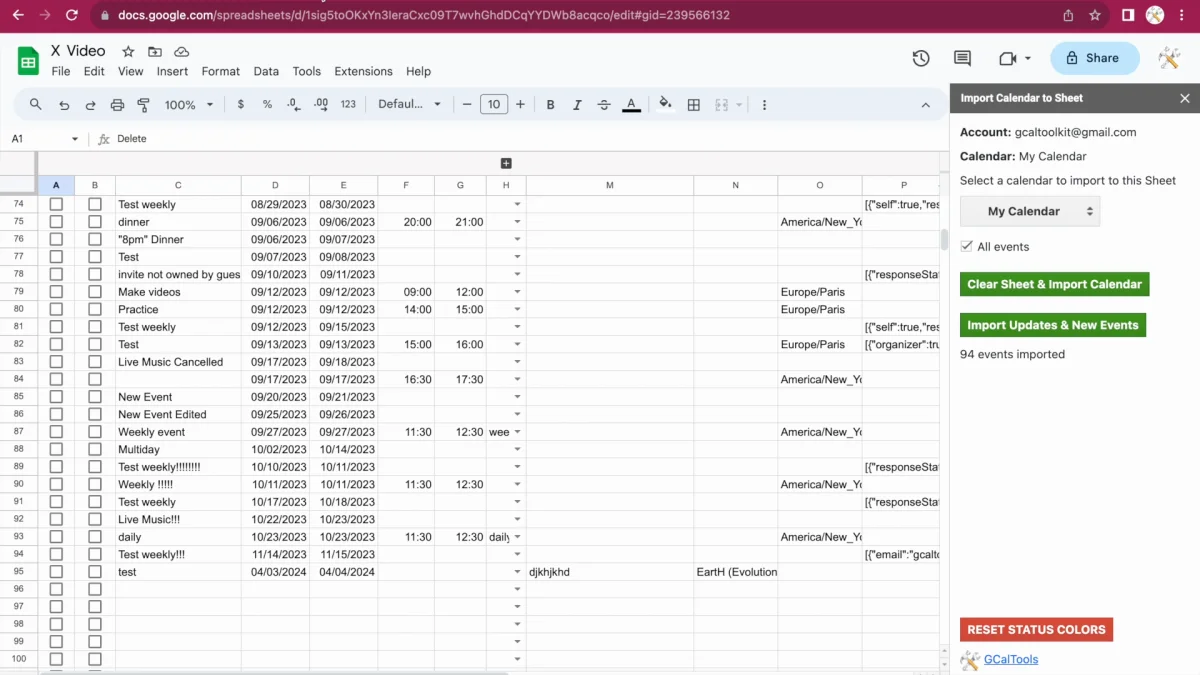
That's the right view for changing a whole series, such as a weekly repeat. But in October you only see the series that start that month, not every time they occur.
3. Import a date range
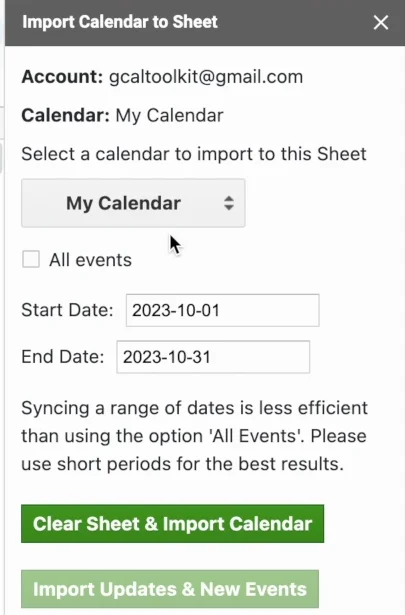
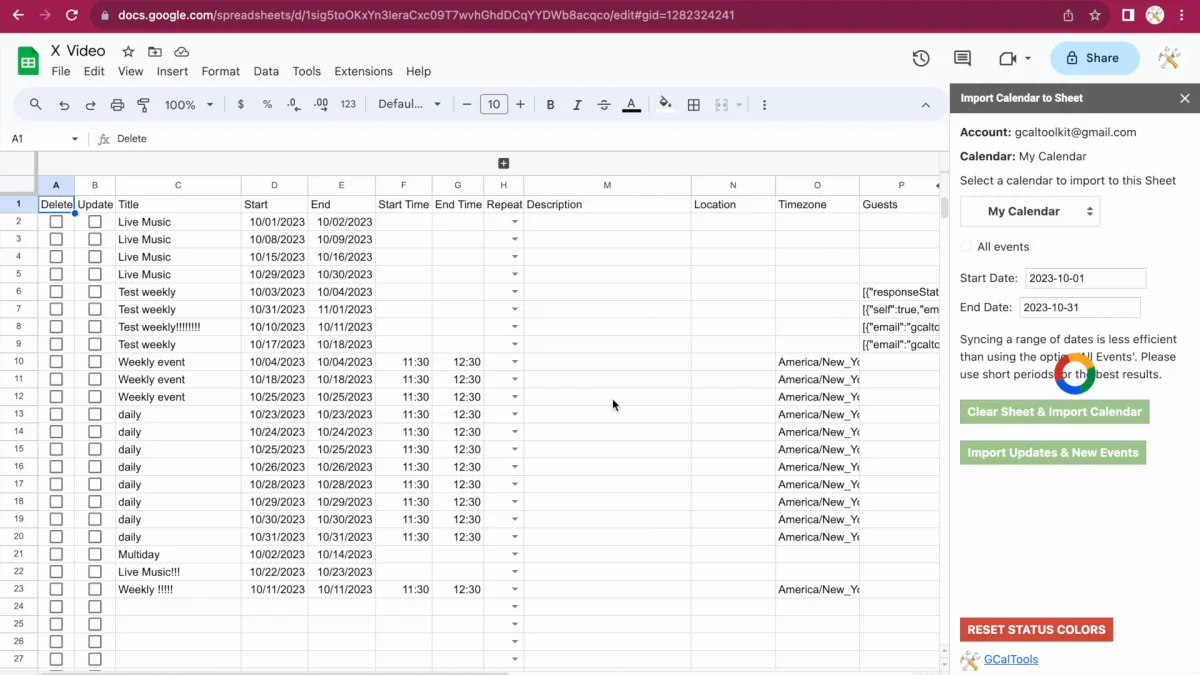
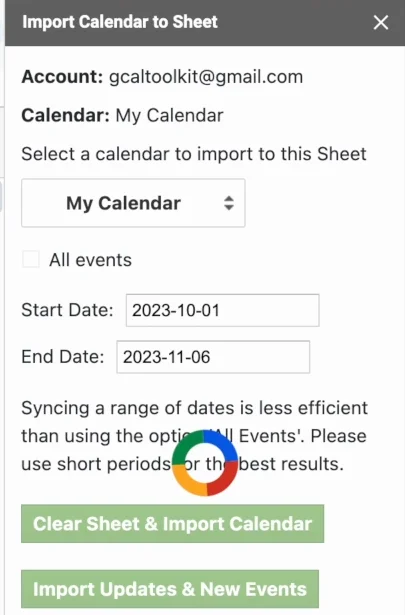
On a new sheet, untick "All events" and set a start and end date, here 1 to 31 October. The sidebar notes that a range is less efficient than all events, so keep the periods short. Then click "Clear Sheet & Import Calendar".
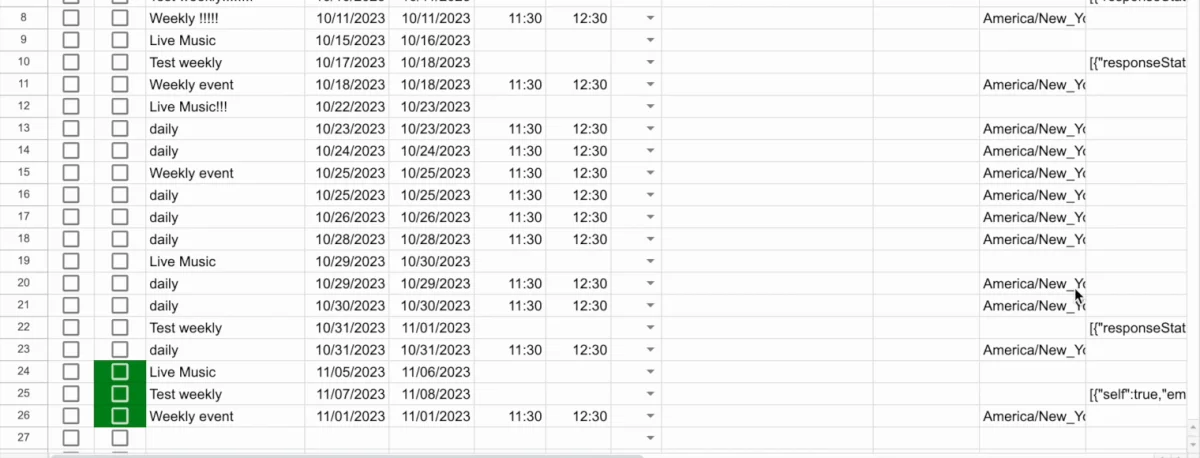
Now every event that occurs in October has its own row, just as it appears in Google Calendar. That makes it easy to update or delete single events.
4. Keep the range in sync
To bring in changes made in the calendar, click "Import Updates & New Events". You can also change the range: here the end date moves to 6 November, and importing updates adds just the missing events for the beginning of November.
Try it
Get Sheets2GCal to sync Google Calendar with Google Sheets, and see the Sheets2GCal help for every option.