
Calendars Missing in the Google Calendar App on Android? Turn On Sync
If the Google Calendar app on your Android phone shows only "My calendar" while the computer shows more, switch on Sync for the missing calendars: Settings, your account, Show more, then the calendar and its Sync switch. Calendars stay hidden in the app until they're set to sync with that phone.
This fix comes up again and again on Google's Calendar help forum.
1. Check which calendars the app shows
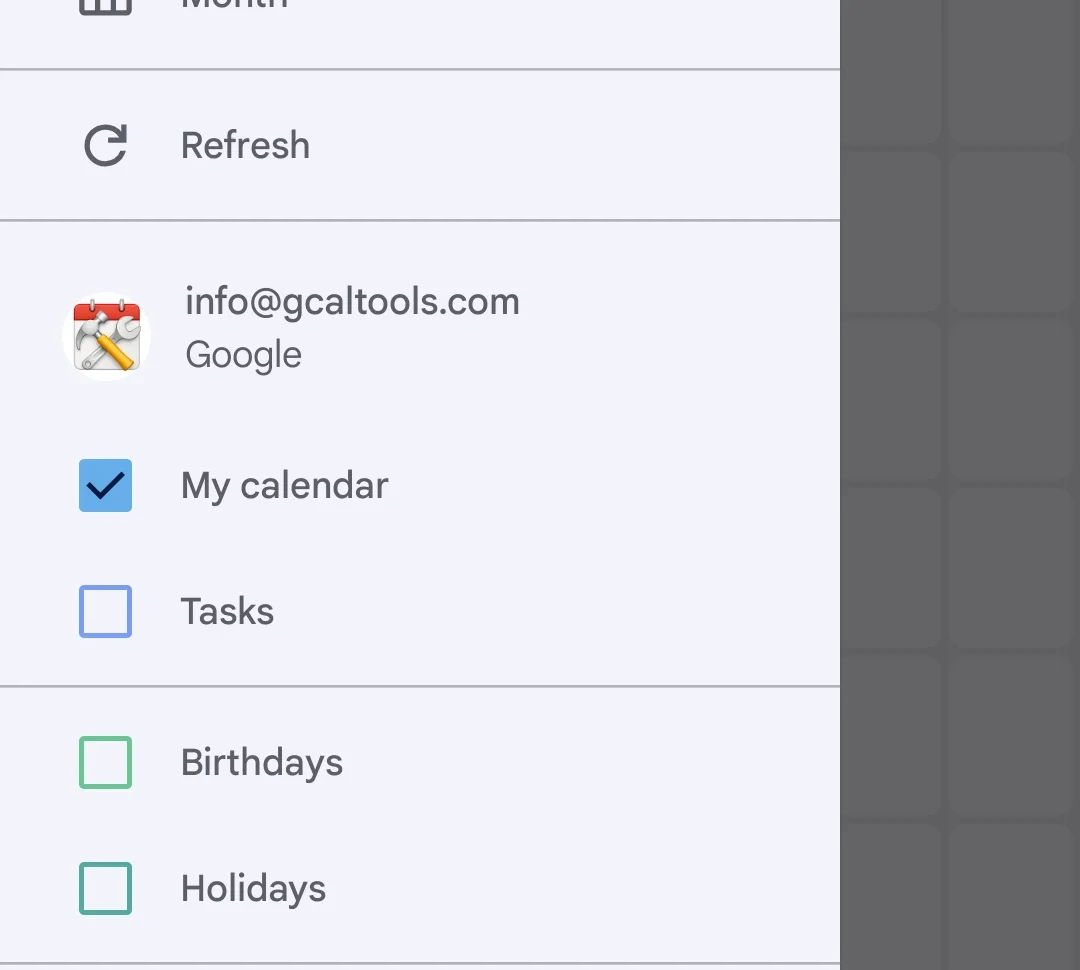
Open the app's menu. Here the account lists only My calendar, although the computer shows several more.
2. Open Settings and tap Show more
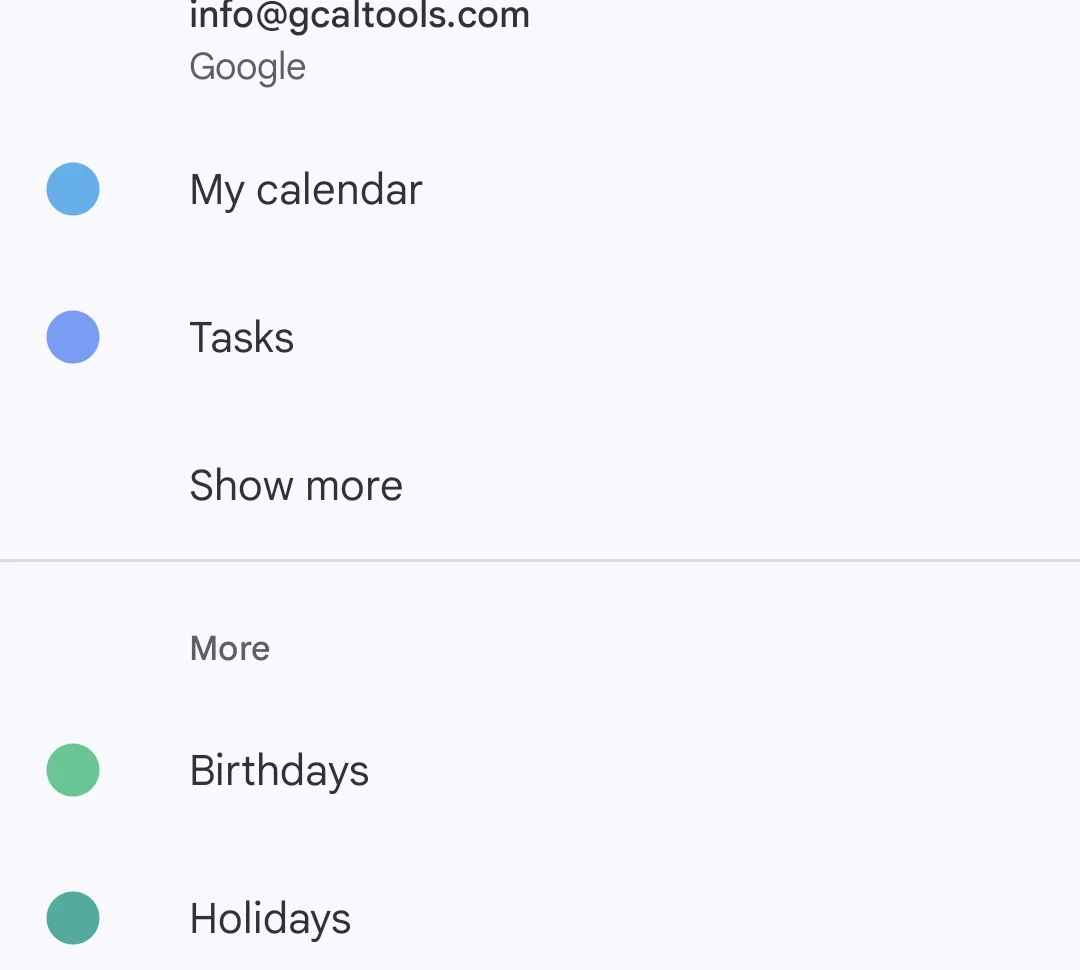
In the menu, tap Settings. Under your account, tap Show more to list every calendar of that account.
3. Switch on Sync for the missing calendar
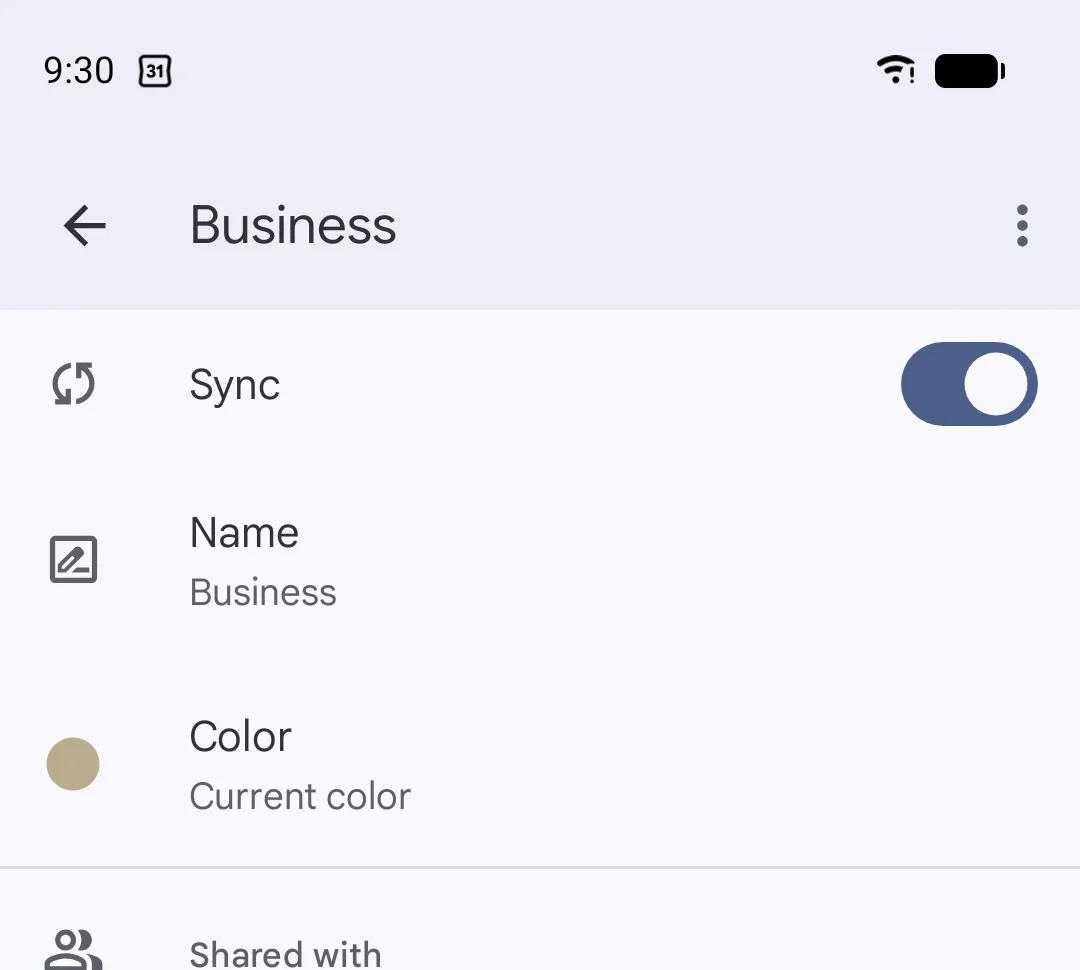
Pick the missing calendar, here Business, and switch on Sync.
4. Check the result
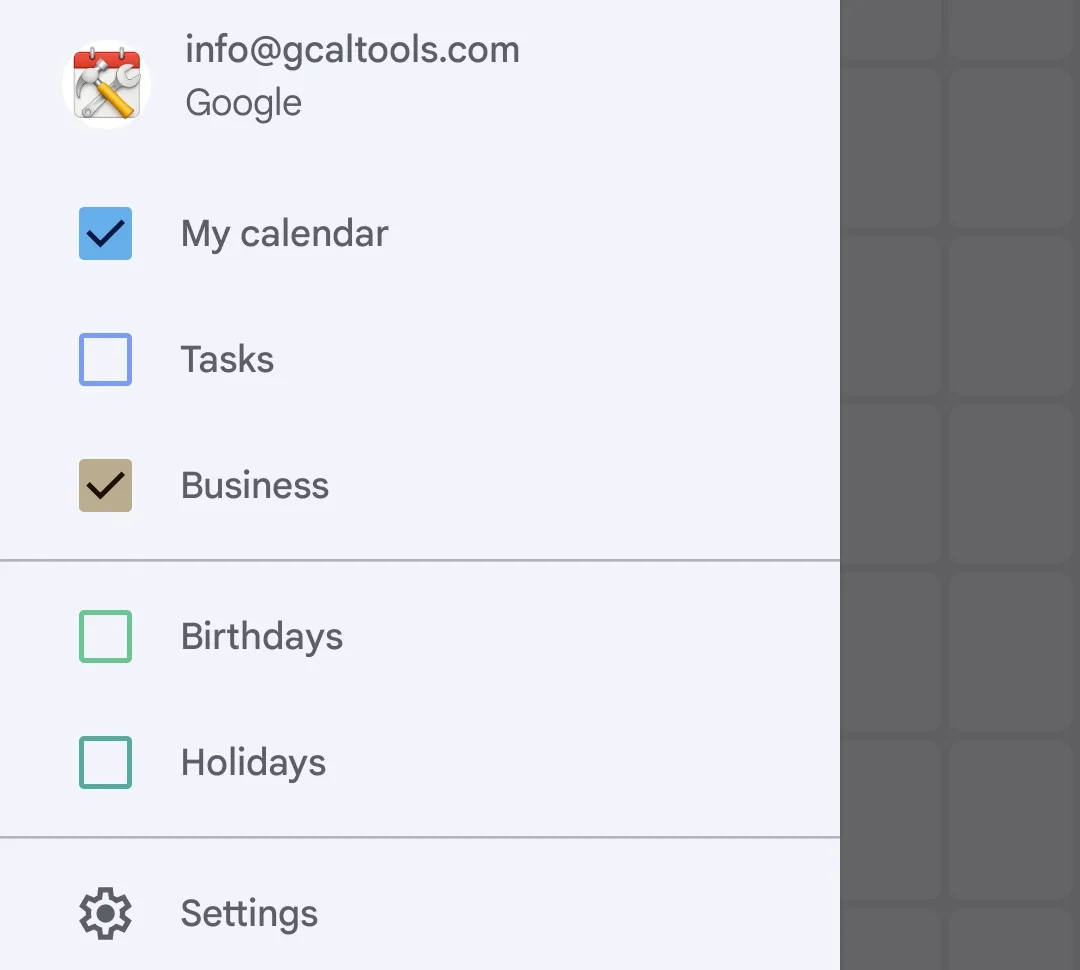
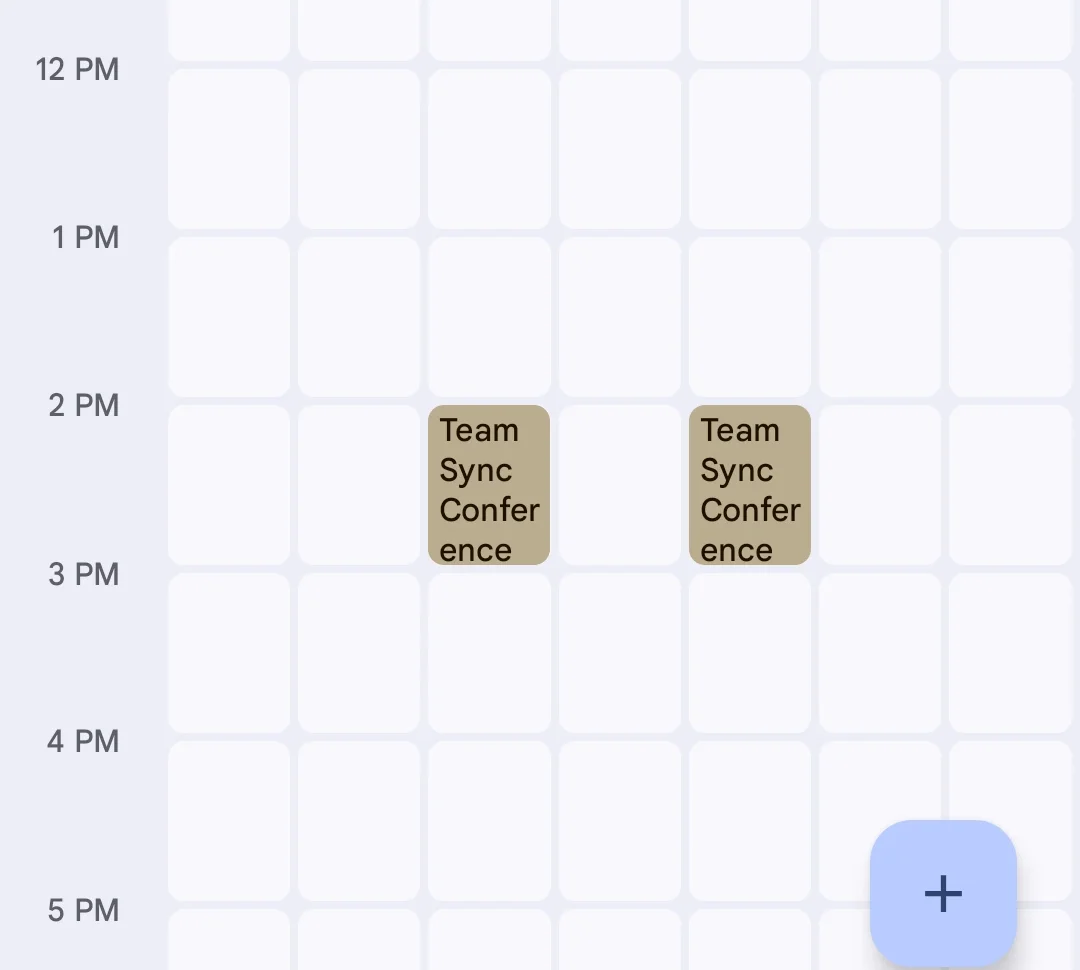
Back out to the calendar and open the menu: Business now appears under the account, and its events show in the week.
Repeat step 3 for any other calendar that's missing.
More Google Calendar fixes
Looking for more ways to get the most out of Google Calendar? See all our tutorials.