
Calendar Widget Not Showing Google Calendar Events? 3 Fixes
When a calendar widget or another calendar app on Android shows none of your Google Calendar events, first switch on "Share Google Calendar data with other apps" in Google Calendar's settings and choose your calendars again in the widget. If it's still empty, turn your account's sync off and on, and as a last resort switch the calendar's sync on from a computer with adb.
Try the fixes in order: for many people the first one is enough.
1. Share Google Calendar's data with other apps
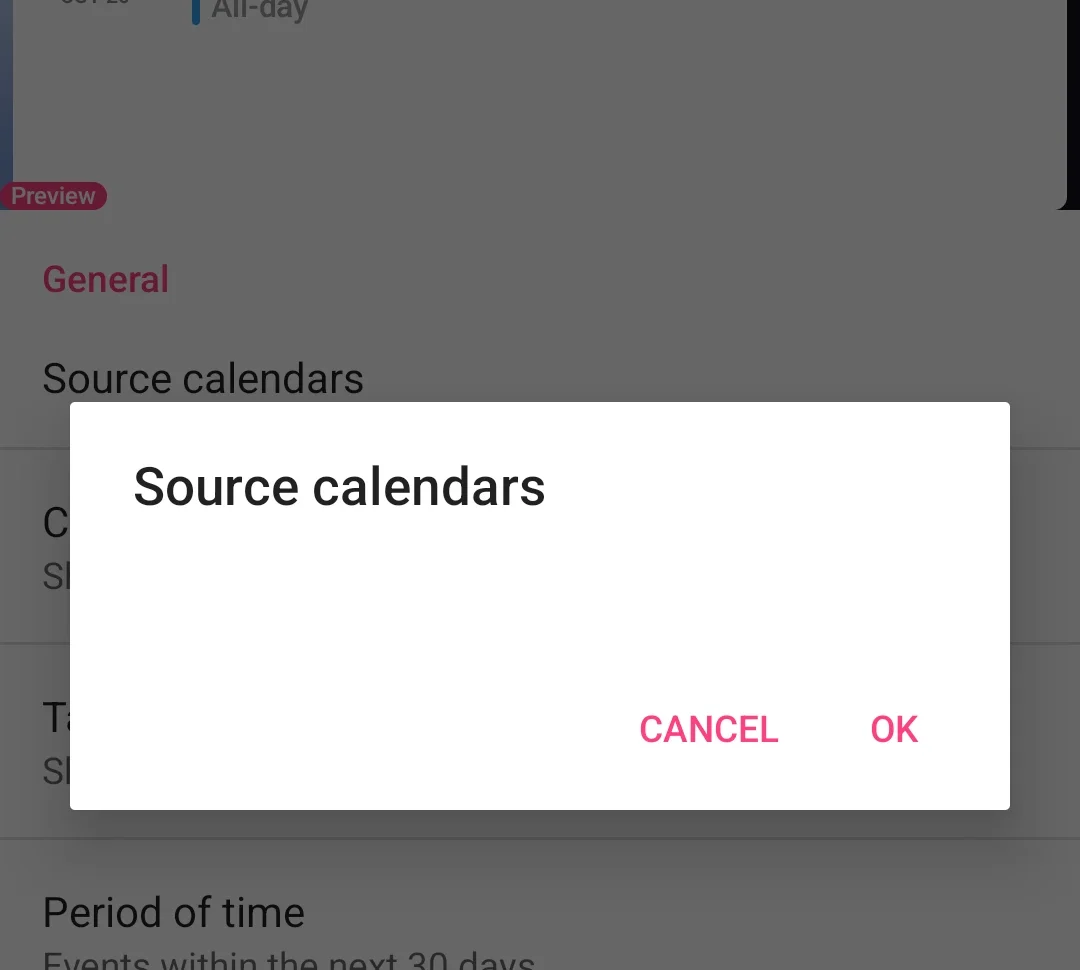
In the widget's settings, the list of source calendars is empty: Google Calendar isn't sharing anything with other apps.
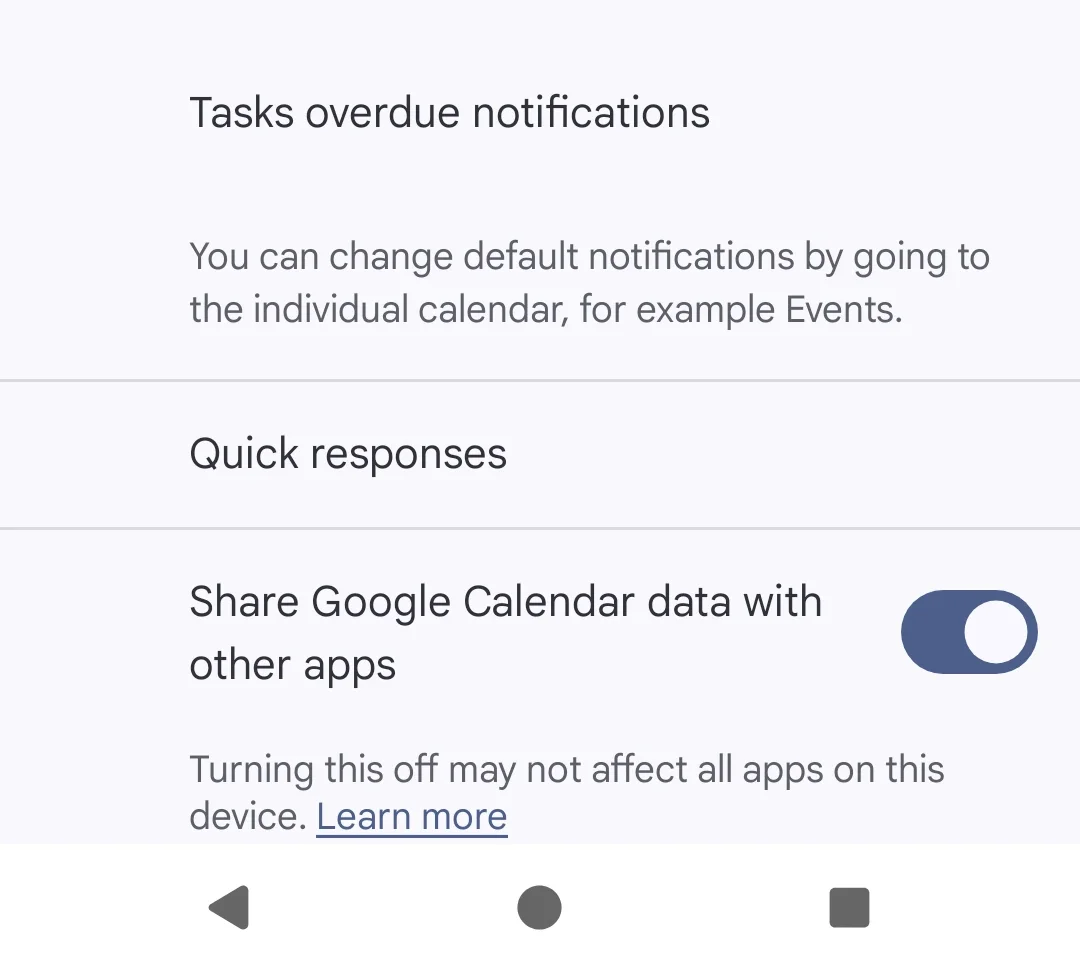
In Google Calendar, open Settings, then General. Right at the bottom, switch on "Share Google Calendar data with other apps".
2. Choose your calendars in the widget
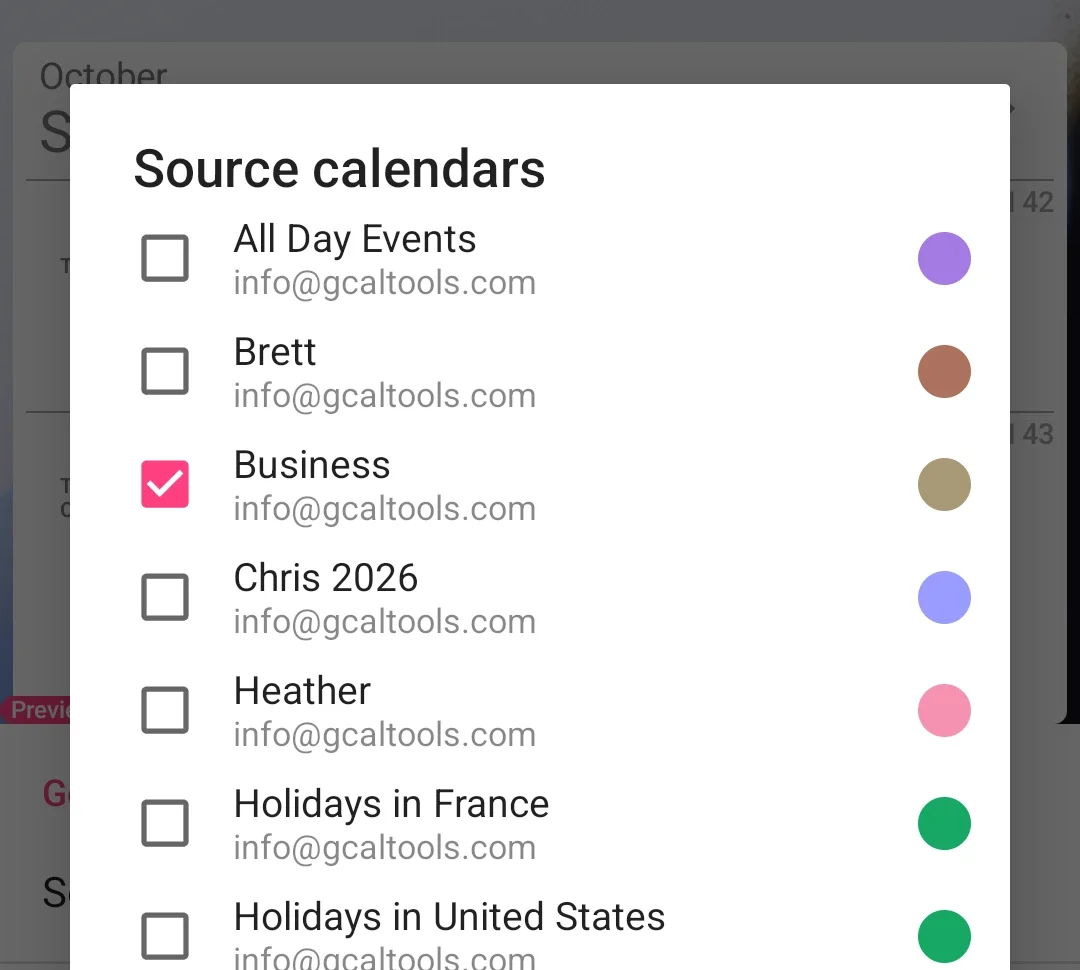
Back in the widget's settings, the calendars now appear. Tick the ones you want, here Business. If your events appear, you're done.
3. Resync your account
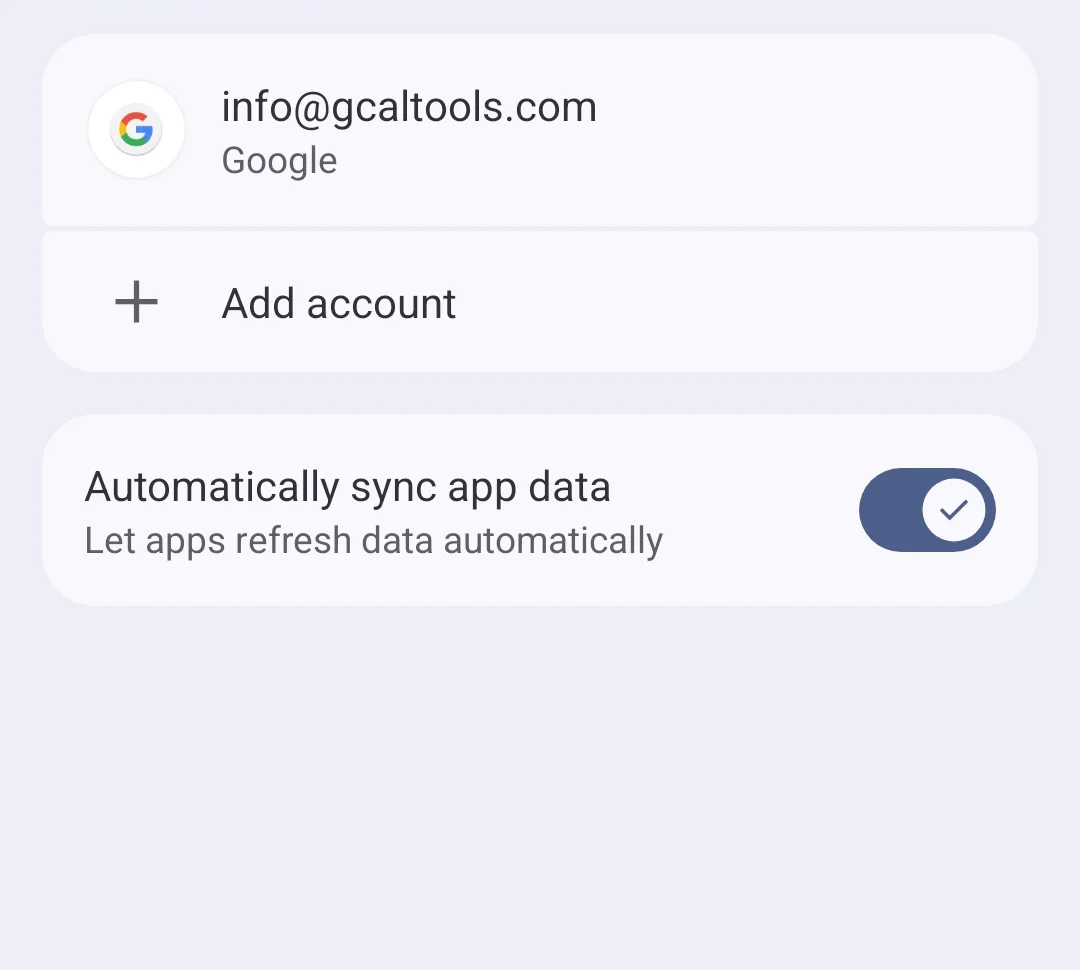
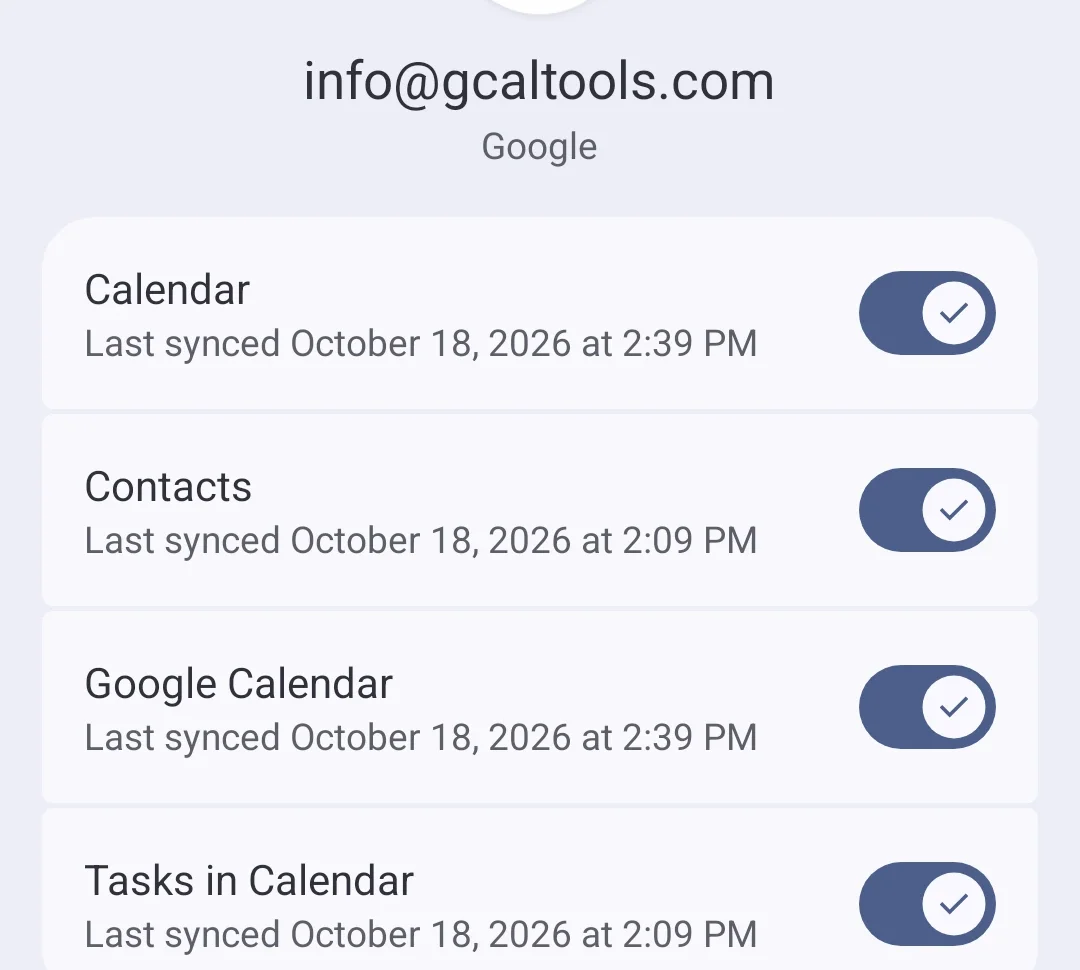
If the widget is still empty, try the phone's own sync. In the phone's Settings, open Accounts and backup, then Manage accounts. Turn "Automatically sync app data" off and on, or tap your account, then Account sync, and turn Calendar and Google Calendar off and on. Or do both.
4. Switch the calendar's sync on with adb
Still nothing? The calendar may be stuck with its sync and visibility switched off on the phone. adb, Android's command-line tool, can switch them on from a computer.
Set up adb once:
- On the phone: open Settings, About phone, and tap Build number seven times until "You are now a developer!". Then open Settings, System, Developer options and switch on USB debugging. (On some phones Build number is under About phone, Software information.)
- On the computer: download Android SDK Platform-Tools for Windows, Mac or Linux and unzip it.
- Open a terminal in the platform-tools folder. On Windows, open the folder, type
cmdin the address bar and press Enter. On a Mac, open Terminal, typecdand a space, drag the folder in and press Enter (then type./adbinstead ofadbbelow). - Connect the phone with a USB cable and tap Allow on the phone.
adb devicesshould list it.
List your calendars with their numbers:
adb shell content query --uri content://com.android.calendar/calendars --projection _id:name:sync_events:visible
Find your calendar in the list. Here, Business has _id=16, with sync_events=0 and visible=0, so widgets can't see it. Put your calendar's number in place of NUMBER in both of these:
adb shell content update --uri content://com.android.calendar/calendars --where _id=NUMBER --bind sync_events:i:1
adb shell content update --uri content://com.android.calendar/calendars --where _id=NUMBER --bind visible:i:1
Run the first command again to confirm both are now 1, then check the widget.
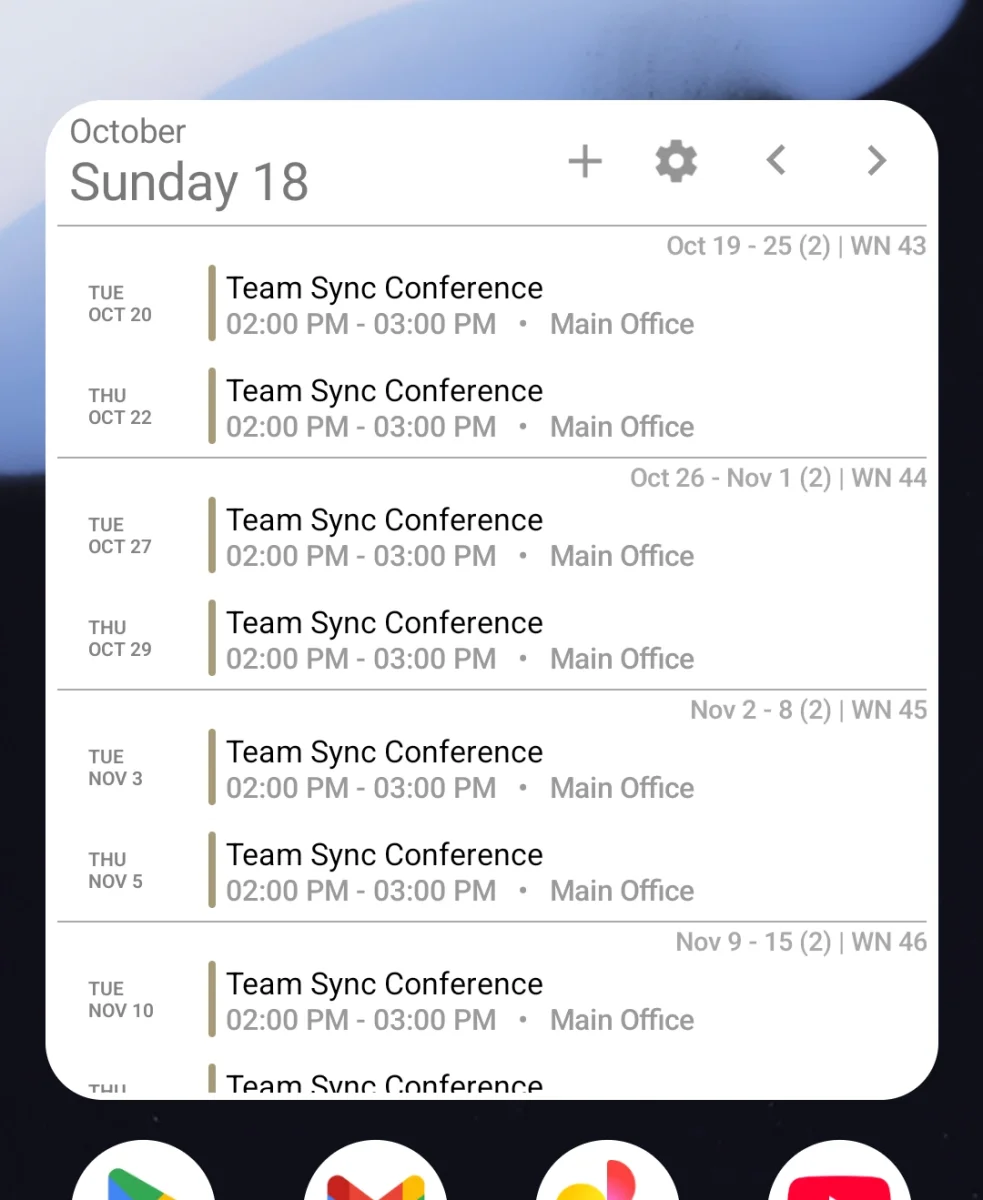
The widget fills up, and so does every other calendar app on the phone.
More Google Calendar fixes
Looking for more ways to get the most out of Google Calendar? See all our tutorials.