
Move a Local Phone Calendar into Google Calendar on Android
To move a local phone calendar into Google Calendar, export it to a file with an Android app such as Calendar Sync, then import that file into Google Calendar in a browser. The Google Calendar app can show a local calendar, but it can't export it.
This matters when events don't sync, or don't appear on a new phone even after you add your Google account: they were probably saved to a local calendar on the phone instead of a Google one. Moving them across is also a quick way to keep a copy before changing phones.
1. Find the local calendar
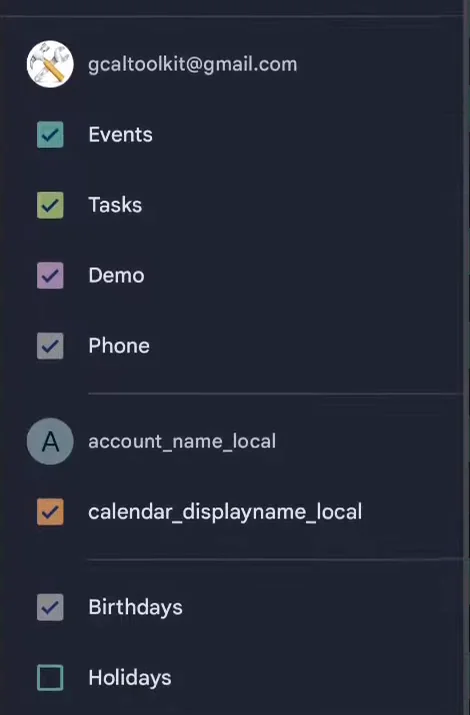
Open the Google Calendar app's menu. Calendars stored only on the phone are listed under a separate local account, not under your Google account. Here, the local calendar is called calendar_displayname_local.
2. Export it with Calendar Sync
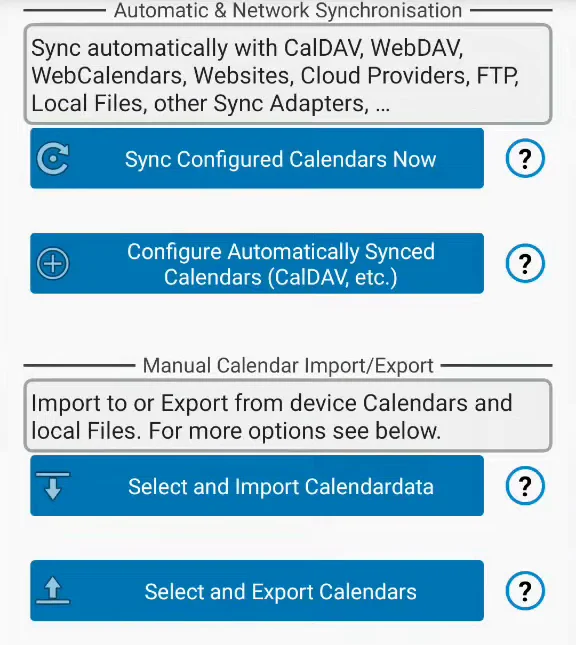
Install the free app Calendar Sync Trial from Google Play, open it and tap "Select and Export Calendars".
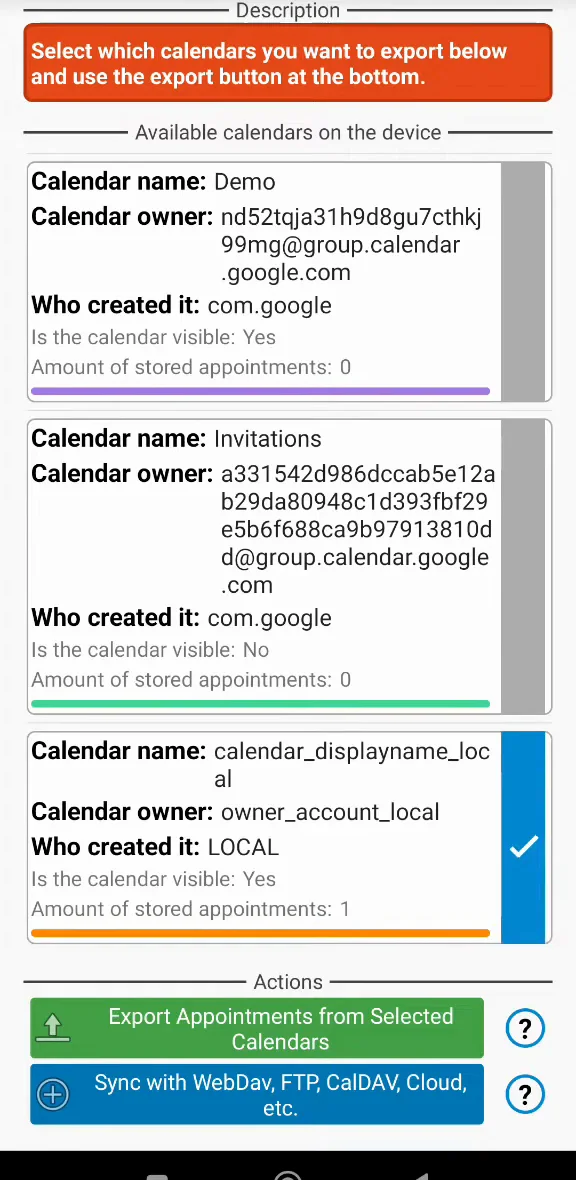
The app lists every calendar on the phone. Select the local one, here calendar_displayname_local, then tap "Export Appointments from Selected Calendars".
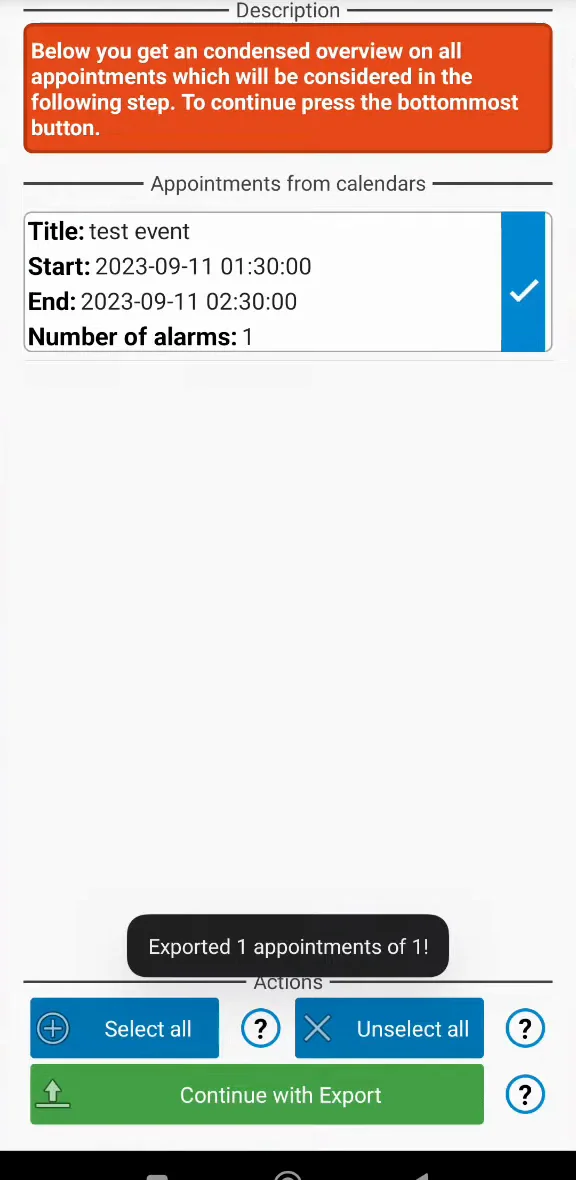
Check the events it found and tap "Continue with Export".
Choose to save the file to your device. Calendar Sync confirms with "Export of calendars completed!".
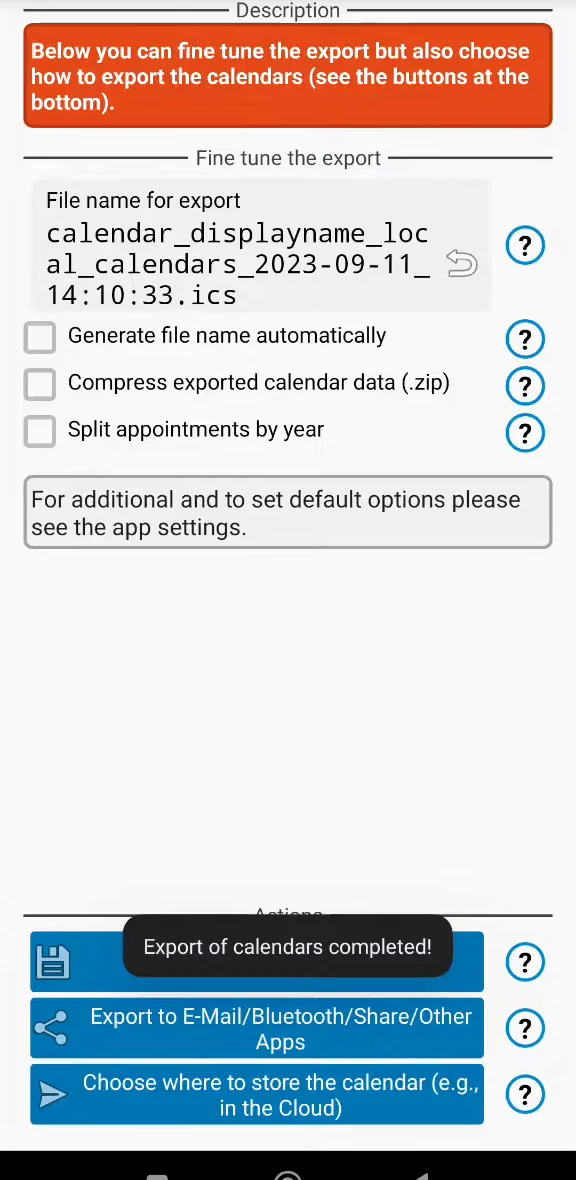
3. Import the file into Google Calendar
The Google Calendar app can't import files, so open Google Calendar's import settings in a browser (on a phone, see how to use Google Calendar in a mobile browser). Under Import, click "Select file from your computer" and pick the exported .ics file.
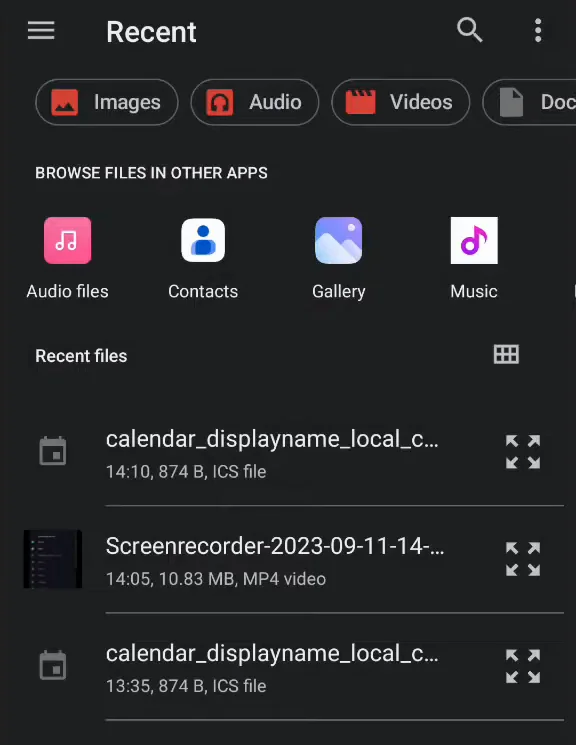
Under "Add to calendar", choose the Google calendar the events should go to, and click Import. Google Calendar reports how many events it imported, and they now sync to every device signed in to your Google account.
More Google Calendar fixes
Looking for more ways to get the most out of Google Calendar? See all our tutorials, or watch the Google Calendar Tips and Tricks playlist.