
Google Calendar Import Failed? How to Import Large iCal Files (Free)
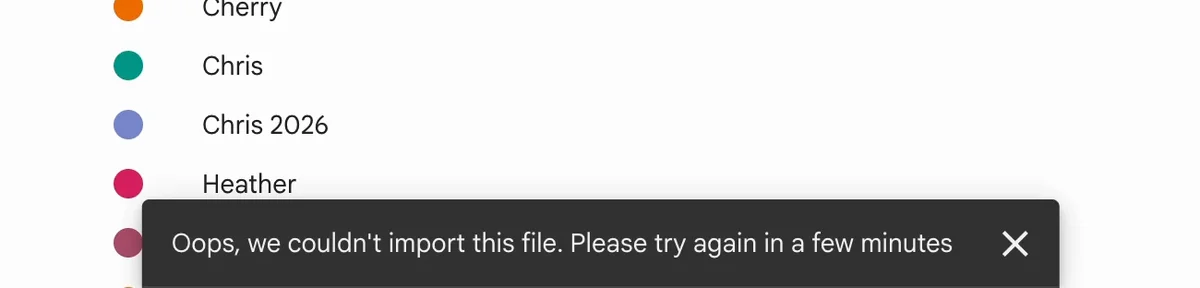
If Google Calendar says "Oops, we couldn't import this file. Please try again in a few minutes", your iCal (.ics) file is too big: Google Calendar only imports about 1,100 events per file. Split the file into parts of 1,000 events with GCalTools iCalSplitter and import them one by one, or import the whole file in one go with WebTools, free.
Trying again in a few minutes doesn't help, because the file stays the same size.
1. The import that fails
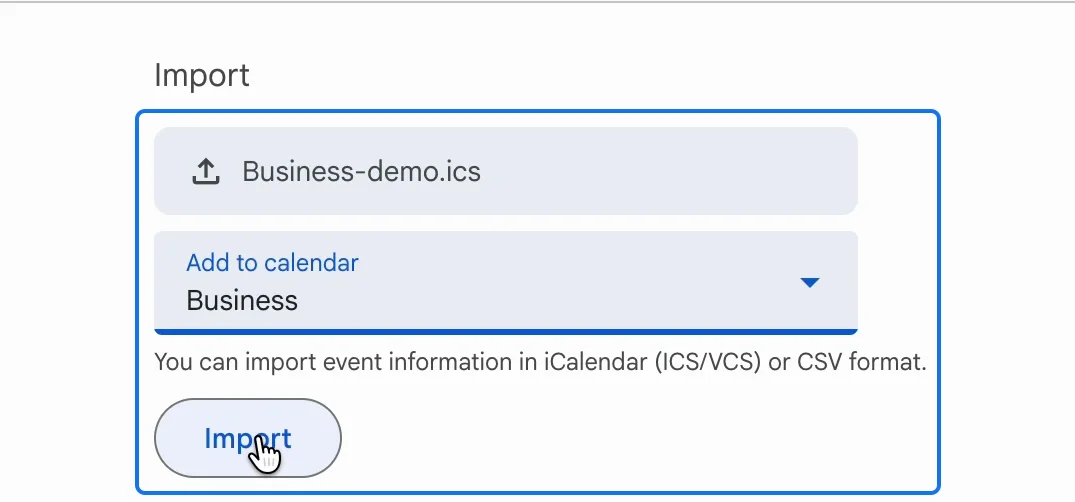
In Google Calendar, open Settings, then "Import & export". Select the file, choose the calendar to add it to, and click Import. With a large file, Import stays greyed out for a couple of minutes, then the error appears at the bottom of the screen.
2. Fix 1: split the file with GCalTools iCalSplitter
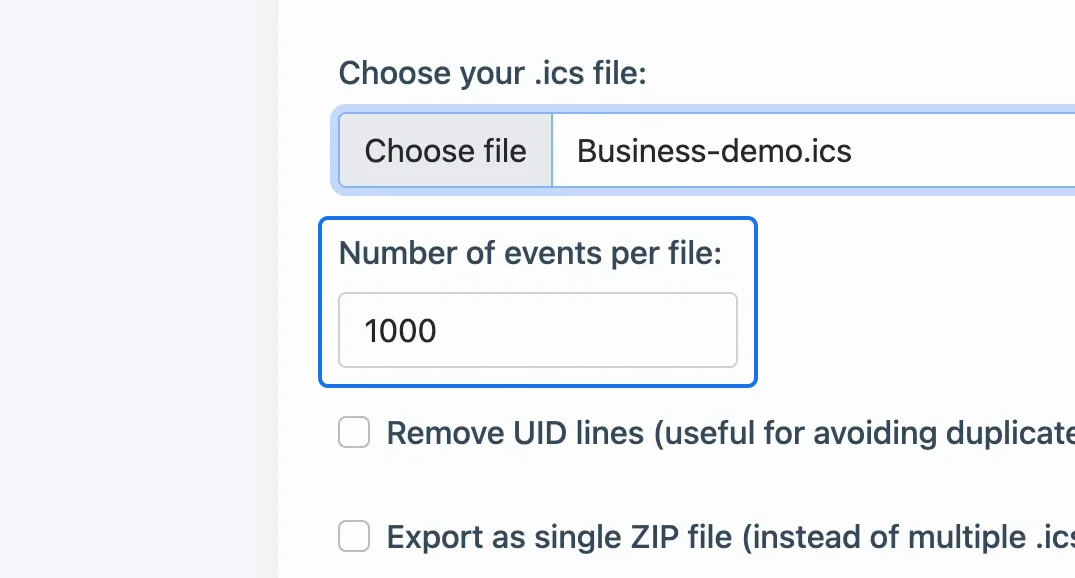
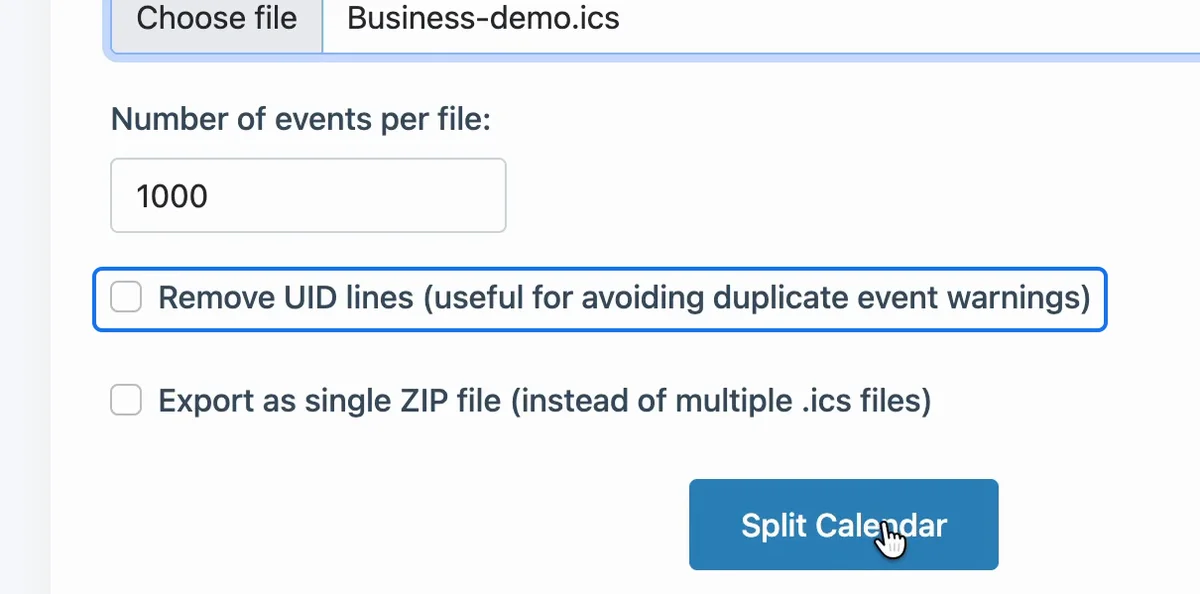
Open GCalTools iCalSplitter, choose your .ics file, keep "Number of events per file" at 1000, and click "Split Calendar". It works in your browser, so the file isn't uploaded anywhere. The parts download as separate files: Business-demo_1.ics, Business-demo_2.ics and so on.
3. Import the parts one by one
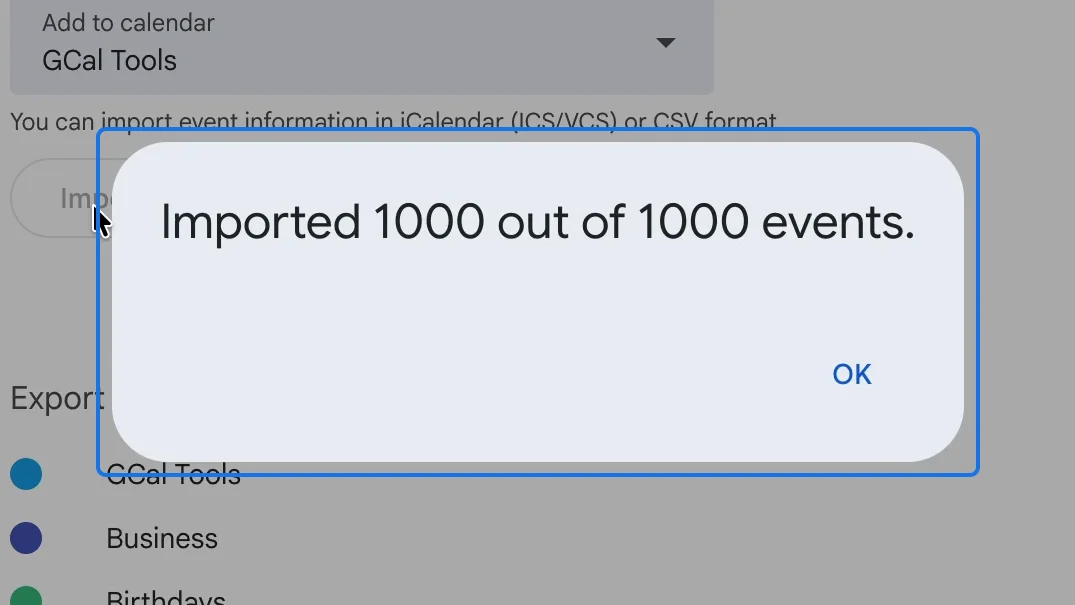
Back in Google Calendar's "Import & export", import each part on its own. Each part is small enough: for the first one, Google Calendar reports "Imported 1000 out of 1000 events."
If the parts still fail, which can happen with your main calendar, split the file once more with the checkbox "Remove UID lines" ticked.
4. Fix 2: import the whole file with WebTools
With a big calendar, that's a lot of parts. WebTools imports an .ics file of any size in one go. Open it, click "Sign in with Google" and allow it access to your calendars. The Import iCal tab opens.
5. Choose the file and the calendar
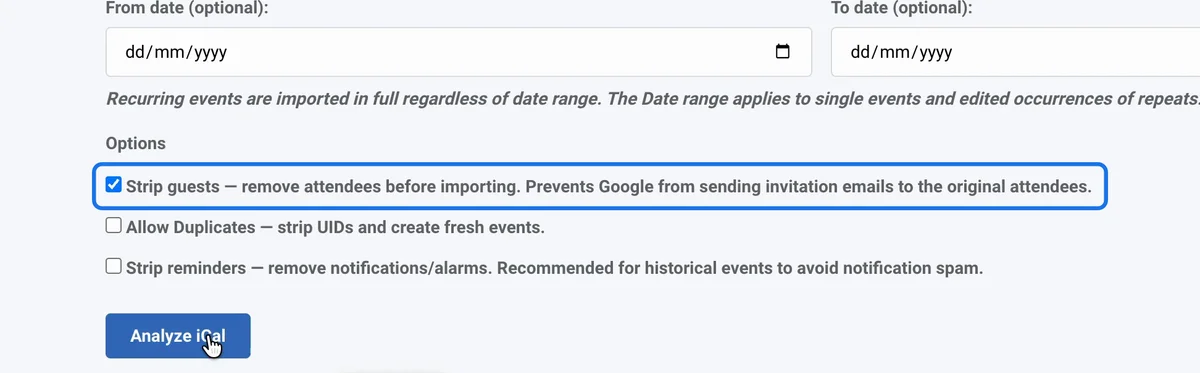
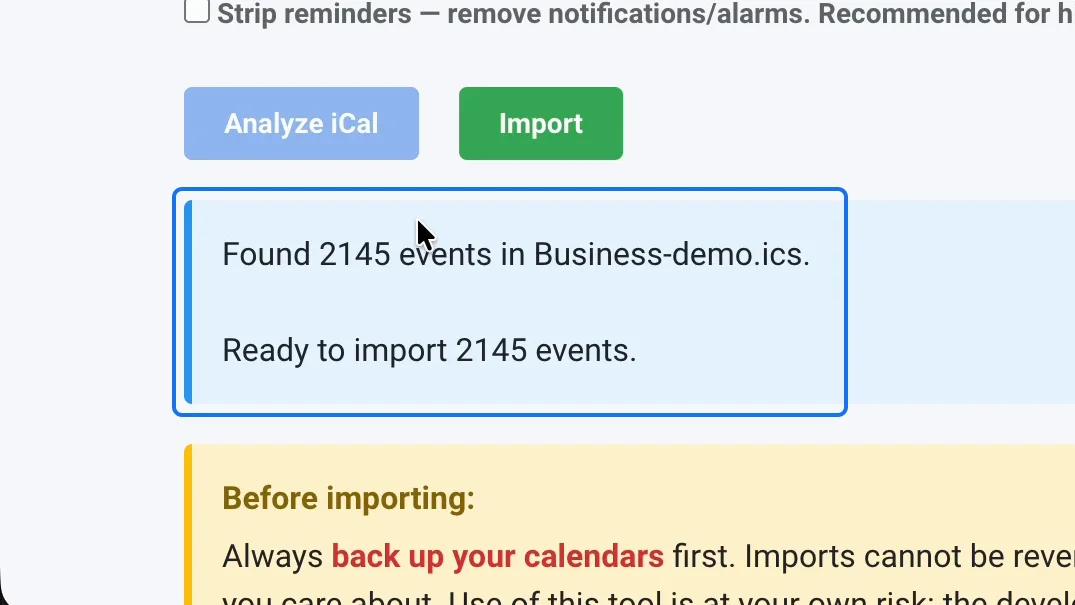
Choose your .ics file and the target calendar. The checkbox "Strip guests" is ticked, so the events' guests don't get an invitation. Click "Analyze iCal": WebTools reads the file in your browser and reports how many events it found.
6. Import
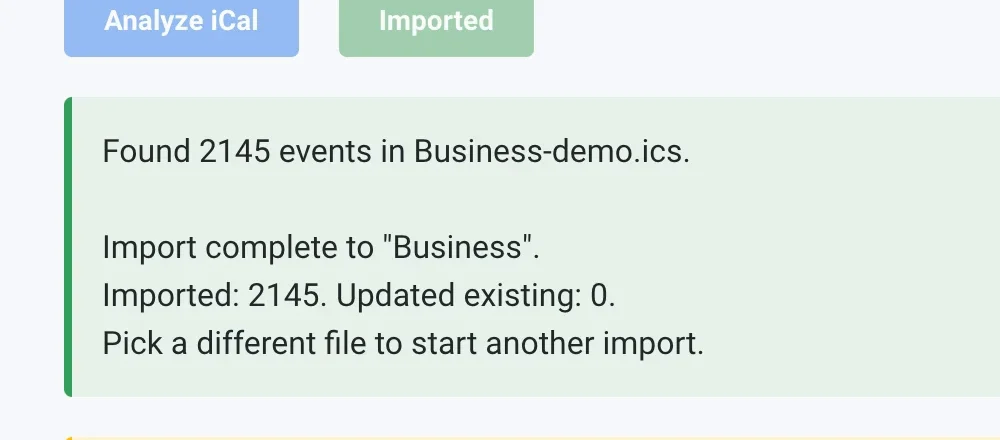
Click Import. WebTools sends the events to Google 50 at a time and shows its progress, with a Pause button. A file of 2,145 events took about four minutes.

When it finishes, it reports how many events it imported, and the calendar is full.
Watch the full playlist on YouTube
Try it
Import calendars of any size for free with WebTools, and discover all our calendar tools at gcaltools.com.