
Search Google Calendar by colour with GCalPlus
Google Calendar can't search by colour, but GCalPlus can. Its search panel sits beside your calendar and finds events by colour (Google Calendar's labels), calendar and text, and selecting a result opens it in Google Calendar.
1. Open the search panel
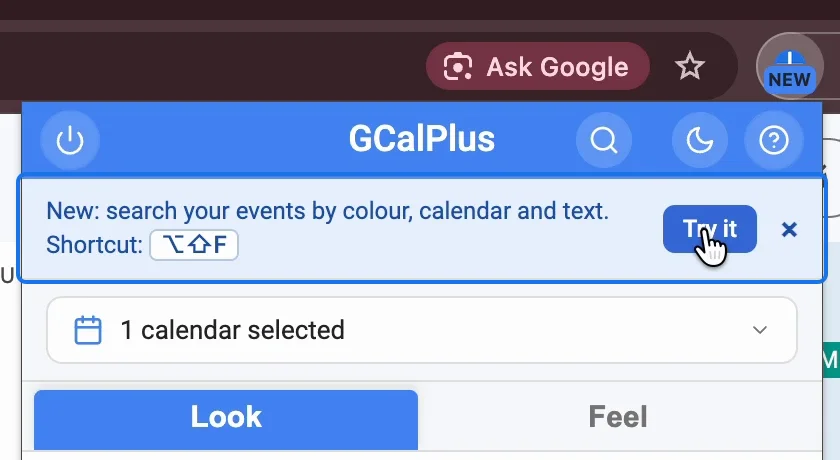
If you've recently updated GCalPlus, its toolbar icon says "New". Open it and click "Try it", or press Alt+Shift+F (Option+Shift+F on a Mac) on any tab.
2. Filter by colour or label
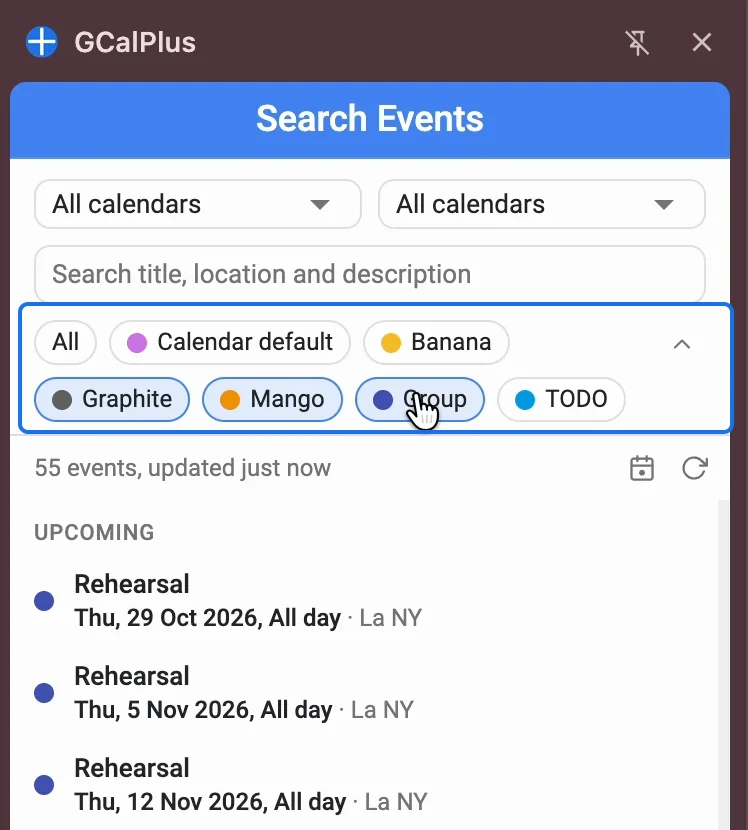
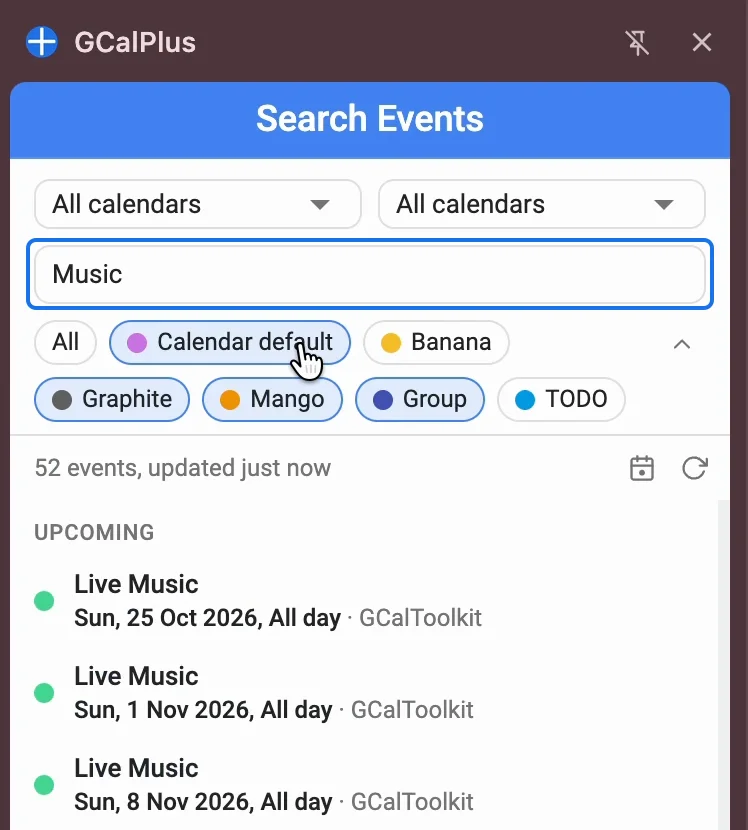
Each chip is a colour used in your calendars. Google Calendar now calls colours labels, and you can rename them: a renamed label shows under its name, such as Group and TODO here. Select one to show only its events, or several to combine them.
3. Open a result in Google Calendar
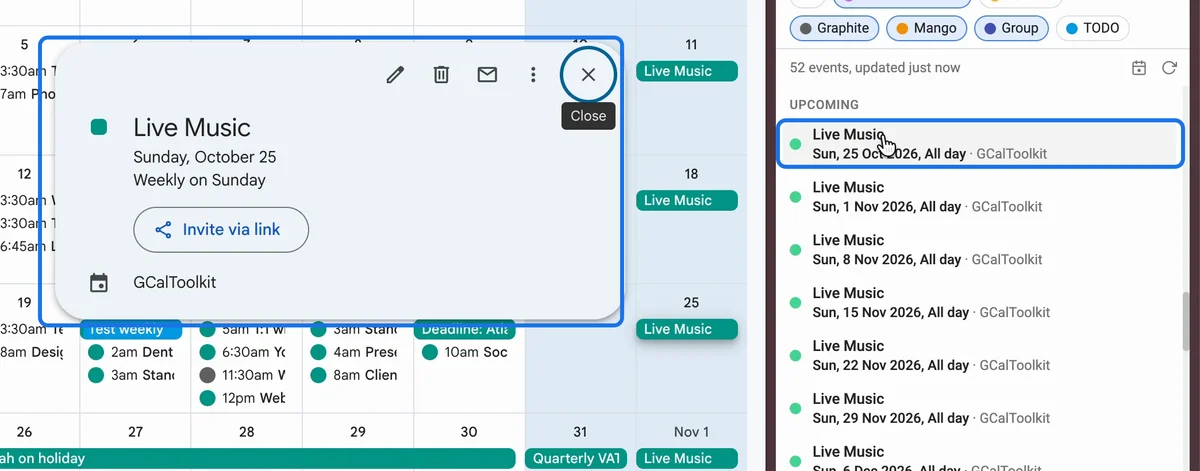
Select a result, and Google Calendar jumps to that day and opens the event.
4. Choose the calendars to search
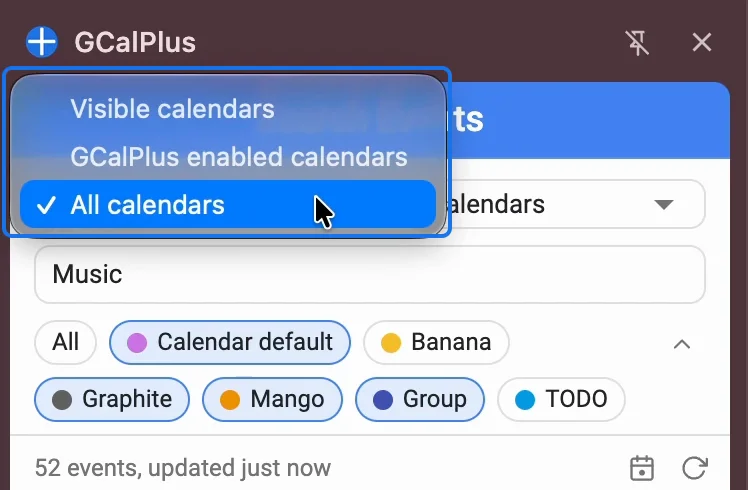
"All" clears the colours. The first list chooses which calendars to search: the ones visible in Google Calendar, the ones GCalPlus uses, or all of them. The second picks a single calendar.
5. Search by text
Typing matches titles, locations and descriptions, in upper or lower case.
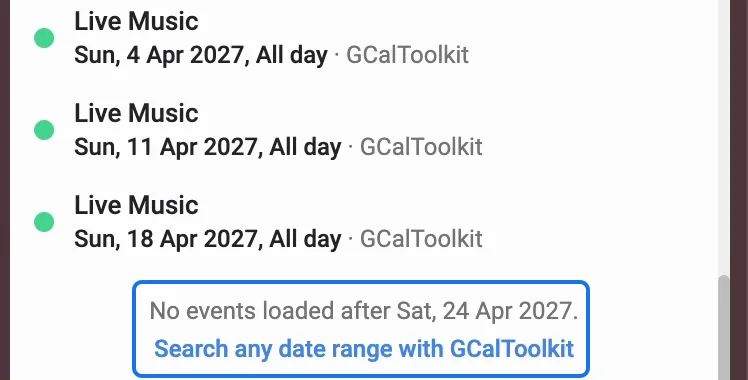
6. Six months either side of today
To keep it fast, results cover six months before and after today. Scroll to either end of the list to see where they stop. To search entire calendars, use GCalToolkit.
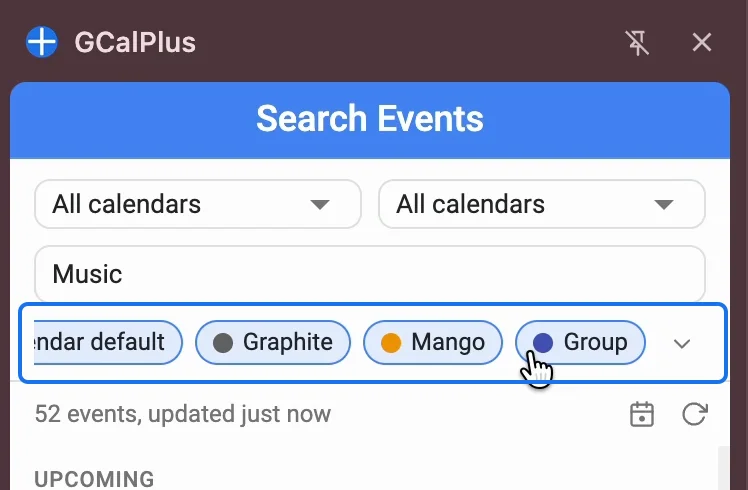
7. Fold the colours away
The arrow at the end of the colours folds them down to just the ones you selected, and the row scrolls sideways when they don't fit.
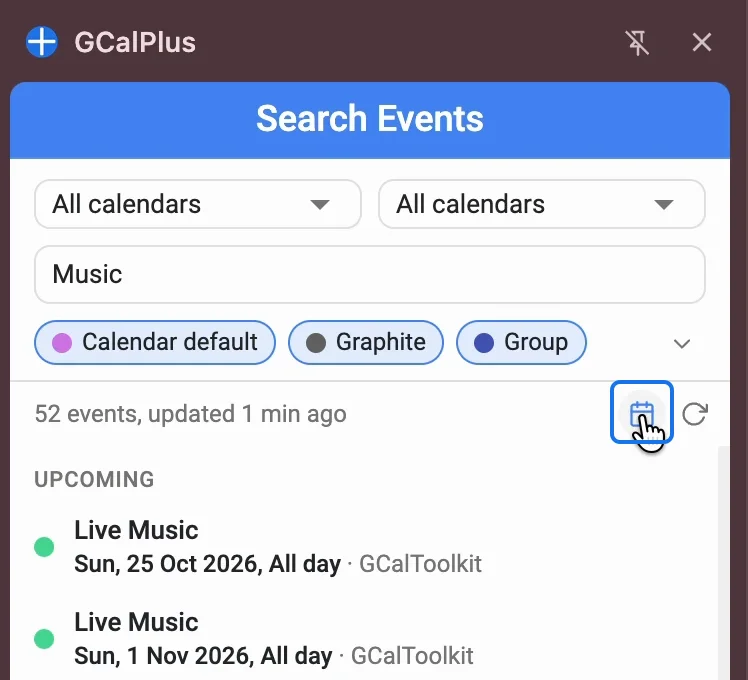
8. Past events and back to today
The list opens at today. Past events sit above "Upcoming", in grey, and the calendar button brings you back to now.
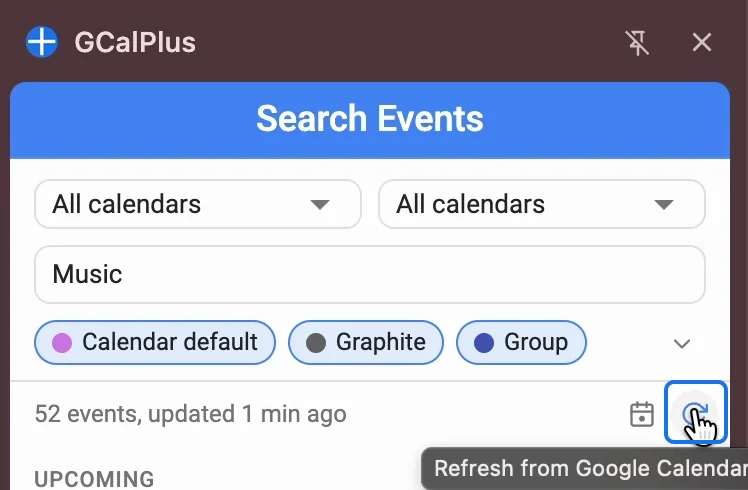
9. Refresh
Events stay loaded until Chrome closes, so reopening the panel is instant. "Refresh" downloads them again.
Try it
Get GCalPlus free from the Chrome Web Store. For any date range and more filters, download GCalToolkit, and see all our calendar tools.