
GCalPlus for Google Calendar: Busy Days, Hover Titles and Multiple Copy
GCalPlus is a free Chrome extension that adds the options Google Calendar is missing: busy days highlighted in the small calendar, full event titles when you hover, a one-click busy or free switch, copying an event to several dates at once, and much more. Install it from the Chrome Web Store, connect your Google account, then tick the options you want.
1. Install GCalPlus
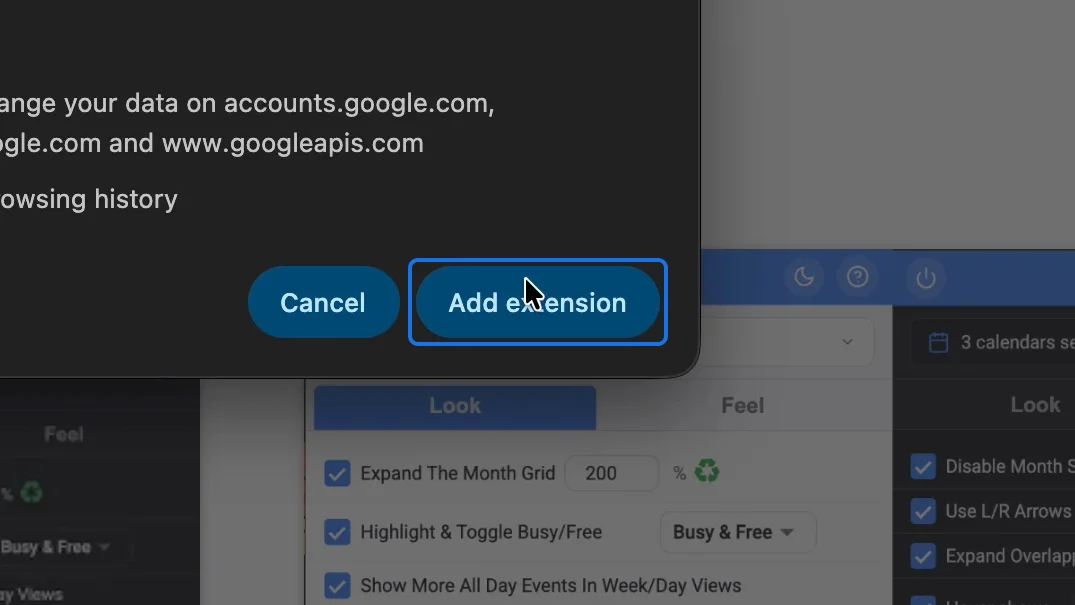
Open GCalPlus in the Chrome Web Store, click "Add to Chrome", then "Add extension".
2. Connect your Google account
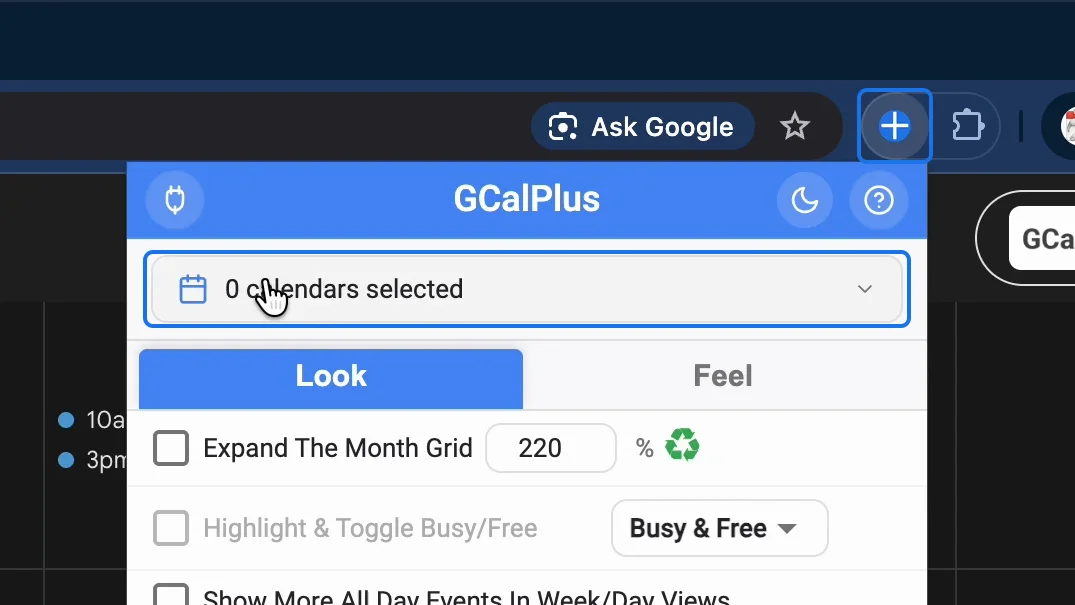
Open Google Calendar and click the GCalPlus icon in Chrome's toolbar. The GCalPlus panel opens over your calendar; to choose your calendars, connect your Google account.
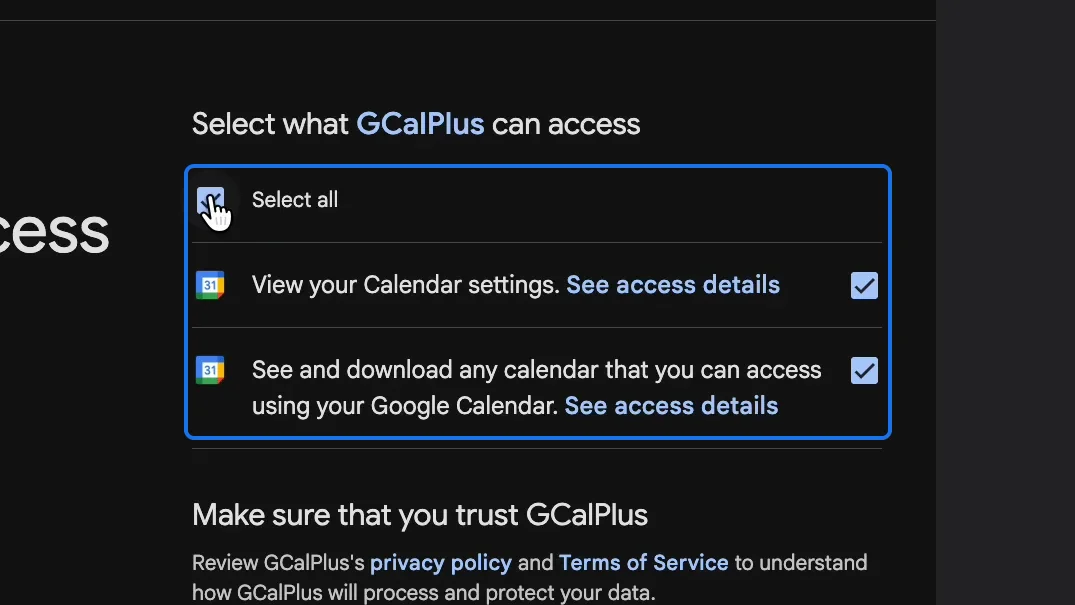
Google asks what GCalPlus may see: your calendar settings, and your calendars. Both are read only. Tick them, and click Continue.
3. Choose your calendars
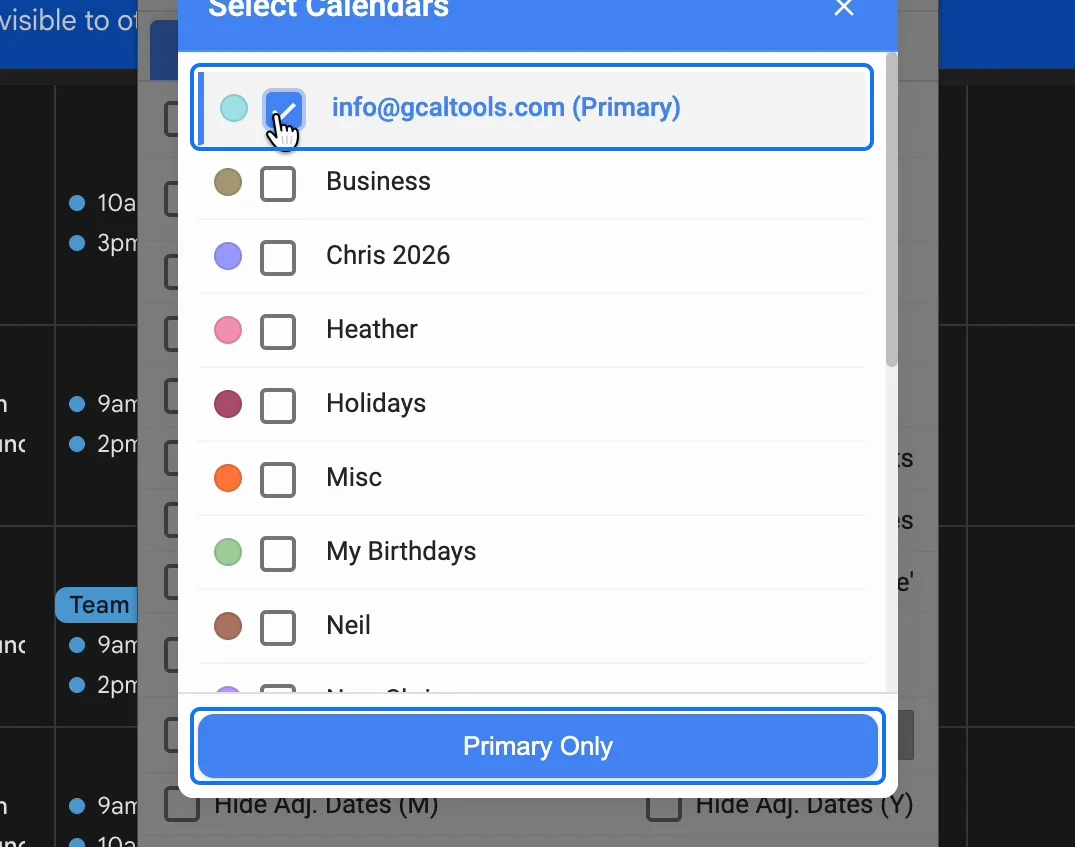
Click the calendars box at the top of the panel and tick the calendars GCalPlus should work with. "Primary Only" picks just your main calendar.
The moon at the top of the panel switches it between dark and light.
4. Change how the calendar looks
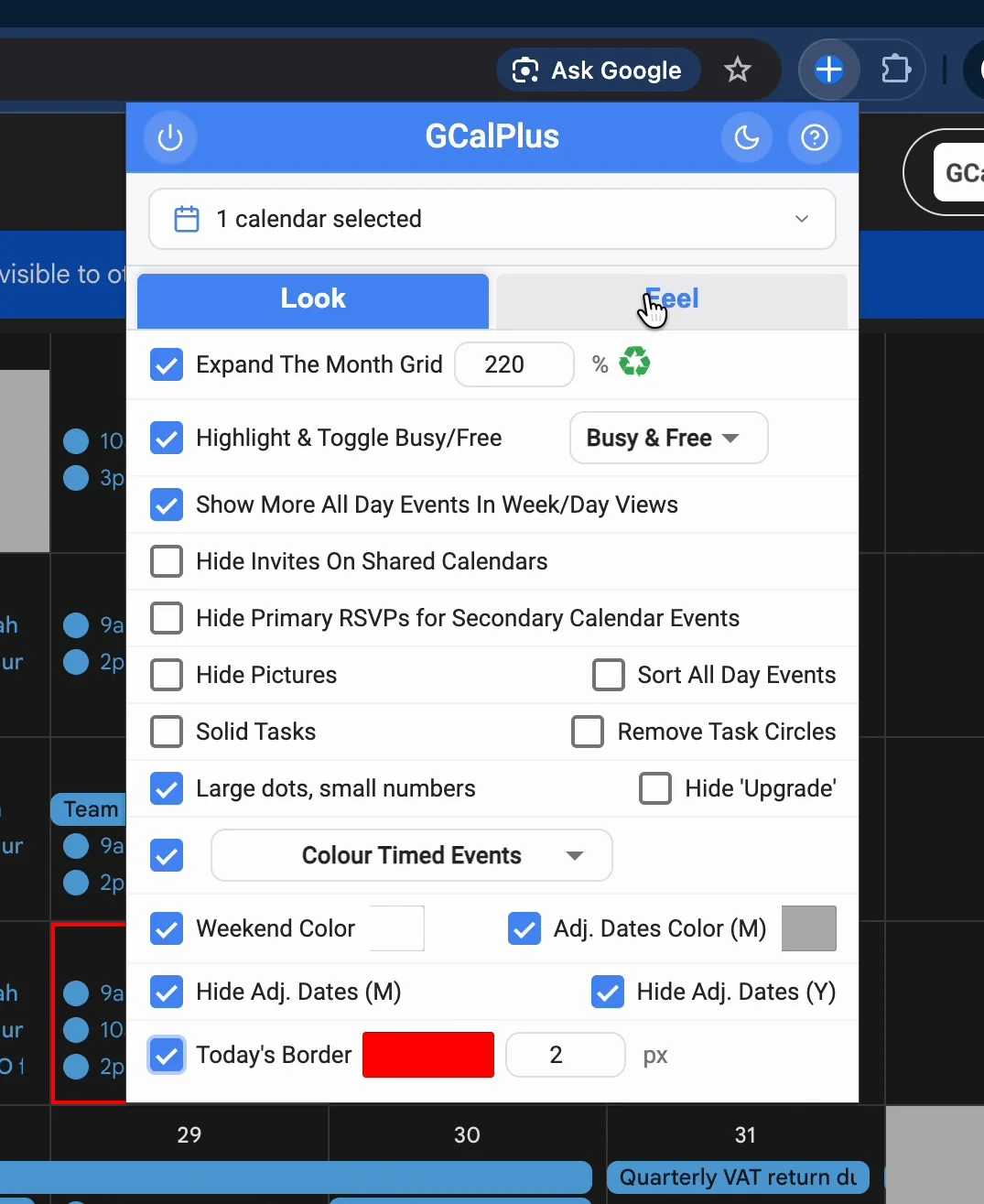
The Look tab changes Google Calendar's appearance. Among its options:
- Expand The Month Grid: taller rows, so each day shows more events.
- Highlight & Toggle Busy/Free: busy days in the small calendar, and a busy or free switch in each event.
- Show More All Day Events In Week/Day Views, Large dots and small numbers, and Colour Timed Events.
- Weekend Color, Adj. Dates Color and Hide Adj. Dates, for the days before and after the month.
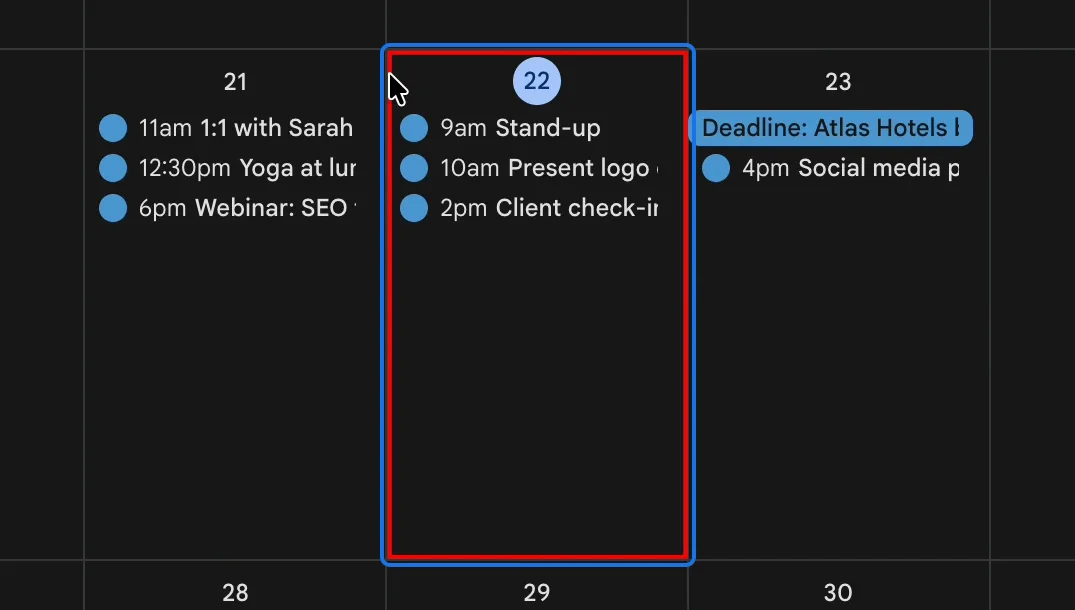
- Today's Border: an outline around today, in the colour and width you choose.
5. Change how it behaves
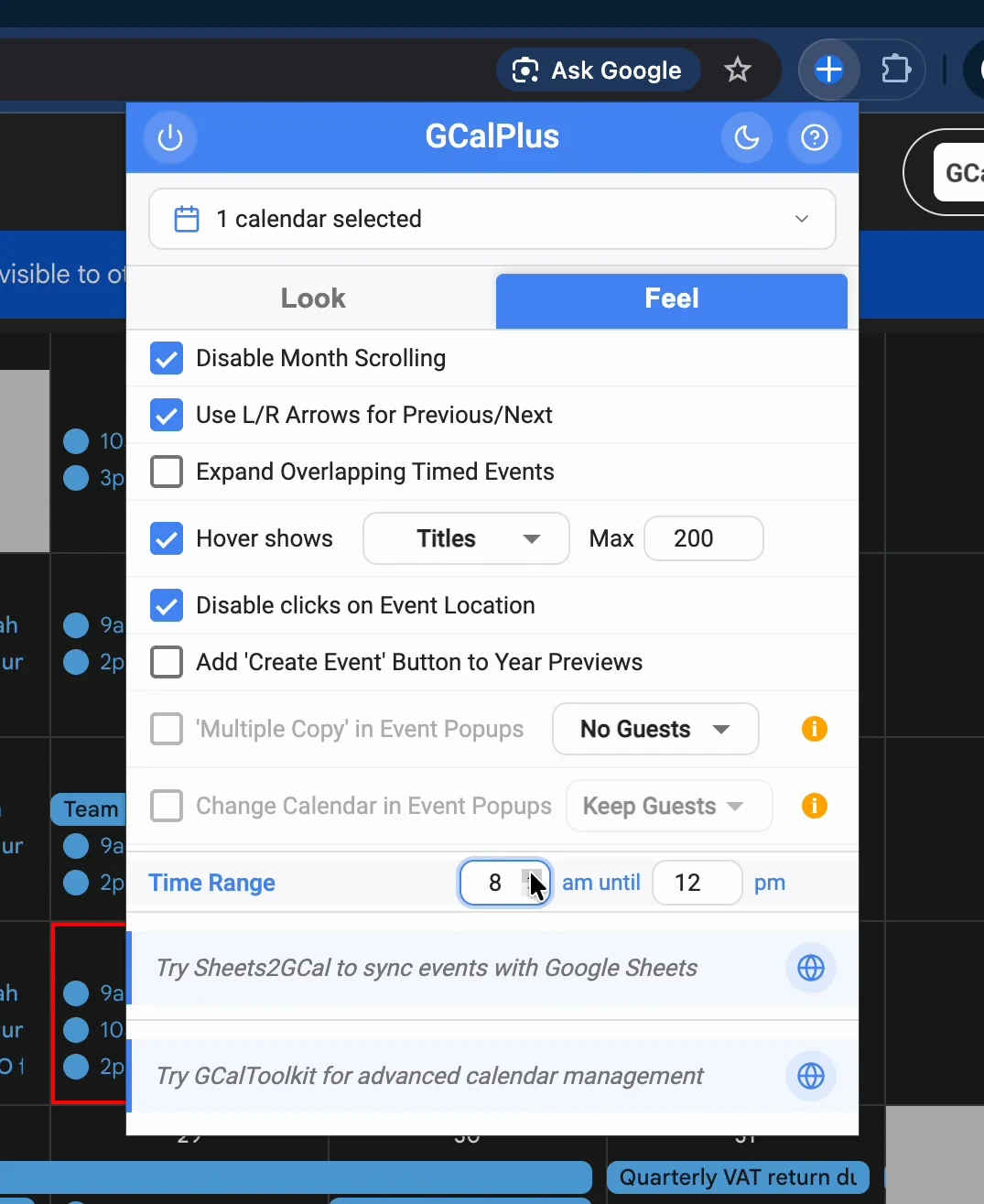
The Feel tab changes how Google Calendar behaves:
- Disable Month Scrolling, and Use L/R Arrows for Previous/Next.
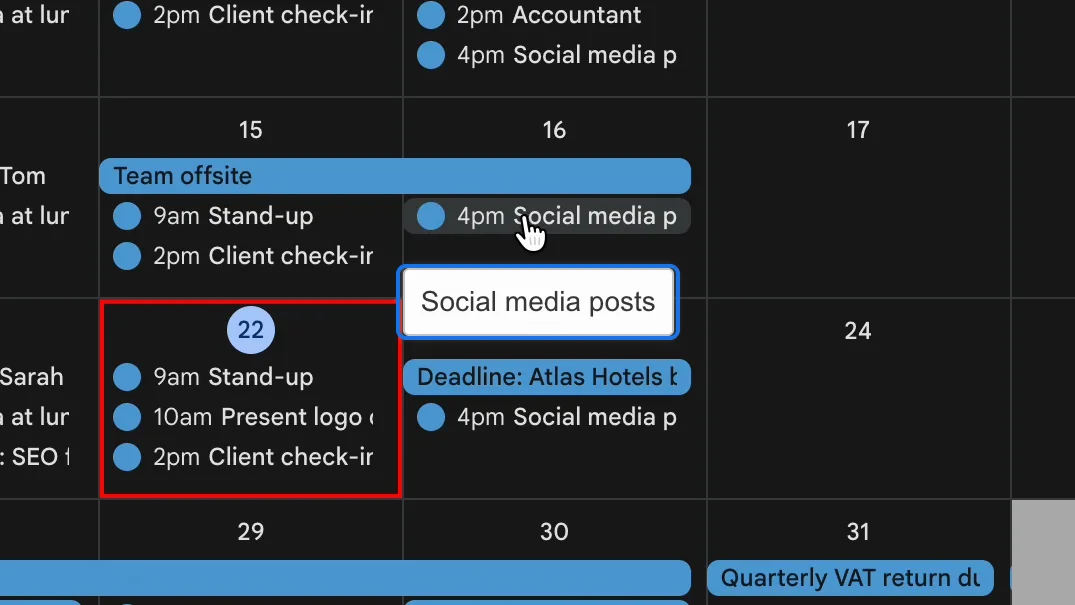
- Hover shows: the full title of an event when you point at it, or its description.
- Disable clicks on Event Location, so a click doesn't open the map by mistake.
- Time Range: the hours shown in week and day views, here 8 am until 12 pm.
6. See the result
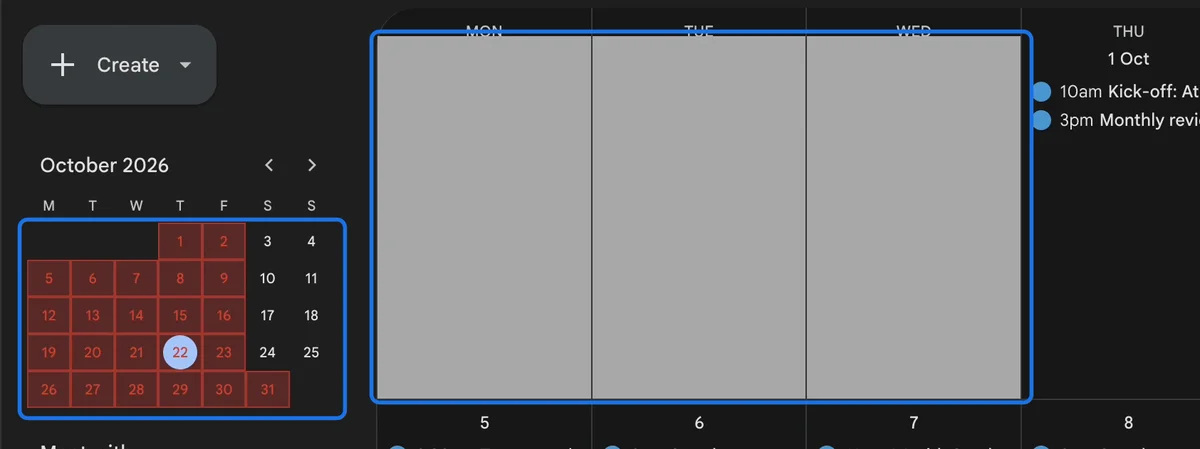
Reload Google Calendar to apply the options. Busy days now show in red in the small calendar, and dates from the months before and after are greyed out.
Today has its border.
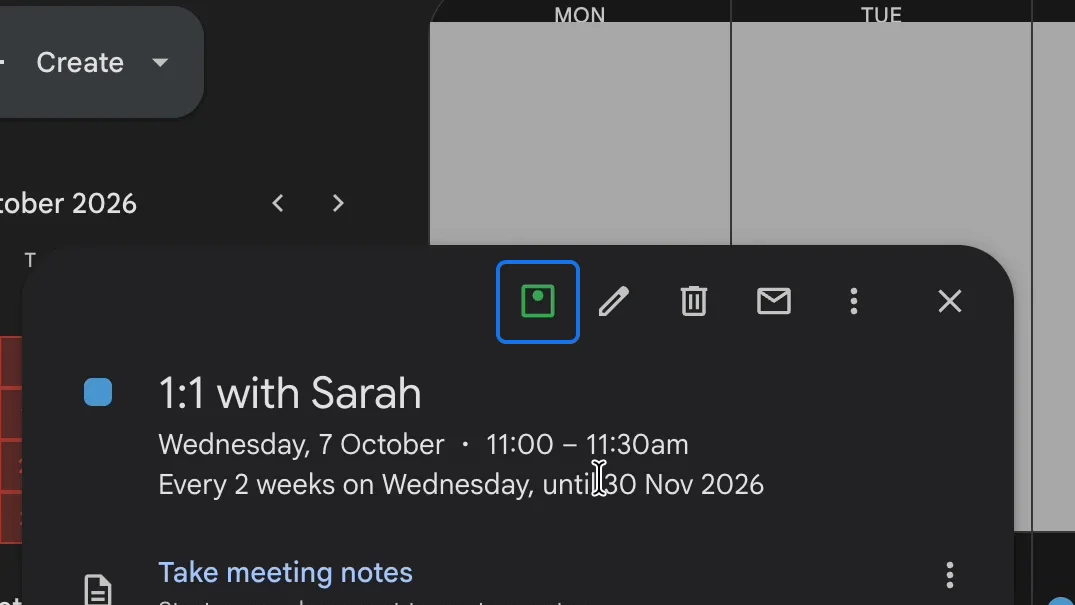
7. Switch an event between busy and free
Open an event: a new square switches it between busy and free. Free events turn the square green, and no longer make their day busy.
8. Copy an event to several dates
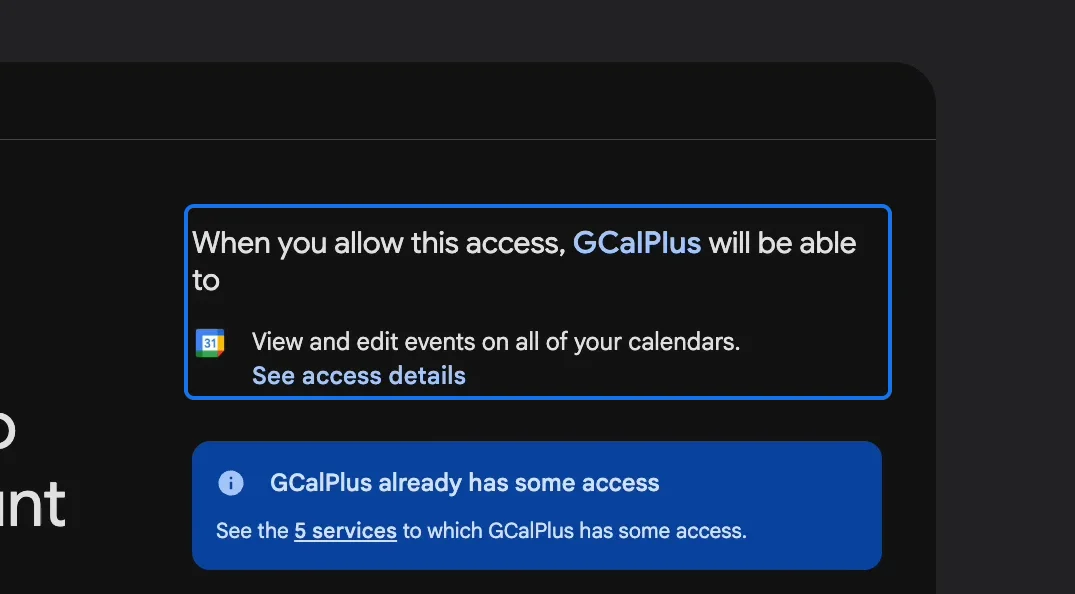
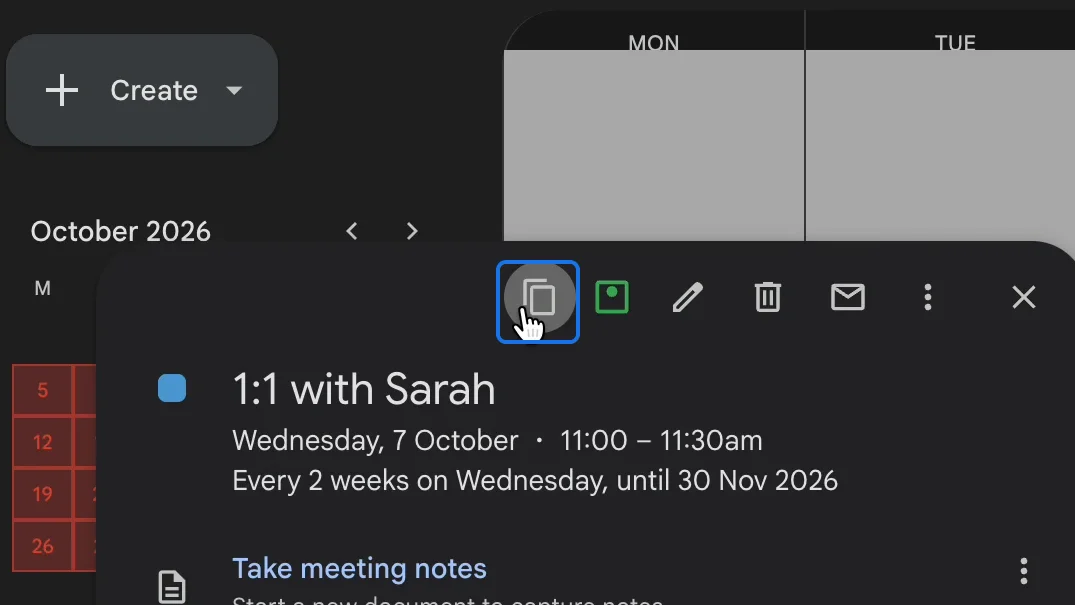
Copying events needs one more permission: to view and edit the events on your calendars. Grant it, then tick "'Multiple Copy' in Event Popups" in the Feel tab, and choose whether copies keep their guests (Keep Guests) or not (No Guests).
Now an event's popup has a copy button.
Choose the calendar, pick one date or several, and click Copy.
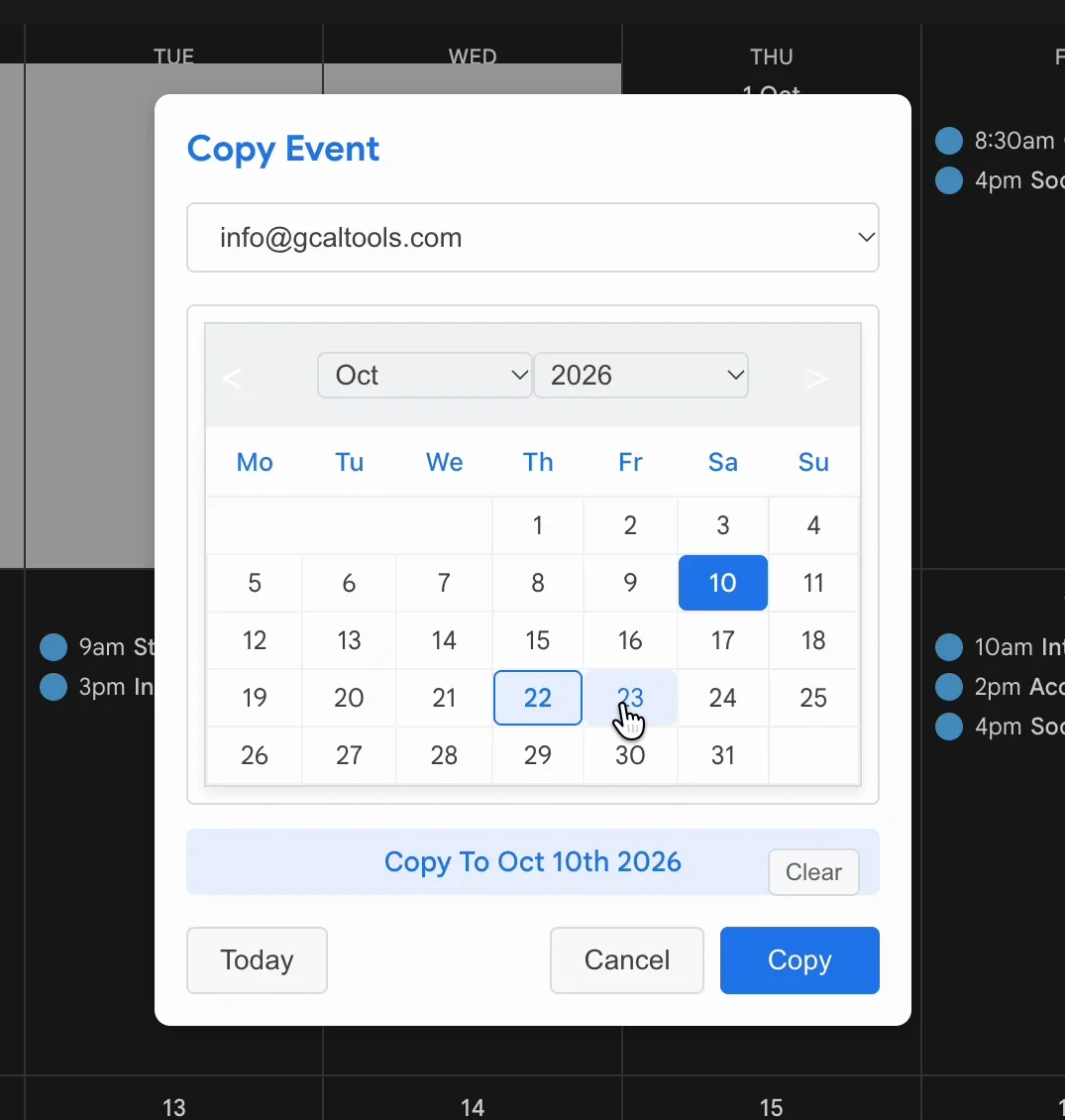
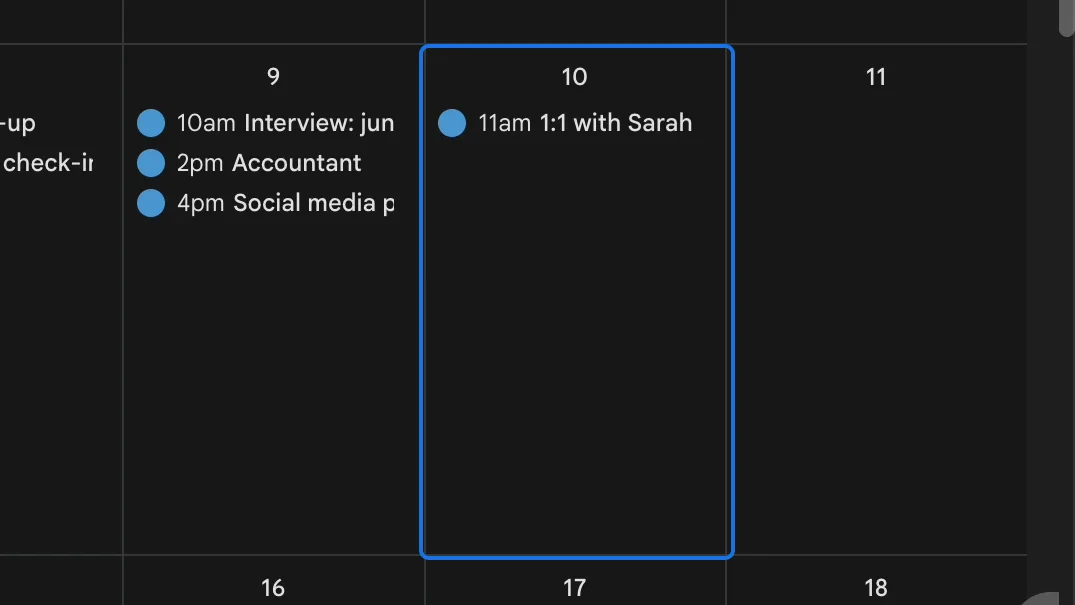
The event now appears on each date you picked.
9. See full titles on hover
With "Hover shows" set to Titles, pointing at an event shows its whole title, however narrow the day. Set it to Descriptions to see the event's description instead.
Try it
Get GCalPlus free from the Chrome Web Store, and see all our calendar tools.