
Create, Edit, Delete and Restore Google Tasks on Your Desktop
To manage Google Tasks on your desktop, use GTasksToolkit: every task list is one table where you create, edit, delete and restore tasks, and nothing reaches Google until you click "SAVE TO GOOGLE". Colours show what will change: yellow for new or edited tasks, light red for deleted ones, green for restored ones.
This guide adds tasks and a list, changes them, and brings a deleted task back.
1. Create tasks
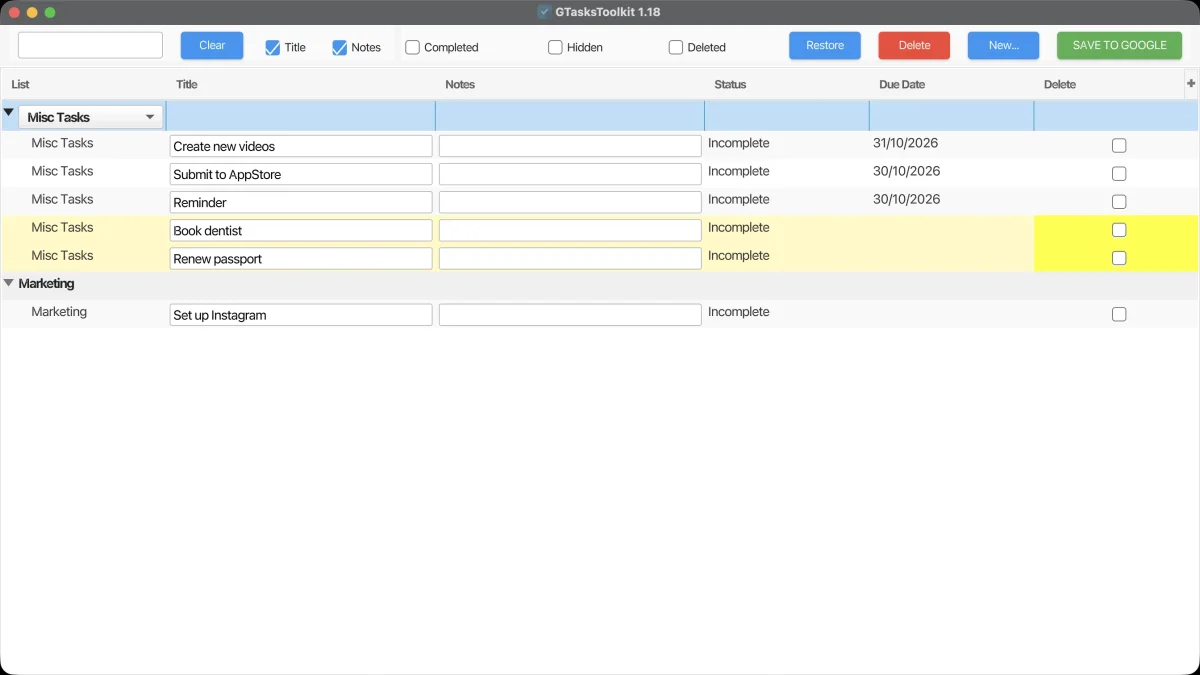
Pick a list and click "New...", then type a title. New tasks stay yellow until saved.
2. Create a list
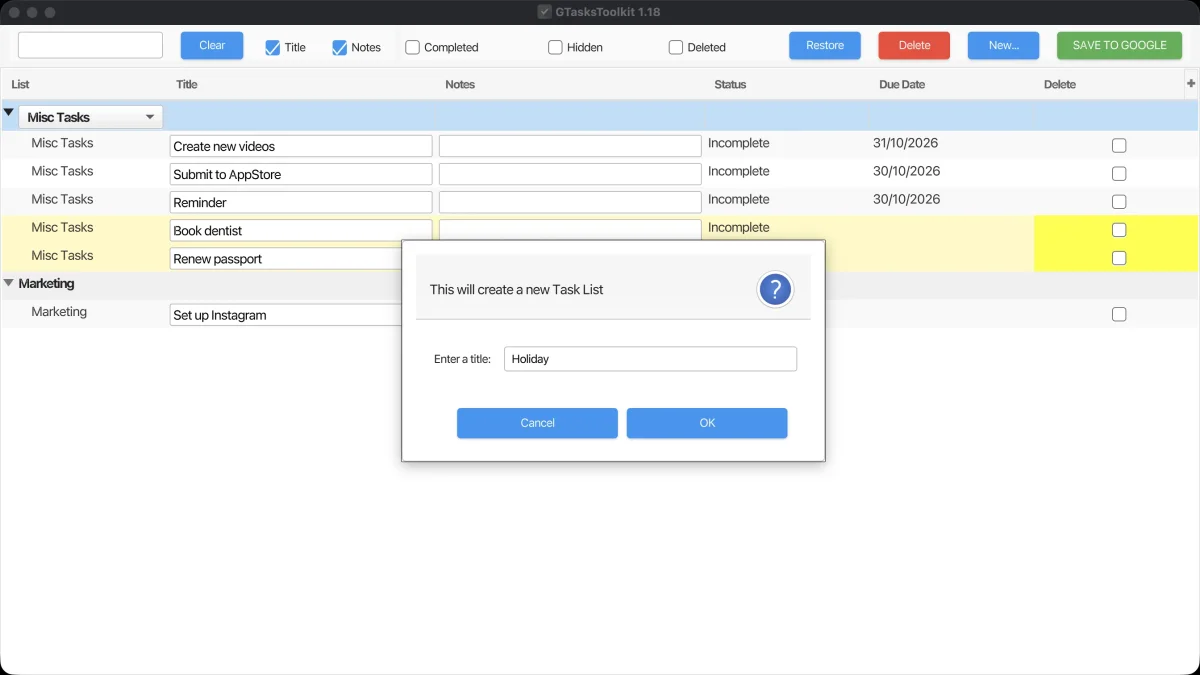
For another list, choose "New List" in the menu "Edit" and name it. Lists are created in Google straight away.
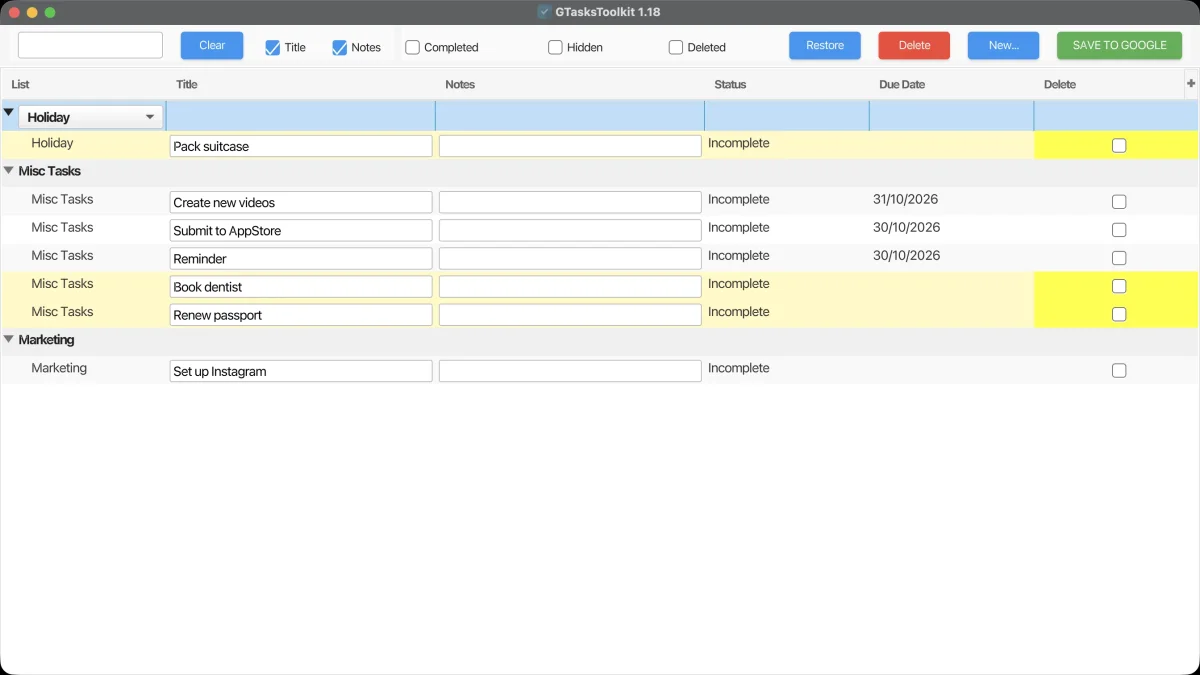
Select the new list, and "New..." adds its first task.
3. Save to Google
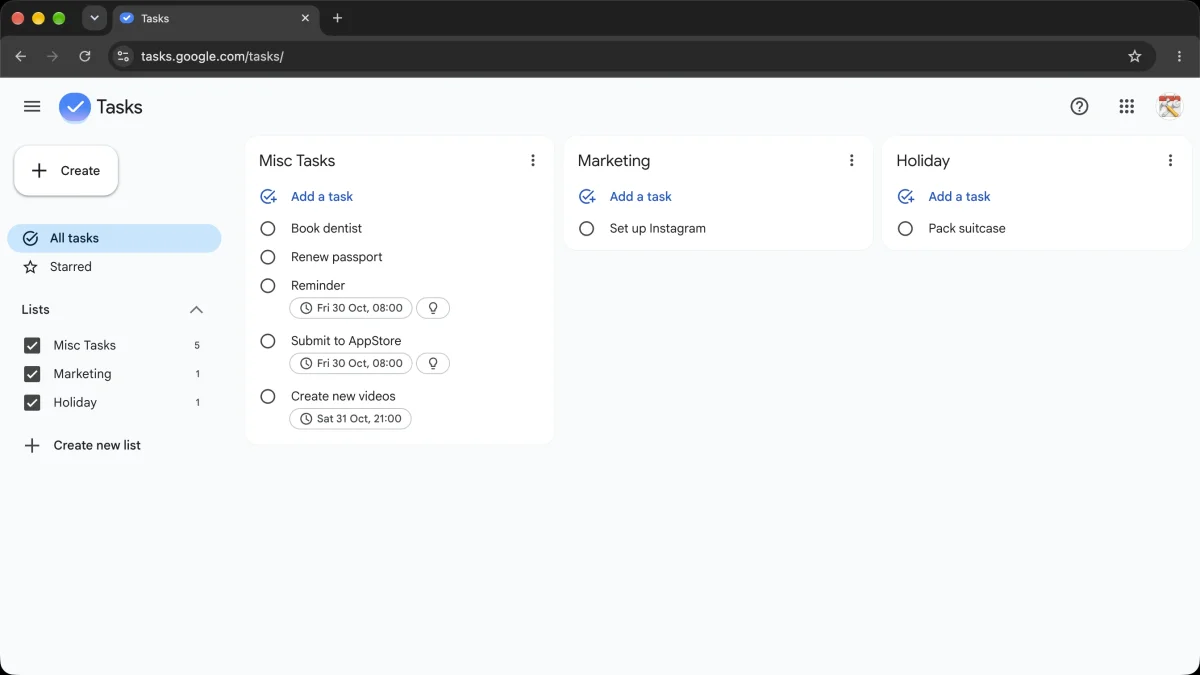
Press "SAVE TO GOOGLE". In Google Tasks, everything is there: the new list and all three tasks.
4. Delete and edit tasks
To remove a task, select it and click Delete: it turns light red. Edit another, and that row goes yellow.
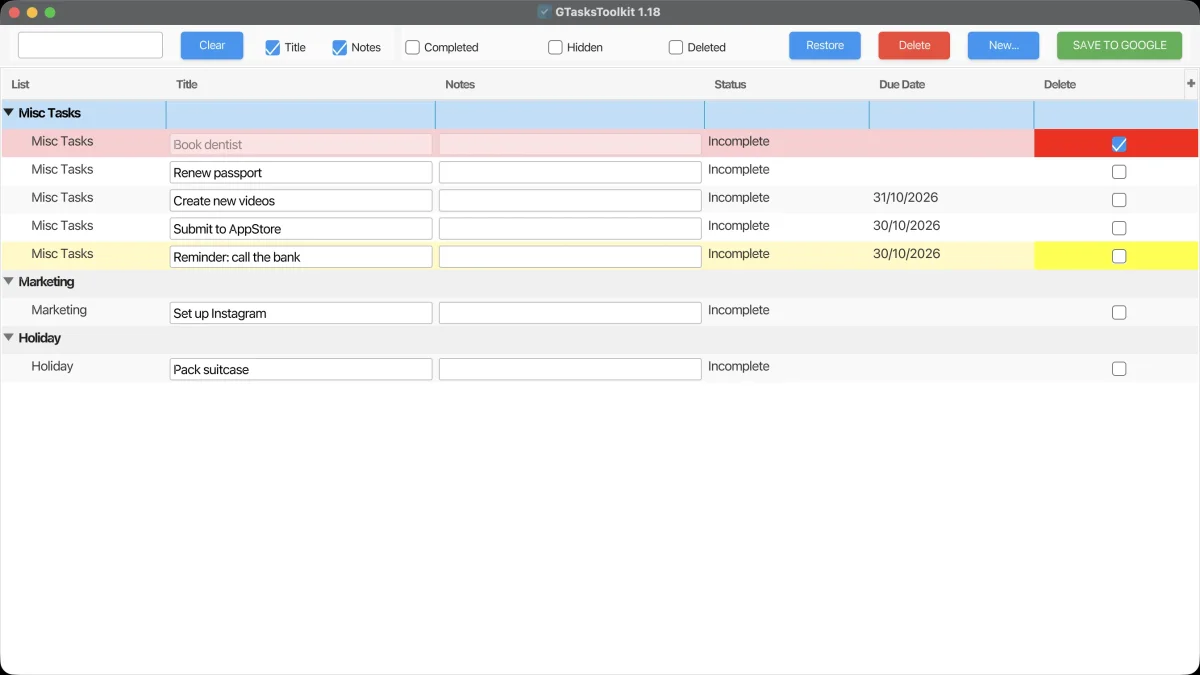
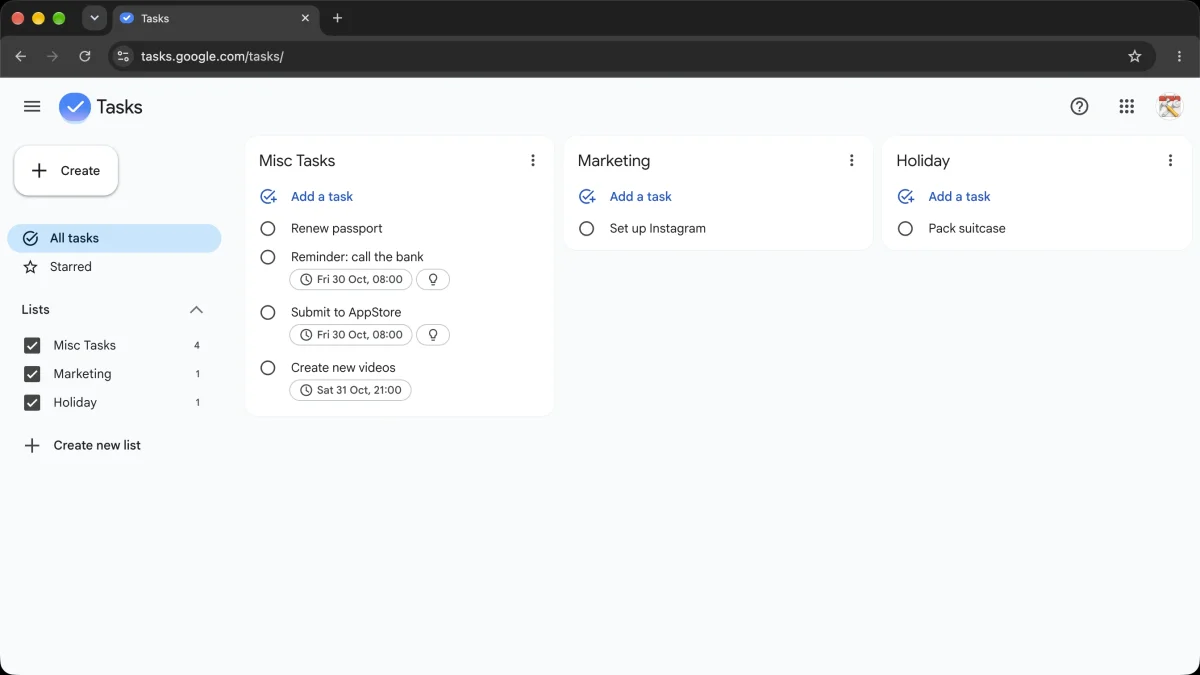
Save once more: Google shows the new title, and "Book dentist" is gone.
5. Restore a deleted task
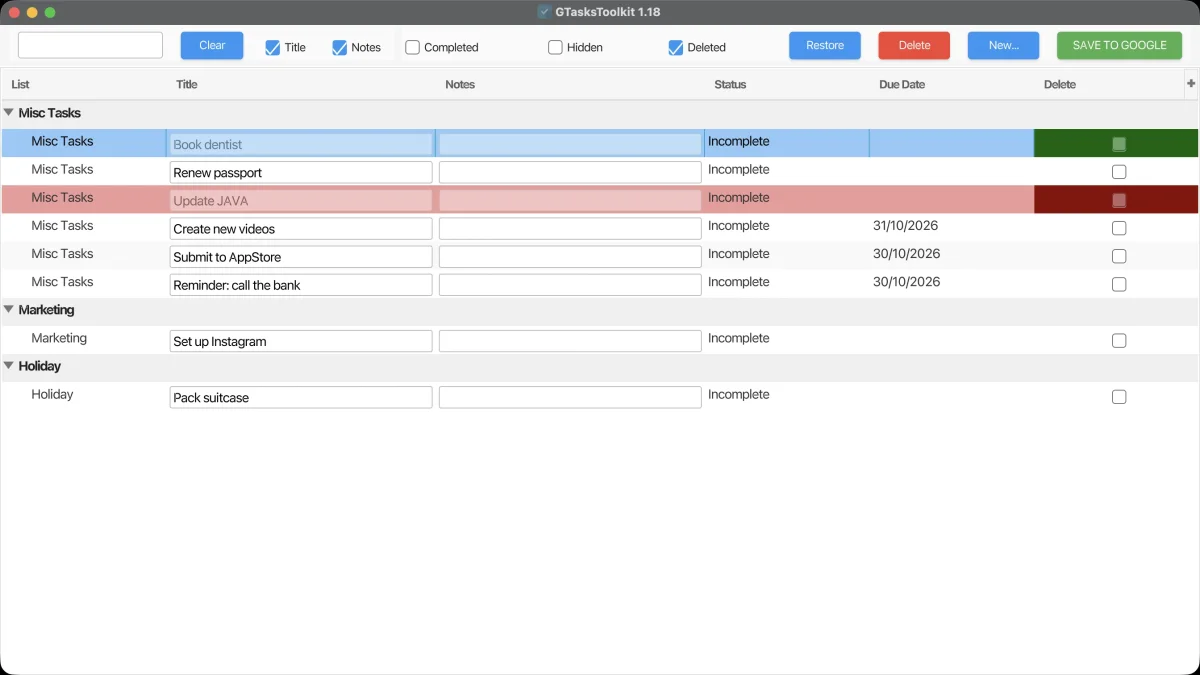
Changed your mind? Tick "Deleted", select the task, press Restore and save. It turns green before saving.
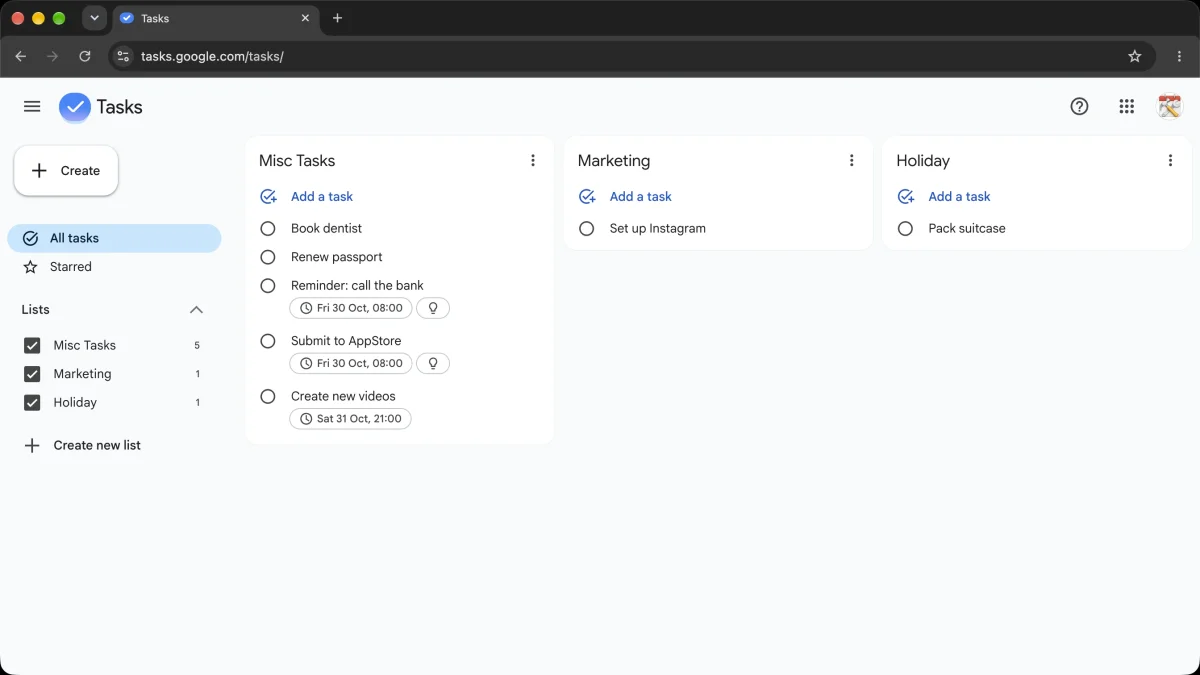
And it's back in Google Tasks.
Try it
Download GTasksToolkit for free for Windows, Mac and Linux.