
Save Groups of Calendars and Add Private Notes in Google Calendar
To switch between groups of calendars in Google Calendar without ticking boxes one by one, save each group as a preset in GCalExtras, a free add-on in Google Calendar's side panel. GCalExtras also keeps a private note on any event, stored in a Google Sheet you own, so guests never see it.
The video was recorded in 2021, before GCalExtras could copy and move ranges of events (see Copy or Move a Range of Google Calendar Events to New Dates). Some labels have changed since: Display All Calendars is now Show All Calendars, and Add New Preset is now Add Preset.
1. Open GCalExtras
Once the add-on is installed, click its icon in the side panel on the right of Google Calendar.
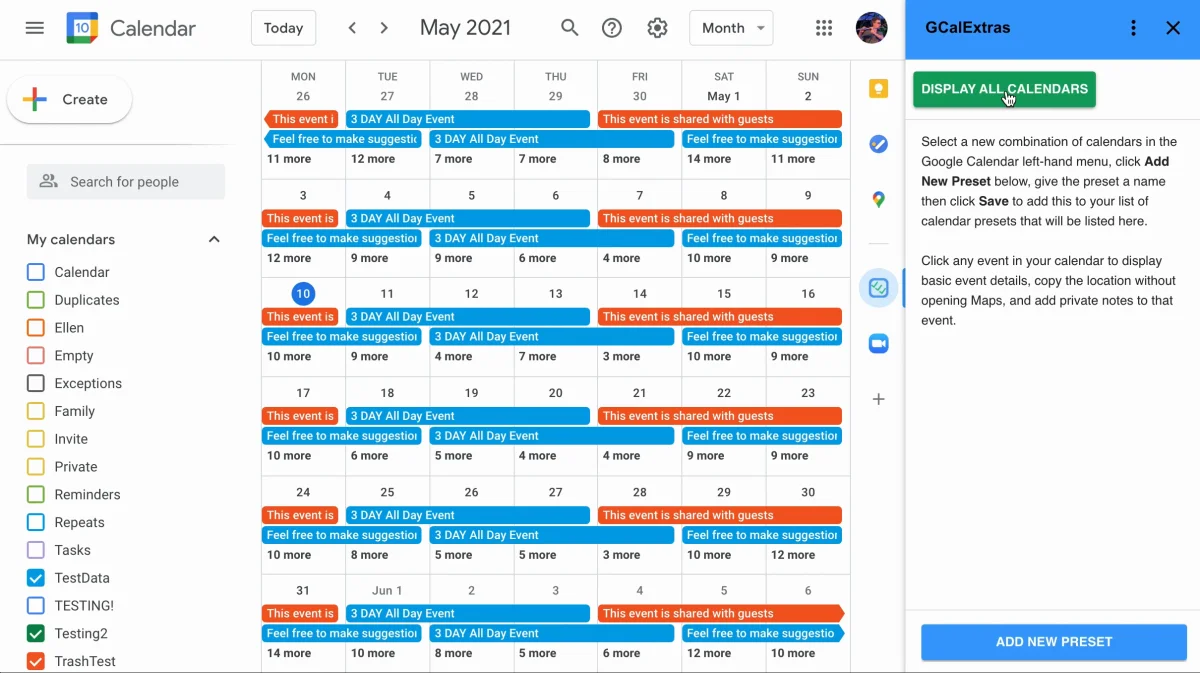
2. Show all your calendars at once
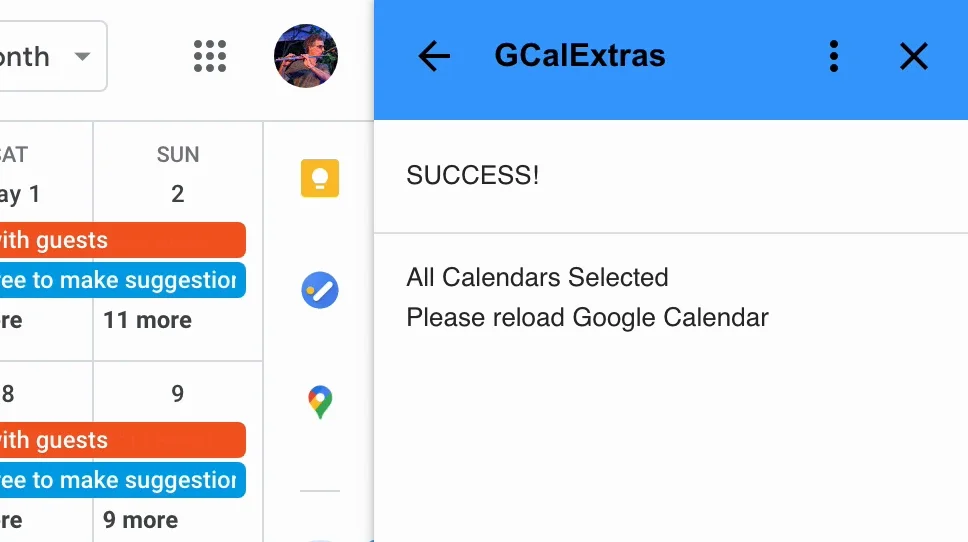
Display All Calendars ticks every calendar in one click, except Tasks and Reminders. Reload the page, and they all appear.
3. Save a group of calendars as a preset
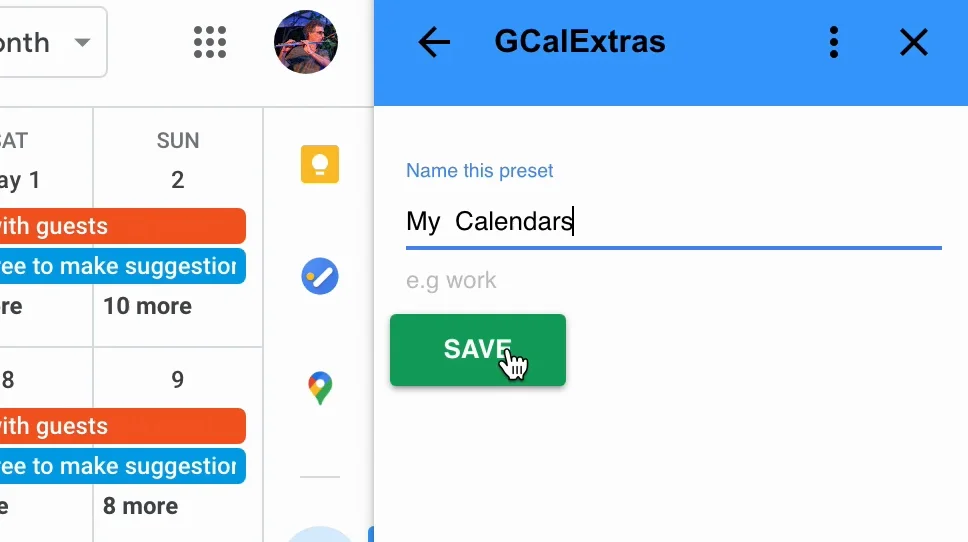
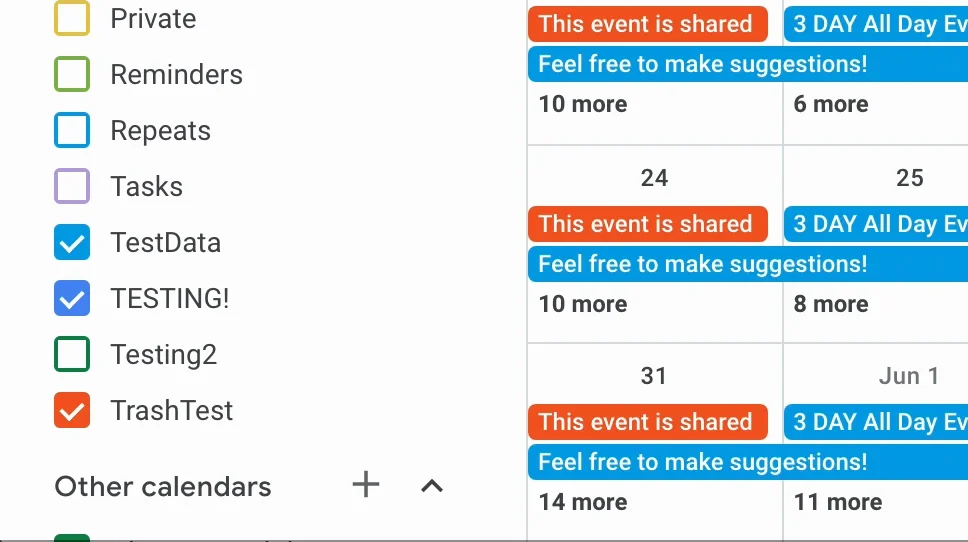
Tick just the calendars that belong together, here three test calendars. Then click Add New Preset, give it a name, here My Calendars, and click Save.
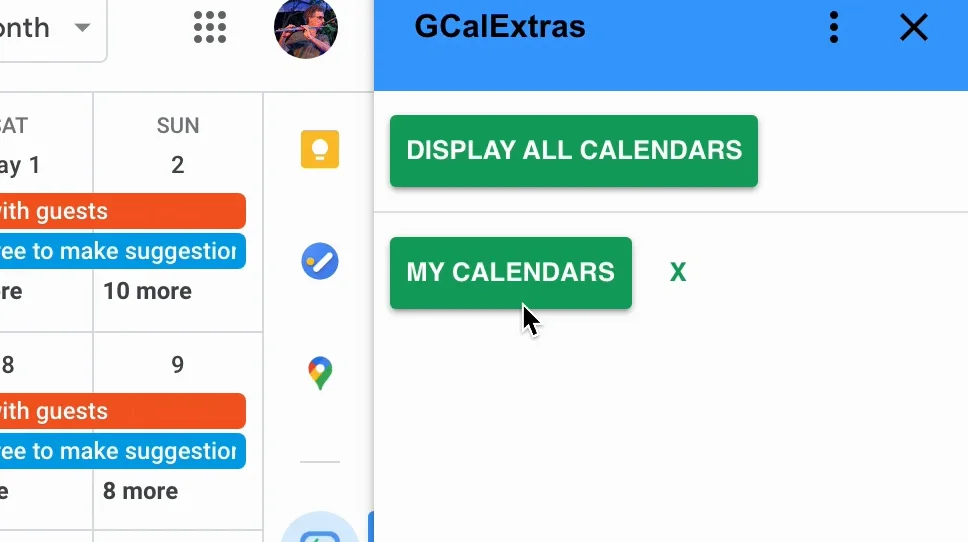
The preset joins the list in the side panel.
4. Switch to a preset
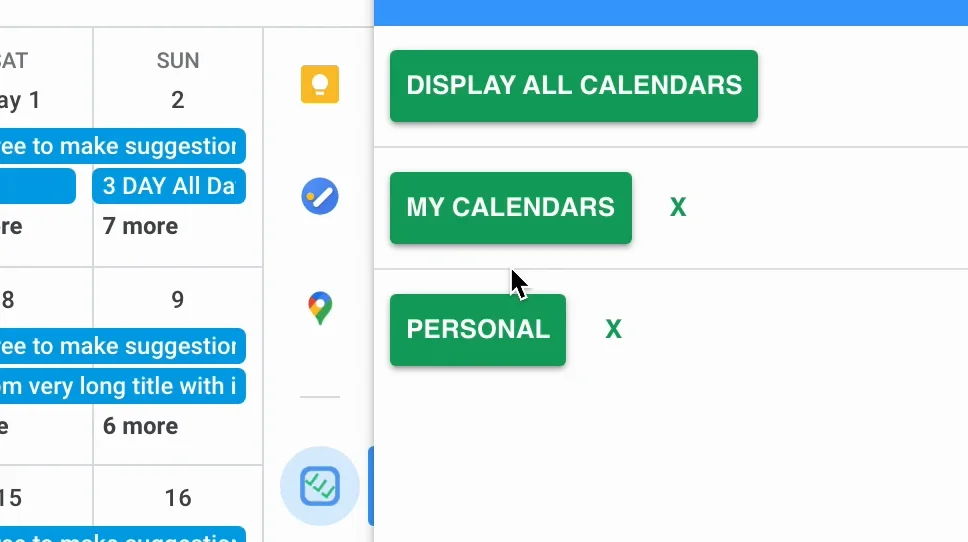
Later, whatever calendars are on show, click the preset and reload the page: exactly its calendars come back.
Make as many as you need, such as Work and Personal.
5. Add a private note to an event
Open any event, and GCalExtras shows its title and date in the side panel, with a box for a private note. Type your note and click Save.
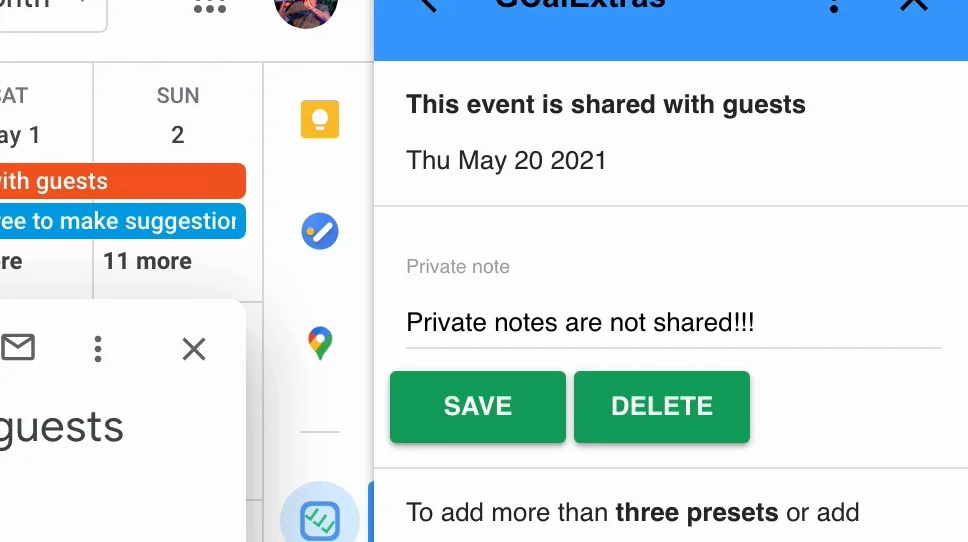
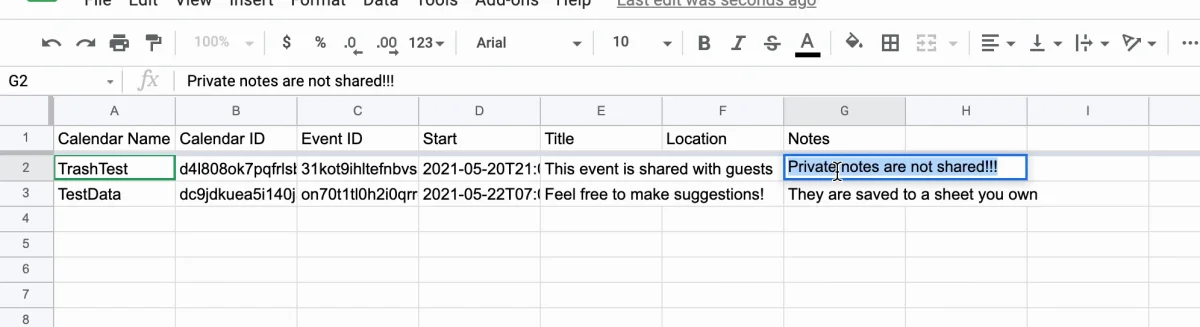
Guests never see these notes: they're stored in a Google Sheet you own, not in the event.
The free version keeps three presets and notes of up to 256 characters. A one-time purchase lifts both limits.
6. Find your notes in the GCalExtras Sheet
In the add-on's menu (the three dots), Need help? explains every feature, and ends in a button, Open My Private Notes.
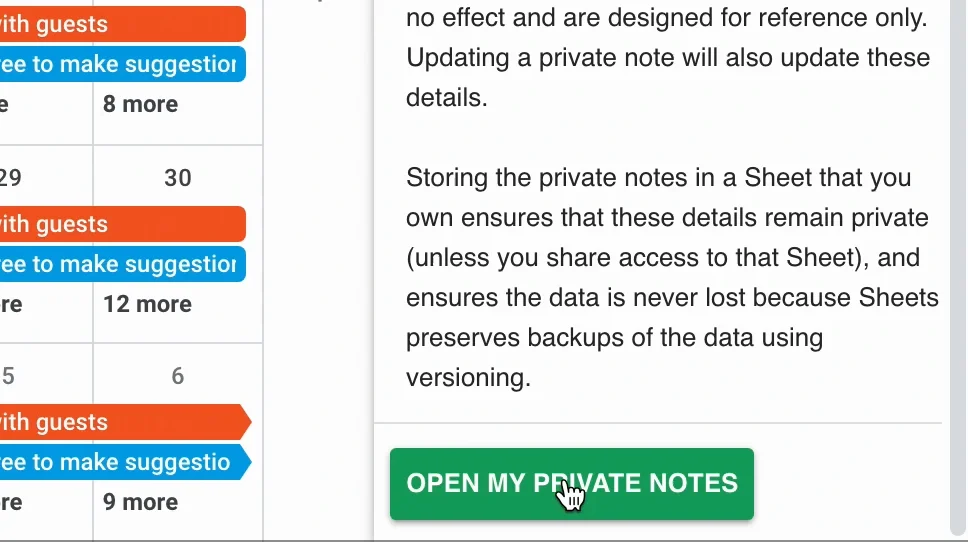
The button opens the Sheet, called GCalExtras. Each note sits beside its event's calendar, title and start date, and you can edit it there too.
Try it
Get GCalExtras to switch between groups of calendars, keep private notes, and copy or move whole ranges of events in Google Calendar.