
Delete Duplicate Events in Google Calendar with GCalToolkit
To delete duplicate events in Google Calendar, load the calendar in GCalToolkit: it marks the duplicates as soon as the calendar loads, and clicking Save deletes them all. You choose what counts as a duplicate in its options, even across several calendars.
Duplicates often come from syncing Google Calendar with other software, such as a partial sync with Outlook, and can leave a calendar unusable.
1. A calendar full of duplicates
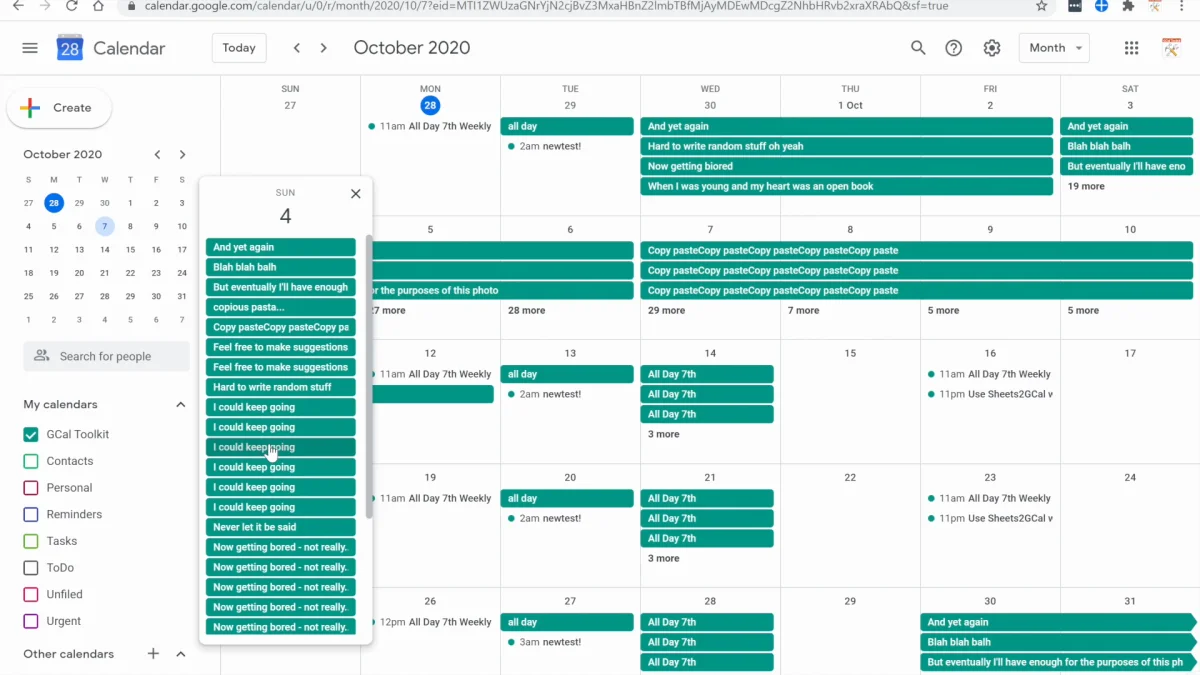
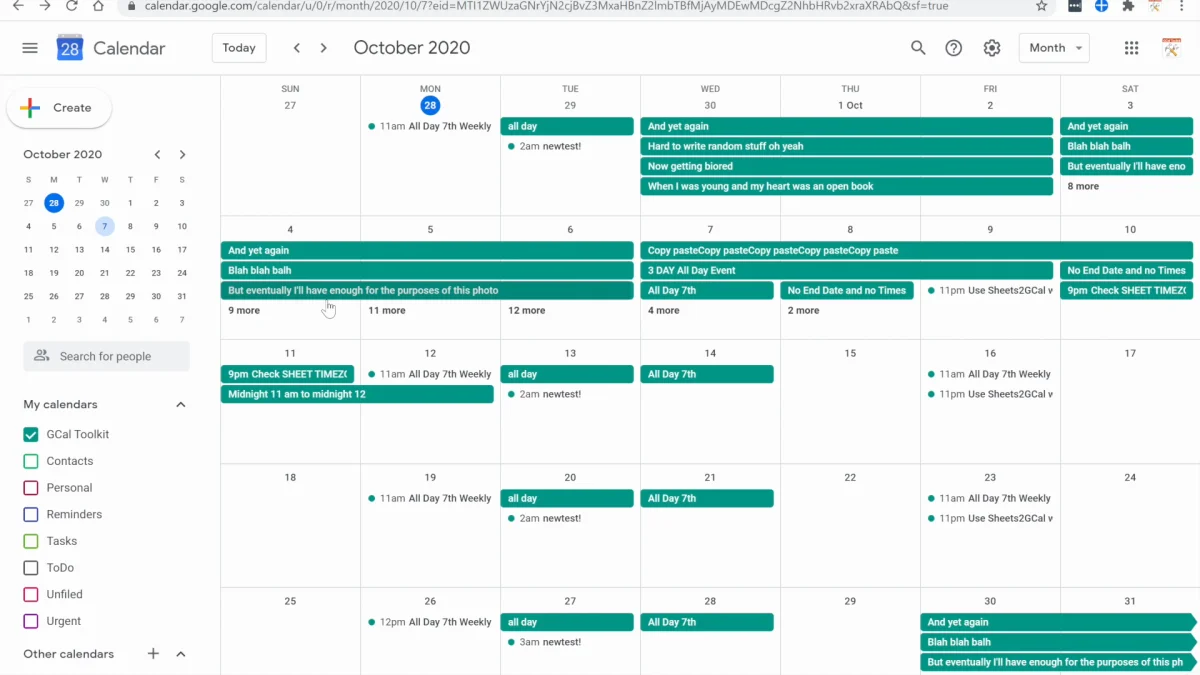
Here, many days hold the same events several times over.
2. Unlock the full version
Finding duplicates needs the whole calendar, so enter your licence details first: your registered email address and invoice number. Then restart GCalToolkit to run the full version.
3. Fetch the events
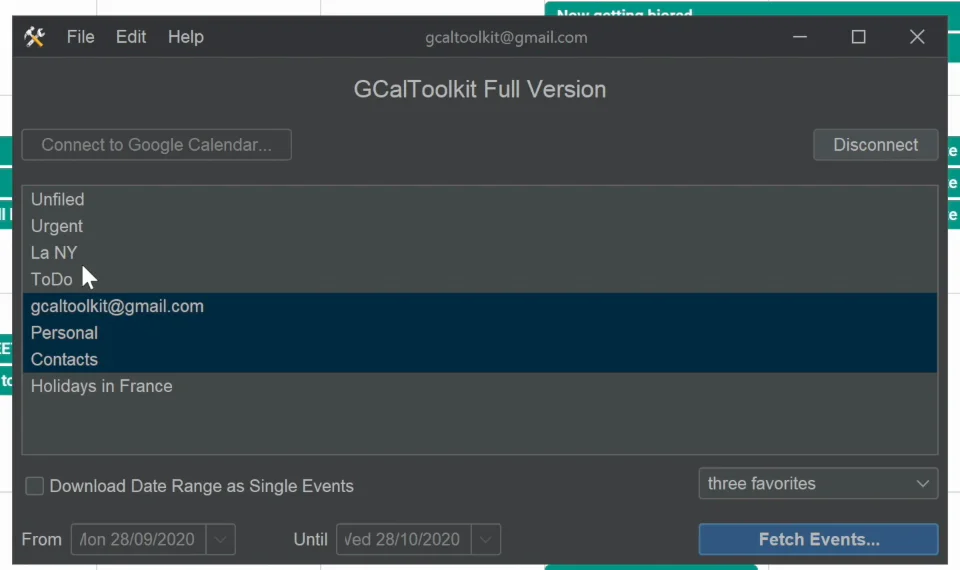
Select the calendar and click "Fetch Events..." to download all its events.
4. Review the duplicates
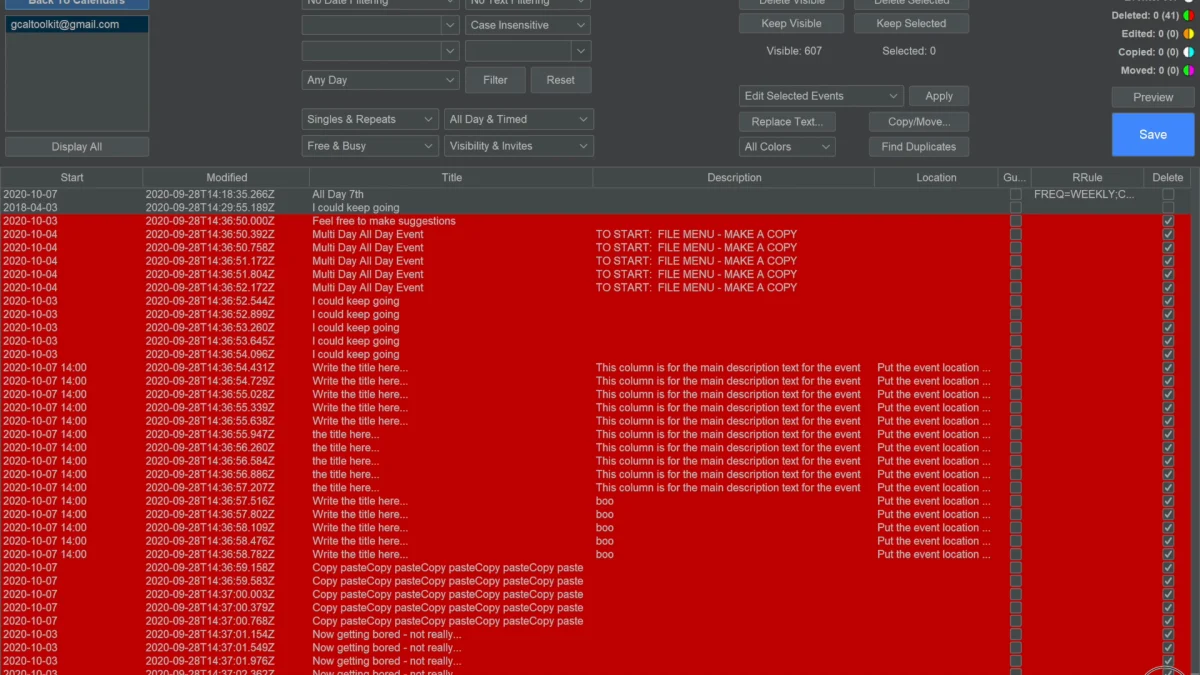
The duplicates are detected as soon as the calendar loads: scroll to the bottom of the list to see them, marked in red for deletion.
5. Delete them
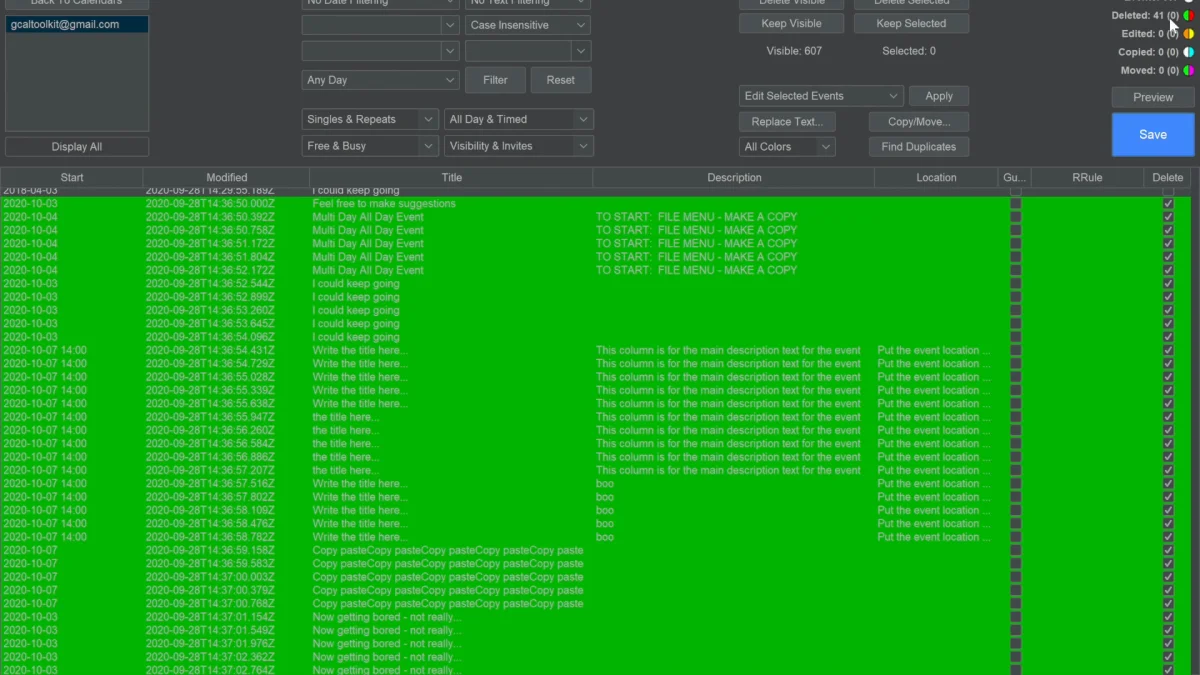
Click Save to delete all the duplicates from Google Calendar. Deleted events turn green in GCalToolkit and can no longer be edited.
You can stop and continue at any time. With a very large number of events you may have to, as Google limits how many changes can be made per day.
Back in Google Calendar, the calendar is clean again. Load it in GCalToolkit once more, and it finds no duplicates.
6. Choose what counts as a duplicate
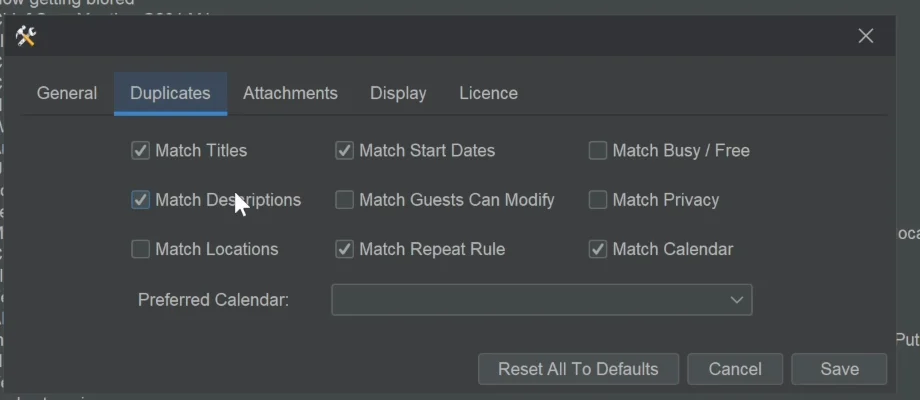
In the Options menu, the Duplicates tab sets what must match for two events to count as duplicates: titles, start dates, descriptions and more. "Match Calendar" detects duplicates across several calendars, and a preferred calendar keeps the copies that are on it.
Try it
Get GCalToolkit to clean up and bulk edit your Google Calendars, and see the GCalToolkit help for every option.