
Calendar Invitations Going to Spam or Rejected? Set Up SPF, DKIM and DMARC
If calendar invitations you send to Gmail addresses go to spam or are rejected, your domain probably isn't authenticating its email. Since February 2024, Gmail requires everyone sending to Gmail accounts to set up SPF or DKIM for their domain. For invitations, DKIM is the one that counts: they're sent through Google's servers, so SPF alone often doesn't vouch for your domain. Set up DKIM, SPF and a DMARC record, then check that your invitations pass.
This affects invitations sent from your own domain (a Google Workspace account, or a domain bought elsewhere) to personal @gmail.com addresses, and increasingly to Yahoo and Outlook users too. Invitations sent from an @gmail.com address aren't affected.
1. Read Gmail's requirements
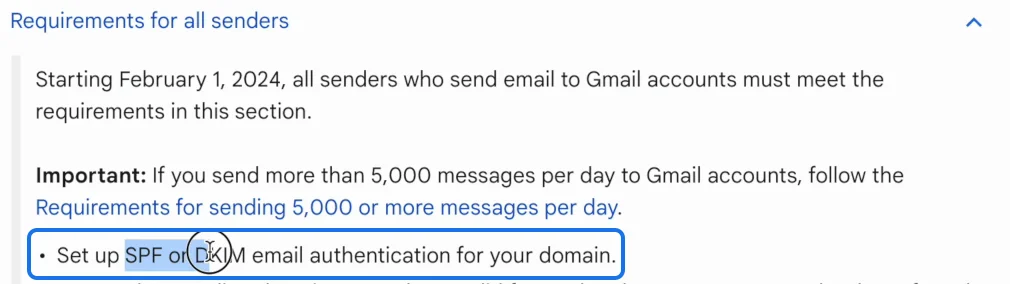
Google's Email sender guidelines list the requirements. Despite the 5,000 messages a day mentioned at the top, a section of them applies to all senders, and the first is to set up SPF or DKIM for your domain.
2. Test an invitation
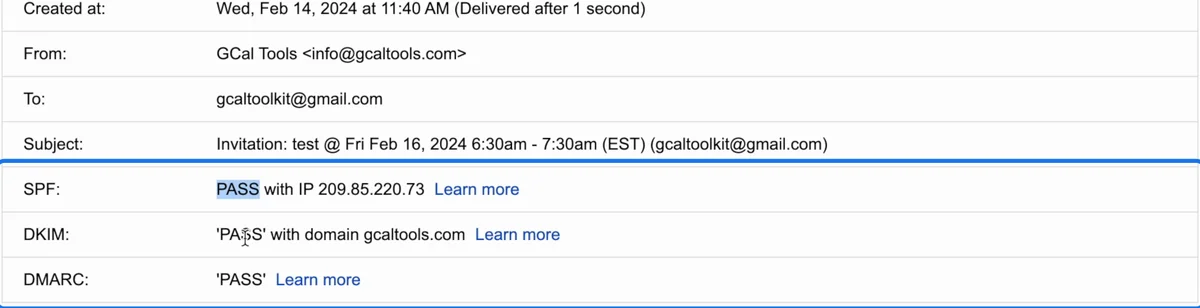
Send an invitation from your domain to a completely separate personal Gmail address. If it doesn't arrive, you have a problem. If it does, open it in Gmail, click More (next to Reply), then "Show original". You want PASS for SPF, DKIM and DMARC. If only one of SPF and DKIM passes, it should be DKIM, with your domain.
3. Check your domain
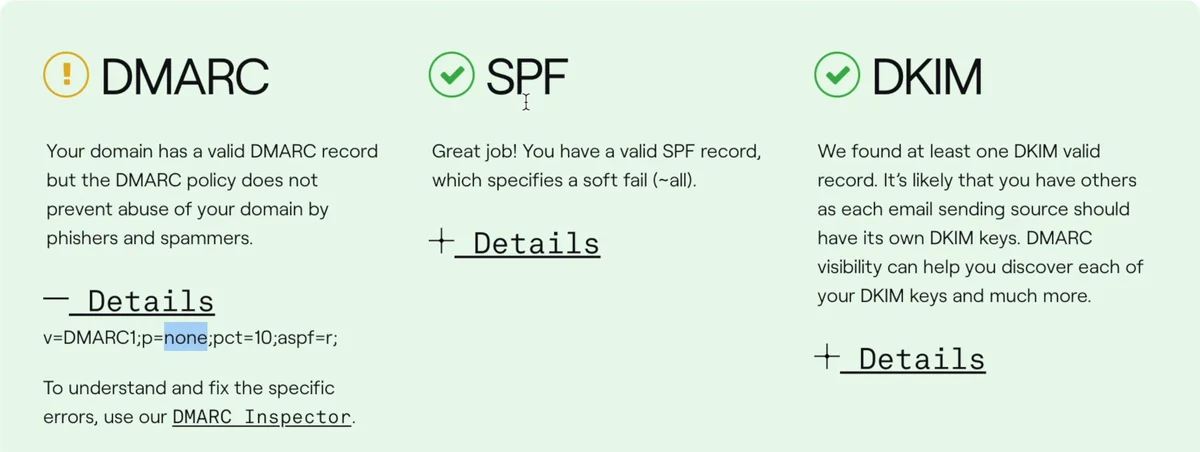
Enter your domain in dmarcian's Domain Checker. It reports each of the three records. Here SPF and DKIM are valid, and DMARC is valid but set to "none", which monitors without blocking anything: fine to start with.
4. Set up SPF (essential)
An SPF record names the servers allowed to send mail for your domain. Add it as a TXT record in your domain's DNS zone at your domain provider. For Google Workspace it's:
v=spf1 include:_spf.google.com ~all
Google's help page Add your SPF record at your domain provider has the details.
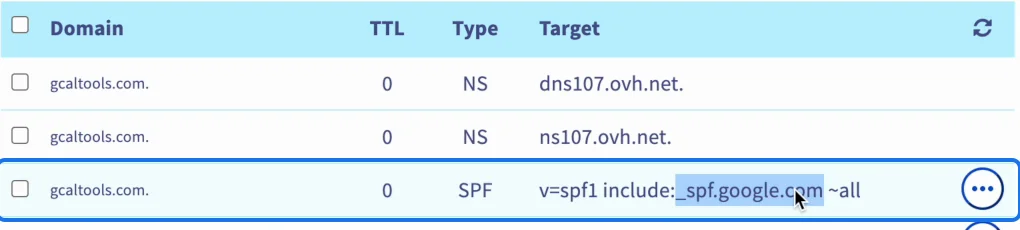
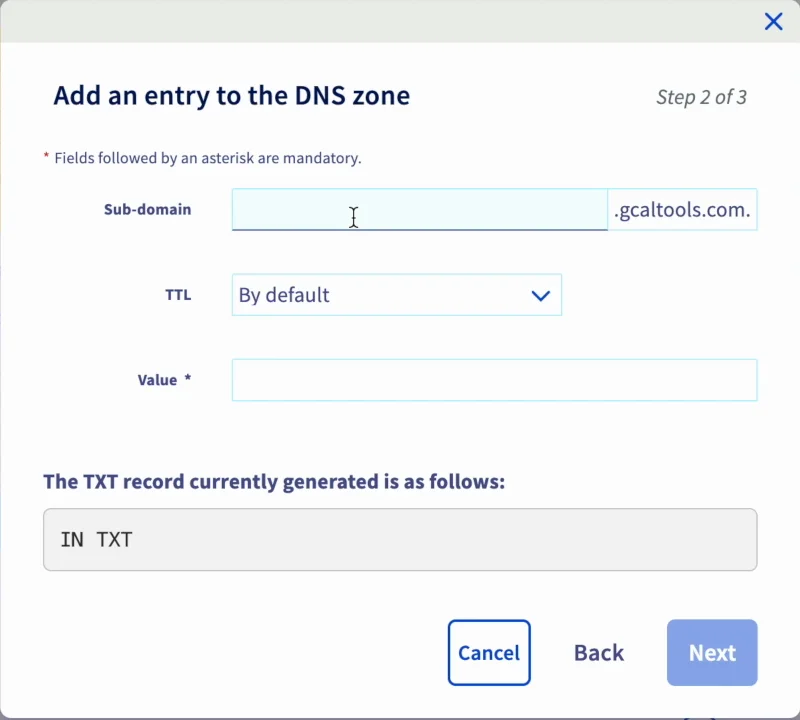
At OVHcloud, for example, open the domain's DNS zone, click "Add an entry", choose TXT, and fill in the sub-domain and value.
5. Set up DKIM (essential for invitations)
DKIM signs your messages, so receivers can check they really came from your domain. Google Workspace signs messages with its own key by default, which doesn't vouch for your domain. That matters most for calendar invitations: Google sends them through its own servers, so their SPF check is Google's rather than your domain's, and only a DKIM signature with your domain lets them pass DMARC (DuoCircle, DMARC Report). Set up DKIM for any alternate domains too, or mail you send as those addresses ("Send As") may fail DMARC.
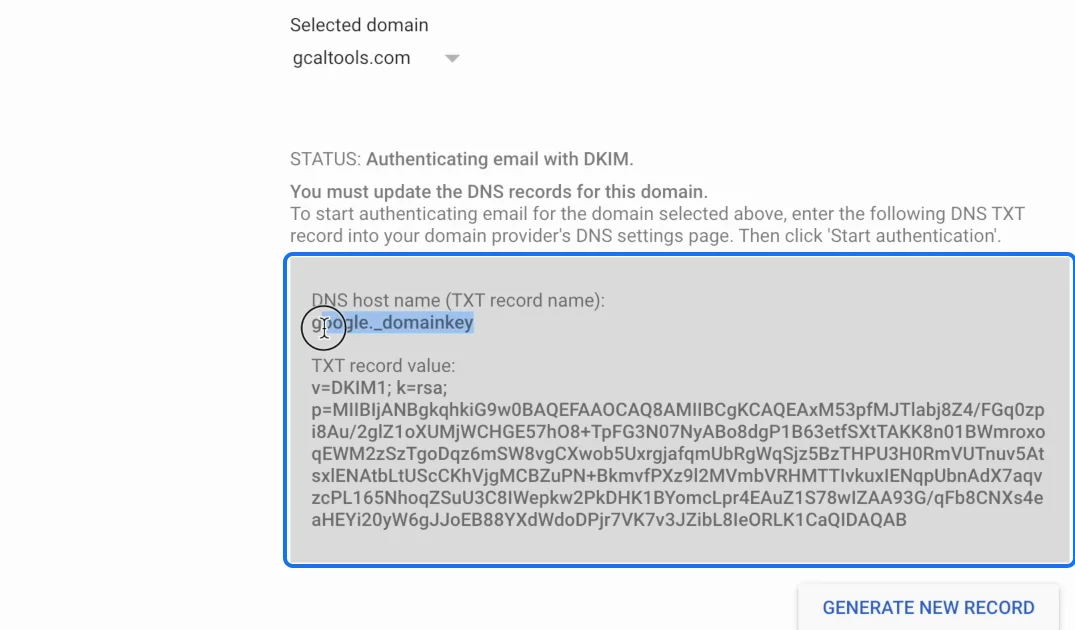
In the Google Admin console, open Apps, Google Workspace, Gmail, then "Authenticate email". Select your domain and click "Generate new record". Add the TXT record it shows (host name google._domainkey) to your DNS zone, then click "Start authentication". Google's guide: Set up DKIM.
6. Set up DMARC
A DMARC record tells mail servers what to do with mail that fails SPF or DKIM. Add a TXT record with the host _dmarc (for _dmarc.example.com) and a value like:
v=DMARC1; p=none;
"p=none" only monitors. Once you're sure everything passes, you can change it to "quarantine" or "reject", add "pct" for the percentage of mail it applies to, and "rua" for an address to receive reports. Google's guide: Set up DMARC.
7. Test again
Send another invitation to a separate Gmail address and check "Show original", and run the Domain Checker again. Correct your records until SPF, DKIM and DMARC all pass. DNS changes can take up to 48 hours.
More Google Calendar fixes
Looking for more ways to get the most out of Google Calendar? See all our tutorials, or watch the Google Calendar Tips and Tricks playlist.