
Show Outlook or iCloud Calendars in the Google Calendar App on iPhone and iPad
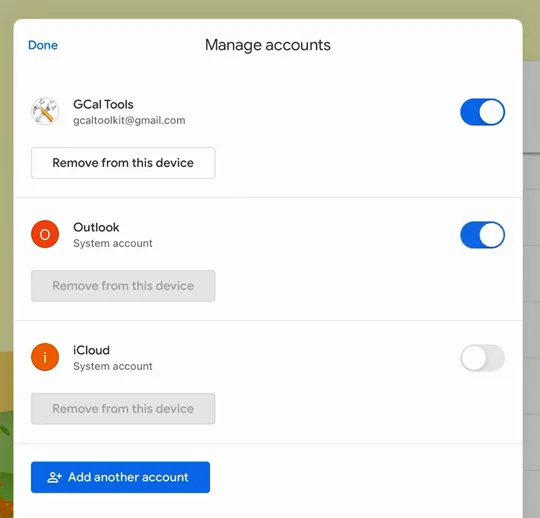
To show Outlook or iCloud calendars in the Google Calendar app on an iPhone or iPad, let the app access your calendars in the iOS Settings, then switch the account on in the app: tap your profile picture, then "Manage accounts on this device". Without that last step, the calendars stay hidden even when iOS is set up correctly.
The video shows an iPad; the steps are the same on an iPhone. On Android, see Show Outlook Calendars in the Google Calendar App on Android.
1. Add the account to iOS
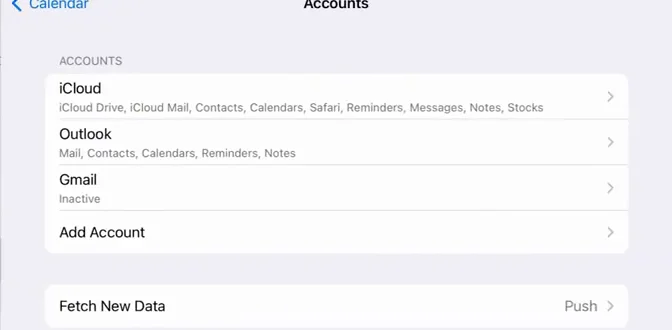
In the iOS Settings, open Calendar, then Accounts, and check your Outlook (or iCloud) account is there. If it isn't, use Add Account.
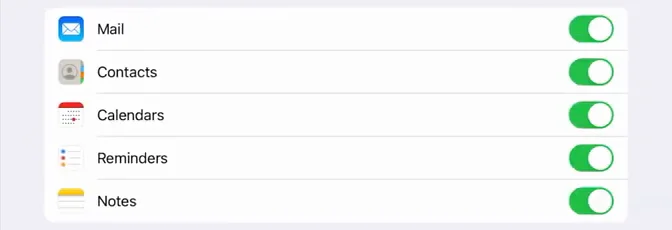
Open the account and make sure Calendars is switched on.
2. Let Google Calendar access your calendars
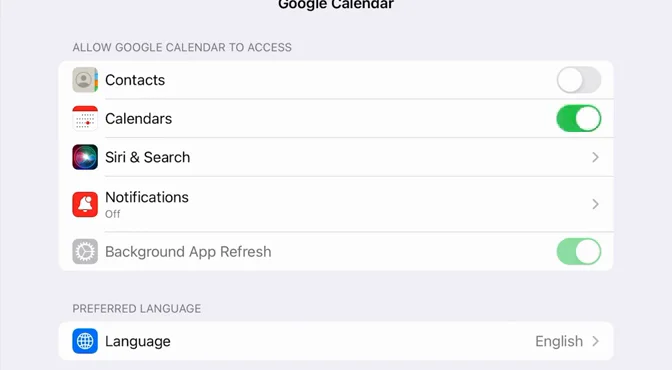
Still in Settings, scroll down to Google Calendar and switch on Calendars.
3. Switch the account on in the app
Open the Google Calendar app. The Outlook calendars still don't show, so tap your profile picture at the top right, then "Manage accounts on this device".
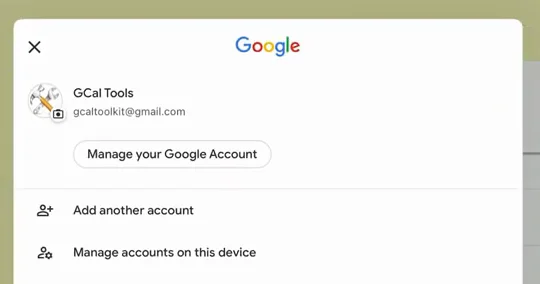
Switch on Outlook (and iCloud, if you want those calendars too), then tap Done.
4. Check the menu
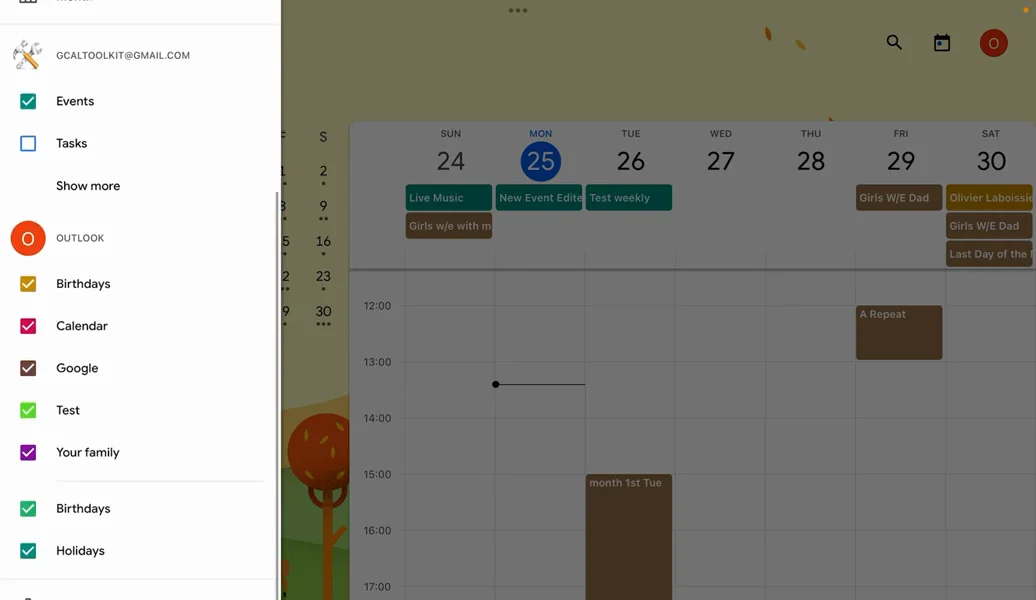
Open the menu: your Outlook calendars are listed under their own account, and their events show in the calendar.
More Google Calendar fixes
Looking for more ways to get the most out of Google Calendar? See all our tutorials, or watch the Google Calendar Tips and Tricks playlist.