
Show Your Contacts' Birthdays in Google Calendar with a Free Script
If your contacts' birthdays don't show in Google Calendar, a free script from GCalTools copies them from Google Contacts into a calendar you own. For regulatory reasons, Google can no longer show contacts' birthdays in its Birthday calendar in some regions; the script works around that, and keeps adding birthdays from new contacts if you let it run daily.
The birthdays it creates are ordinary yearly events, so unlike Google's own birthdays you can edit them, delete them, share or print the calendar, and set notifications.
The video shows the script as it was in 2024. It now has a CONFIGURATION section with more options (see step 4), but the steps are the same.
1. Copy the script
Open the Birthdays script and click Make a copy (top right). Your copy runs under your own account, using the Calendar and People services already set up in it to read your contacts and write to your calendar.
2. Create a calendar for the birthdays
In Google Calendar, open Settings, then Add calendar, then Create new calendar. Give it a name, here My Birthdays, and click Create calendar.
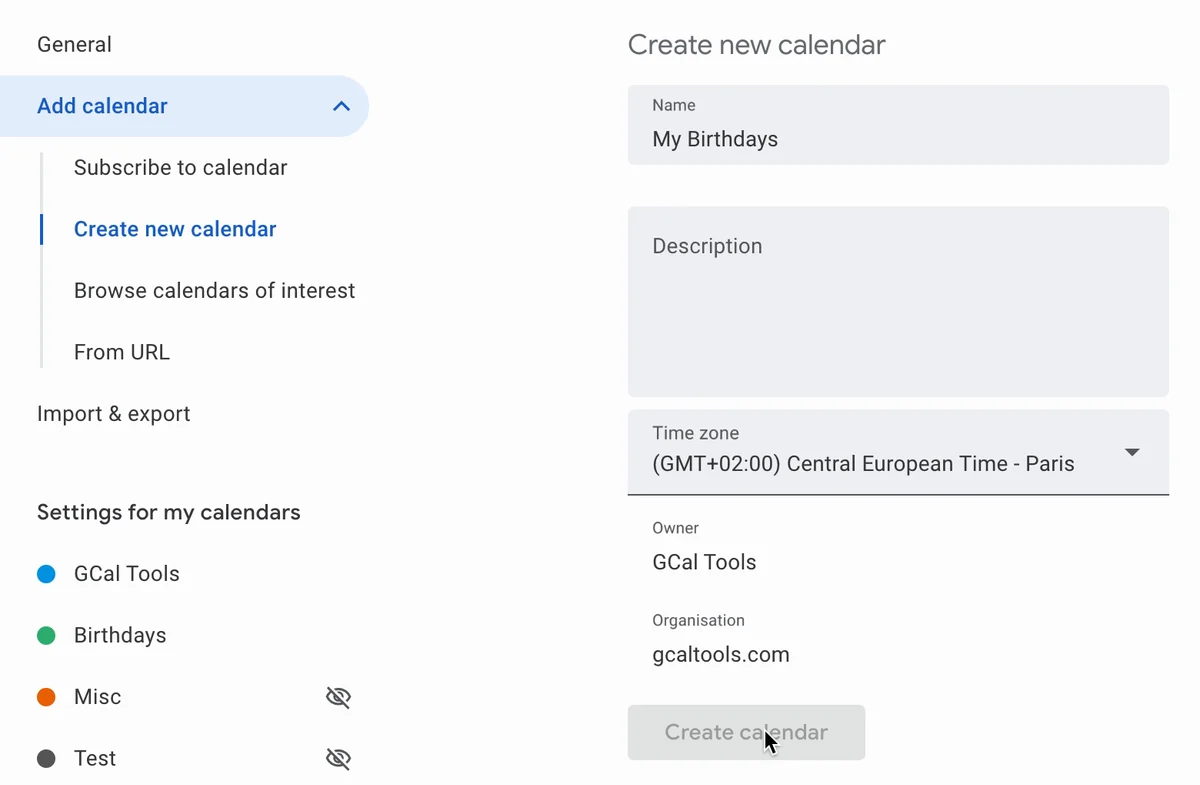
3. Copy the calendar's ID
Open the new calendar's settings and scroll down to Integrate calendar. Copy the Calendar ID, which ends in @group.calendar.google.com.
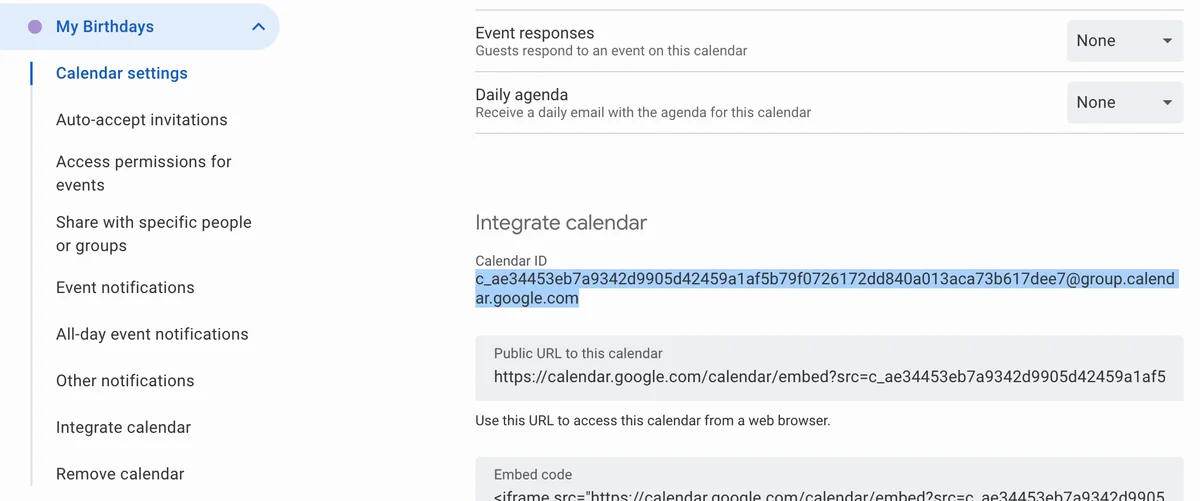
4. Paste the ID into the script
Back in your copy of the script, paste the ID between the quotation marks of calendarId, in the CONFIGURATION section of the code. Then click Save project: the script runs the saved version, so an unsaved change is ignored.

Other settings in the same section are optional:
- onlyBirthdays: set it to true to copy only birthdays, not special events such as anniversaries.
- onlyContactLabel and contactLabelID: copy birthdays only for contacts with one label.
- useDefaultReminders: leave it true to use the calendar's own notification settings, which you can change later.
- useOriginalBirthdayCalendar: set it to true to write into Google's Birthday calendar instead of your own. If "Sync from Contacts" already shows birthdays there, this creates duplicates.
5. Run updateBirthdays
Select updateBirthdays in the drop-down next to Run, and click Run. To check your settings first, run showConfiguration, or dryRunUpdate to see what would be created without changing anything (see The Run menu below).

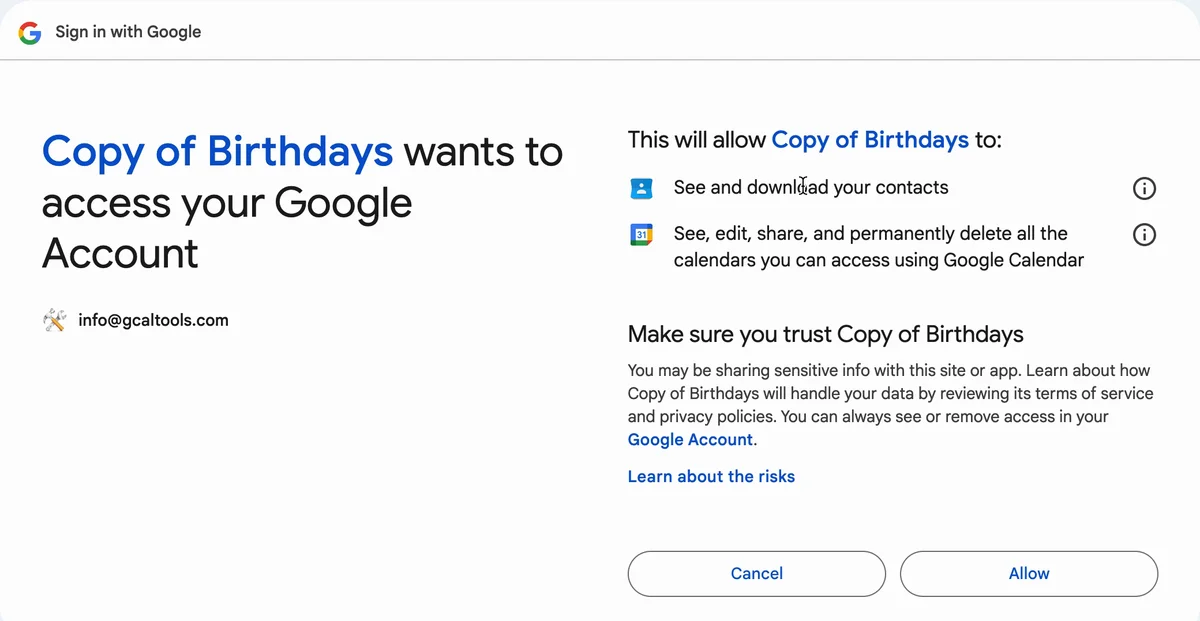
The first time, Google asks you to review permissions. Click Advanced to continue, then Allow. The script now asks only to see your contacts and calendars and to edit their events (the video shows the wider permissions of the 2024 version), and it runs only in your own account.
The Execution log lists each birthday event the script creates. You can run it again at any time: birthdays it has already created are skipped, so there are no duplicates.
6. Run it every day (optional)
To pick up birthdays from new contacts automatically, open Triggers (the clock icon on the left) and click Add Trigger. Choose updateBirthdays, Time-driven, Day timer and a time of day, here Midnight to 1am, and click Save.
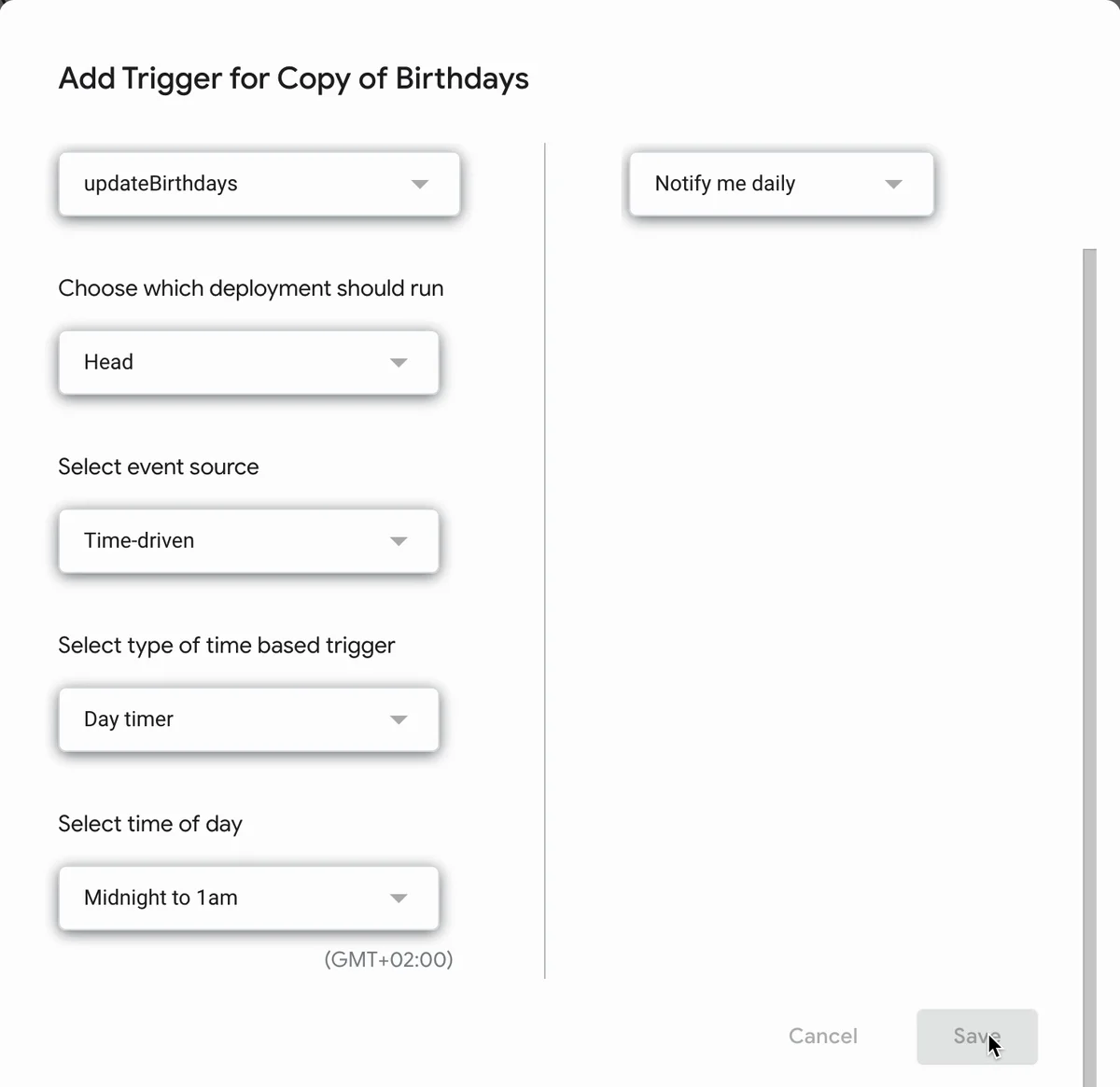
7. Use your birthday calendar
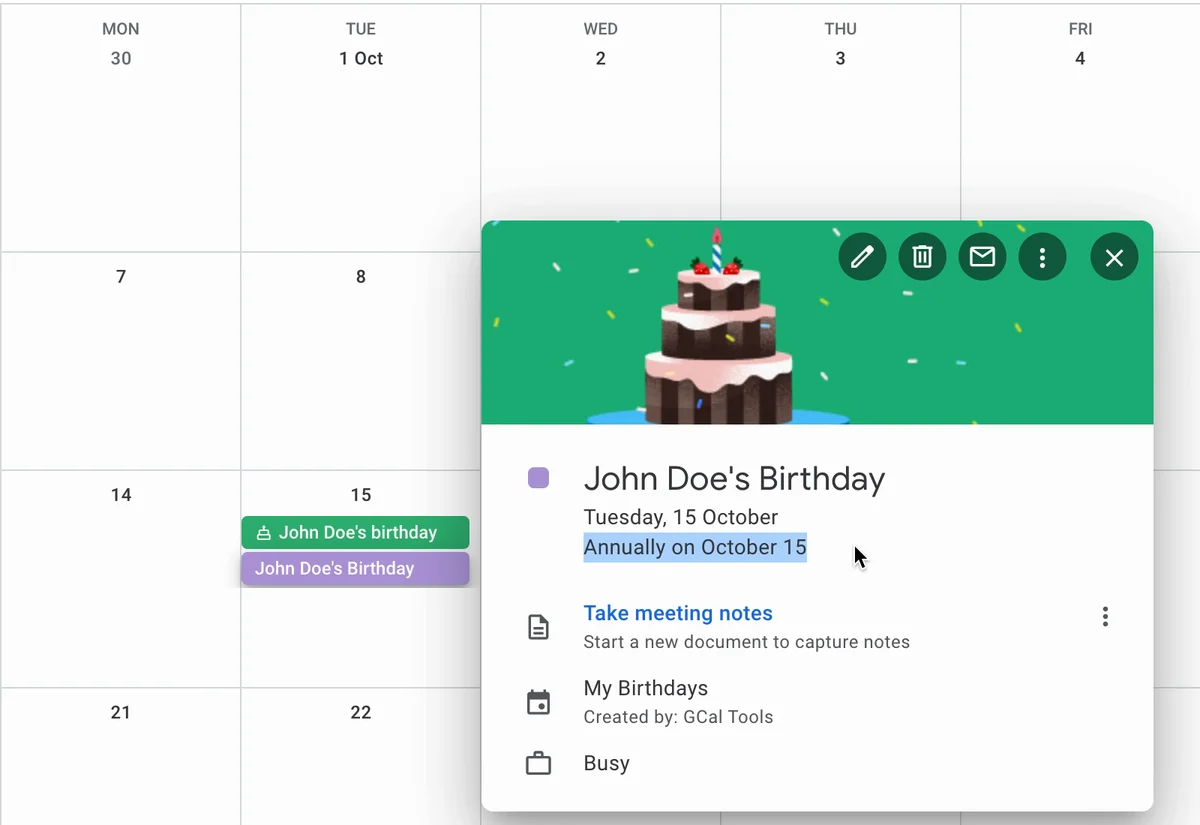
The birthdays are now yearly events in your calendar, here "John Doe's Birthday", repeating annually on 15 October. It's a normal calendar, so you can print it, share it, set notifications and edit any event.
The Run menu
The video only uses updateBirthdays. The script now has more functions in the drop-down next to Run, each with a dry run that only lists in the Execution log what it would do:
- showConfiguration: lists your current settings in the Execution log. Run it first to check them.
- dryRunUpdate, then updateBirthdays: create birthdays (and special events) from your contacts, skipping those already created.
- dryRunDelete, then deleteEvents: remove the birthday and special events the script created in your calendar. Set deleteOnlyFutureEvents to true to keep past ones, or deleteSearchPattern to remove only events whose titles contain that text.
- dryRunSync, then syncBirthdays: for Google's Birthday calendar only (useOriginalBirthdayCalendar set to true). It keeps that calendar matched to your contacts: it creates missing birthdays and deletes those that no longer match a contact, such as a removed contact, a changed name or date, or a duplicate. Your own birthday and the birthdays Google syncs from Contacts are left alone, but birthday events created by hand are removed unless they match a contact exactly. With filterMonths or filterDays set, only those dates are touched.
The script's code is also on GitHub.
More Google Calendar fixes
Looking for more ways to get the most out of Google Calendar? See all our tutorials, or watch the Google Calendar Tips and Tricks playlist.