
Back Up Google Calendar Automatically to Google Drive With GCal Backup
To back up Google Calendar to Google Drive automatically, copy the free GCal Backup script, paste in each calendar's secret address in iCal format, run it once, and add a daily trigger. Every day it saves an iCal file of each calendar to a Calendar Backups folder in your Drive.
Google Calendar itself keeps no backups of your events. The script runs in your own Google account, so nobody else can see your calendars.
1. Make your own copy of the script
Open GCal Backup, click Overview (the "i" in the left menu), then "Make a copy", the copy icon at the top right of Project Details. Your copy opens in a new tab, as "Copy of GCal Automatic Backup".

2. Copy a calendar's secret address
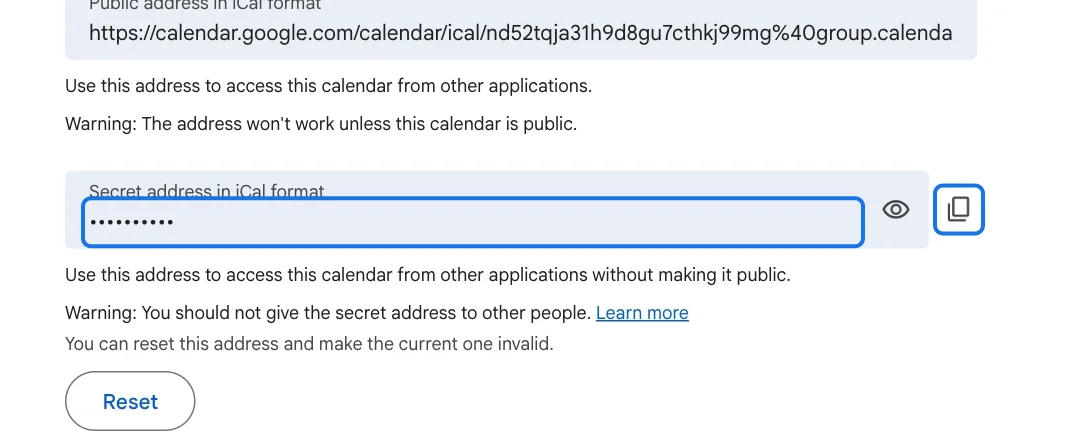
In Google Calendar, open Settings and click the calendar to back up under "Settings for my calendars". Scroll to "Integrate calendar" and click "Copy to clipboard" next to "Secret address in iCal format", then OK. This address lets the script read the calendar without making it public.
3. Paste it into the script
Back in your copy, find the line 'Cal #1 Name': 'secret URL #1',. Replace Cal #1 Name with a name for the calendar, here Demo, and secret URL #1 with the address you copied, keeping the quotes and the comma.

4. Add your other calendars
Add each calendar you want on its own line, the same way. Every line ends with a comma except the last, so delete the lines you don't need. Then save (⌘S or Ctrl+S).

5. Run it once and allow access
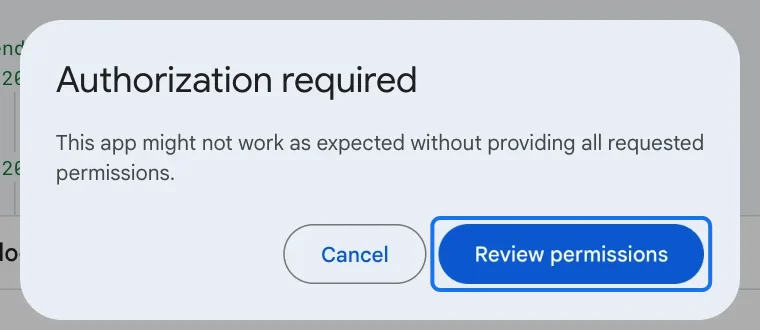
Make sure "createBackup" is selected in the toolbar and click Run. The first time, Google asks for permission: click "Review permissions" and choose your account.
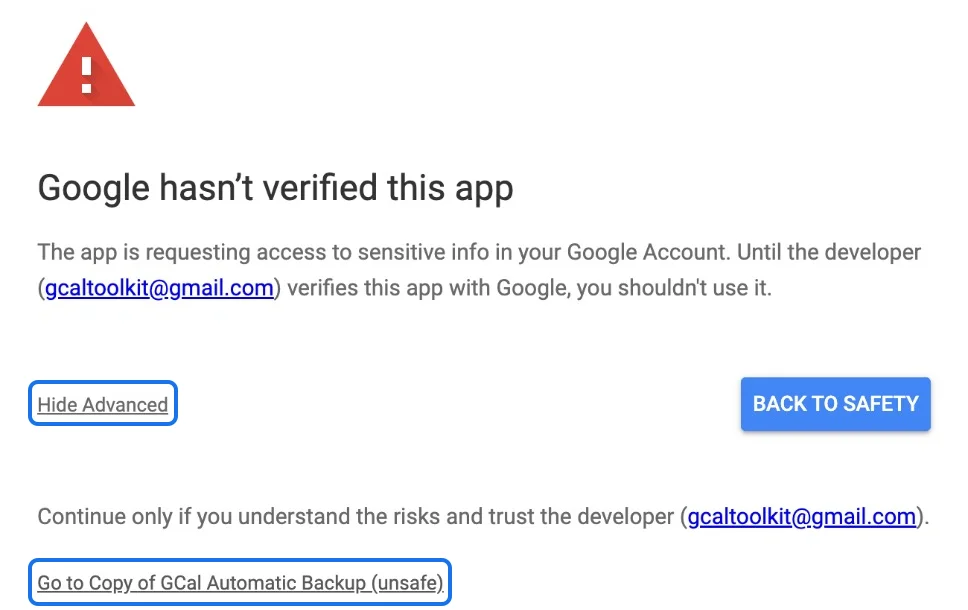
Your copy isn't a published app, so Google warns that it hasn't verified it. Click Advanced, then "Go to Copy of GCal Automatic Backup (unsafe)".
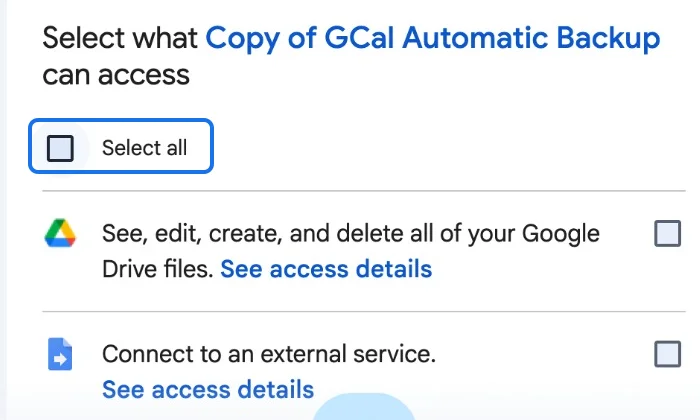
Tick "Select all" to let it create files in your Drive and fetch your calendars, then click Continue.
When the execution log says "Execution completed", the first backup is done.

6. Find your backups in Google Drive
The backup is in a new Calendar Backups folder in My Drive. Each backup goes in a folder named by its date, with an iCal (.ics) file for each calendar.
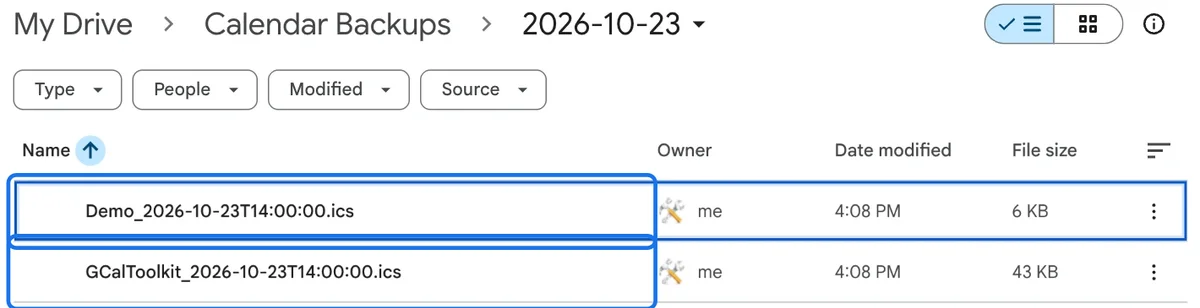
To restore events, import a backup file in Google Calendar: Settings, "Import & export", then Import.
7. Back up every day with a trigger
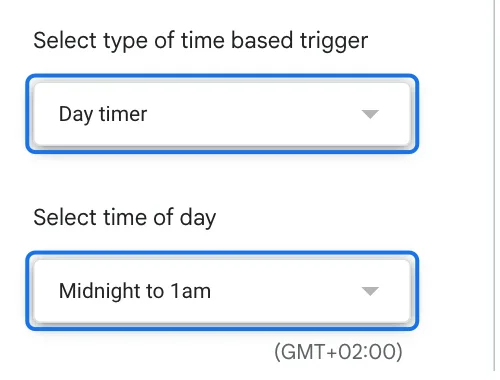
In your copy, click Triggers (the clock in the left menu), then "Add Trigger". Keep the "createBackup" function and the "Time-driven" event source, choose "Day timer" and a time of day, and click Save. Your calendars are then backed up every day, without you doing anything.
Watch the full playlist on YouTube
Try it
Get GCal Backup for free, and discover all our calendar tools at gcaltools.com.