
Stop the Google Calendar App Changing Time Zone When You Travel
To stop the Google Calendar app changing your calendar's time zone when you travel, open its Settings, then General, and switch off "Use device's time zone". Then choose the time zone your calendar should stay in.
Your phone can keep showing the local time wherever you are; only the calendar stays put.
1. Open the app's settings
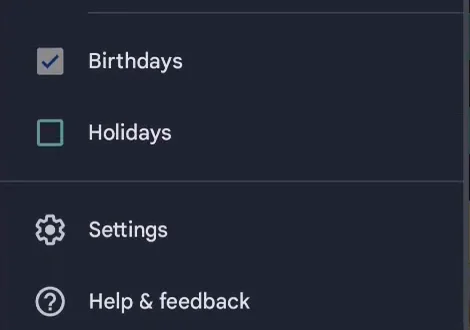
Open the menu (the three lines at the top left), scroll down and tap Settings.
2. Open General
Tap General, at the top of the settings.

3. Switch off "Use device's time zone"
At the top of General, "Use device's time zone" is on, so the calendar follows the phone wherever you go.
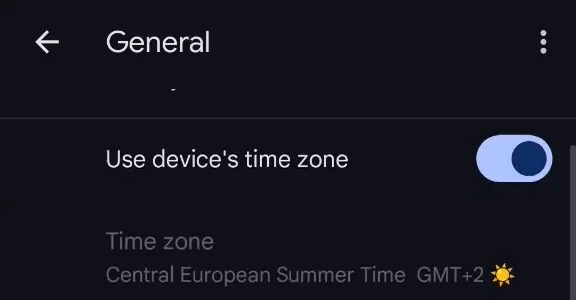
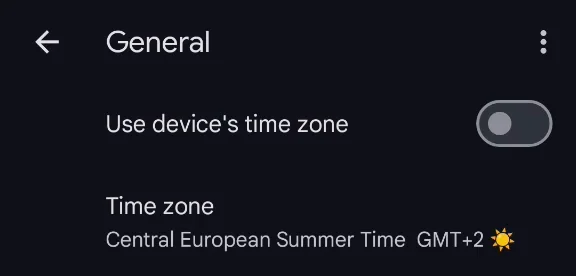
Switch it off, tap Time zone and choose the one you want. The calendar now stays in that time zone, even when you travel.
More Google Calendar fixes
Looking for more ways to get the most out of Google Calendar? See all our tutorials, or watch the Google Calendar Tips and Tricks playlist.