
Fix the Google Calendar App Crashing or Not Opening on Android
If the Google Calendar app on Android crashes, freezes or won't open, even after restarting the phone and reinstalling the app, first clear the app's own storage. If that doesn't help, reset Calendar storage, the database every calendar app on the phone uses; problems with it can follow an upgrade from an older version of Android.
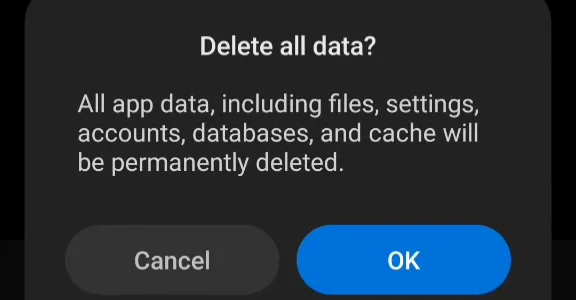
Your Google calendars are safe: they sync back from your Google account. But resetting Calendar storage deletes events kept only on the phone, so read the warning in step 2 before you do it.
The video was filmed on a Xiaomi phone. Other phones name the menus a little differently, but the steps are the same.
1. Clear the Google Calendar app's storage
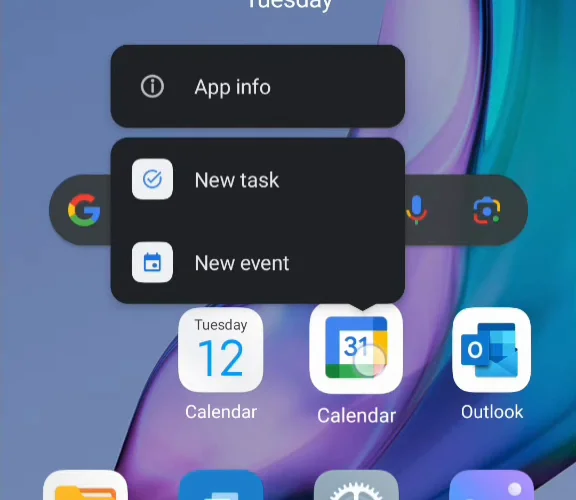
Long-press the Google Calendar icon and tap App info.
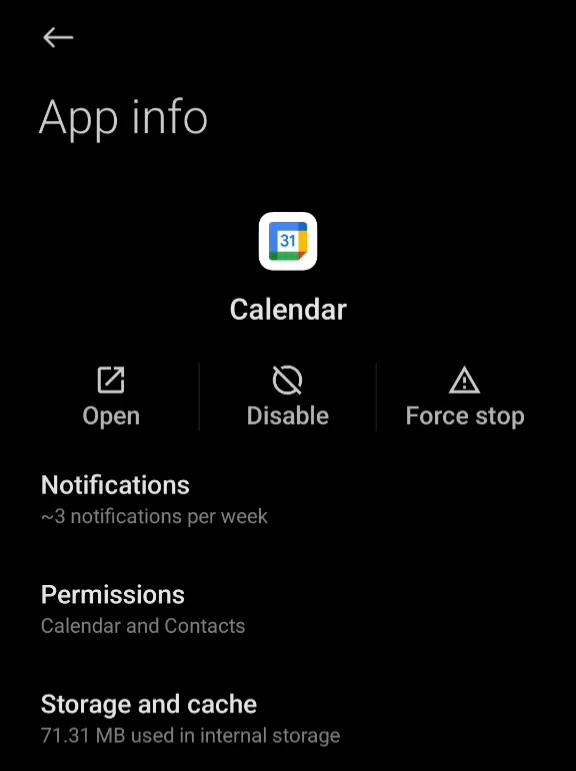
Tap Force stop, then open Storage and cache (here, Storage).
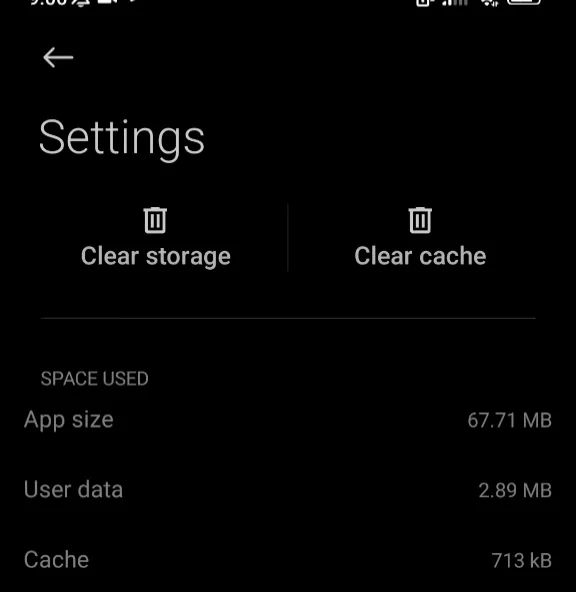
Tap Clear cache, then Clear storage. It's safe: the app's data is downloaded again from your Google account the next time you open it.
2. If that fails, reset Calendar storage
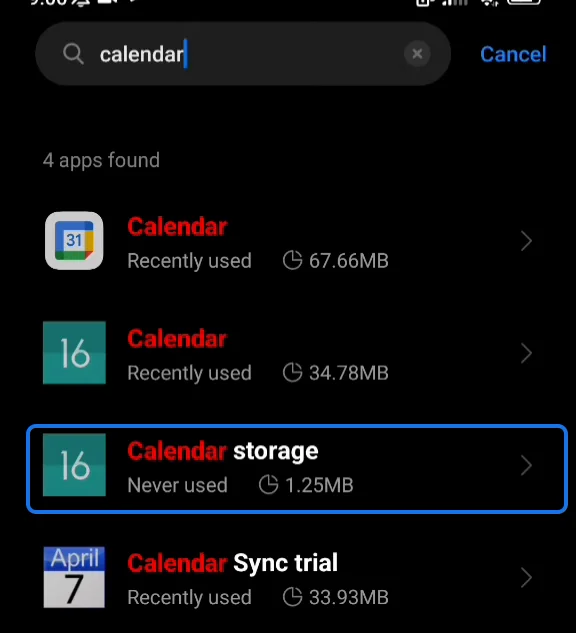
Calendar storage is a system app, so it's hidden from the usual list. Open the phone's Settings, then Apps, then Manage apps (or See all apps), open the menu at the top right and choose Show all apps (on some phones, Show system).
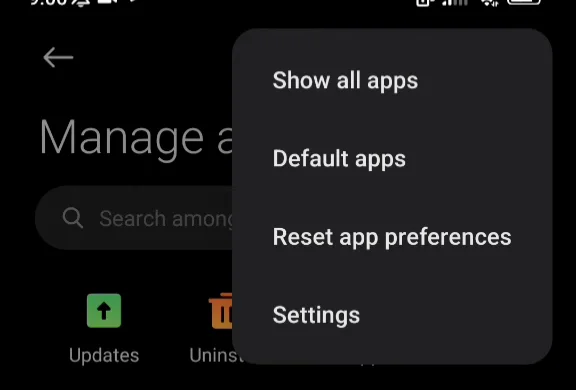
Search for calendar and open Calendar storage.
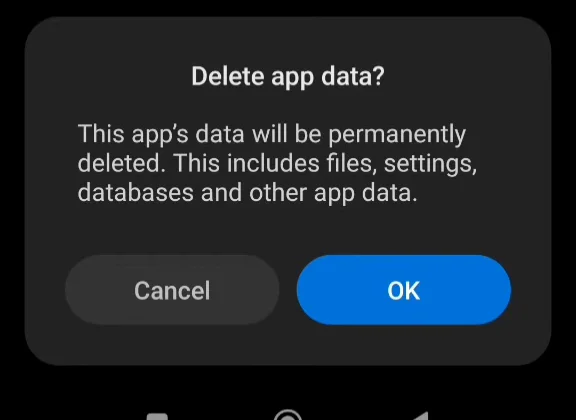
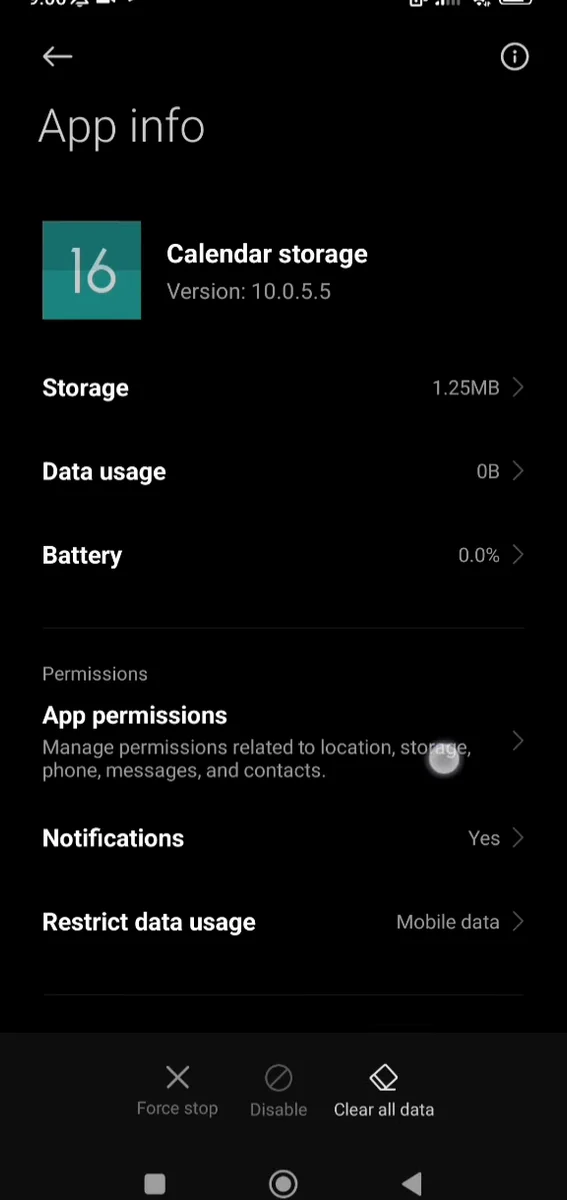
Tap Force stop if it's running, then Clear all data.
Confirm with OK, once anything stored only on the phone is safe.
3. Open Google Calendar again
Open the Google Calendar app. It starts as if newly installed, syncs your Google calendars again and should now work normally.
More Google Calendar fixes
Looking for more ways to get the most out of Google Calendar? See all our tutorials, or watch the Google Calendar Tips and Tricks playlist.