
Install Sheets2GCal to Sync Google Calendar With Google Sheets
To install Sheets2GCal, open it in the Google Workspace Marketplace, click Install, choose your Google account and allow the permissions it asks for. Then open any spreadsheet in Google Sheets: Sheets2GCal is in the Extensions menu.
Sheets2GCal is a Google Sheets add-on that creates and edits Google Calendar events from a spreadsheet, and imports your calendars into one.
The video was recorded when the Marketplace was called the G Suite Marketplace, and Google Sheets' Extensions menu was called Add-ons. The steps are the same.
1. Install it from the Marketplace
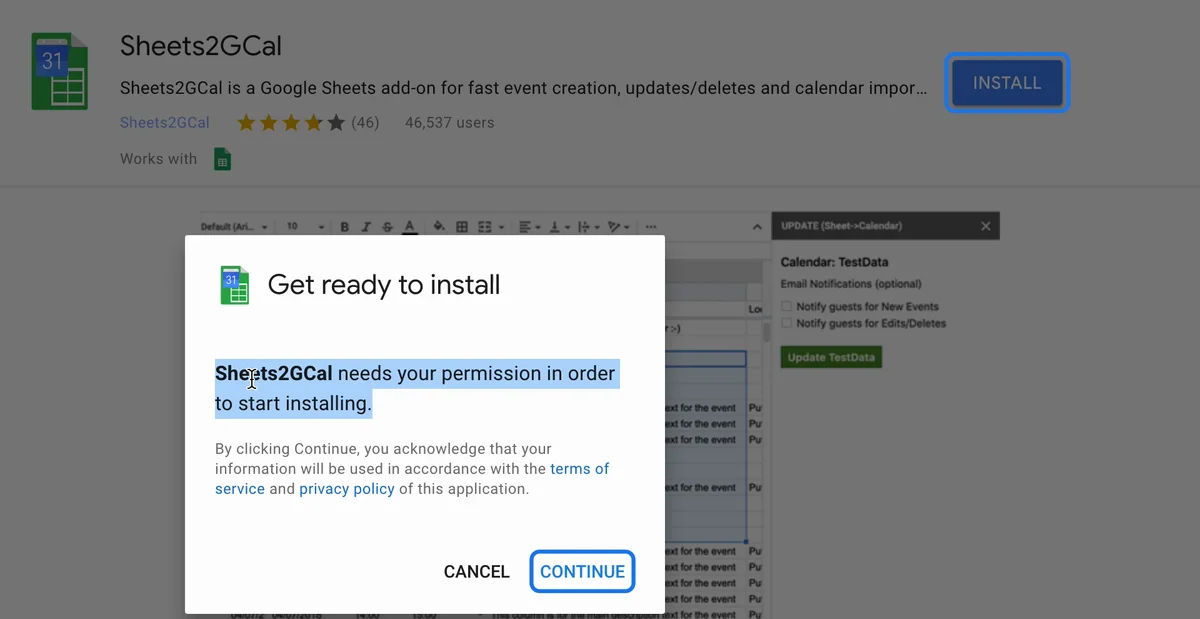
Open Sheets2GCal in the Google Workspace Marketplace and click Install. Google says Sheets2GCal needs your permission to start installing: click Continue, and choose your Google account.
2. Allow its permissions
Google lists what Sheets2GCal will be able to do. Each permission has a reason:
- See, edit, create and delete your spreadsheets: to read and write the events in your Sheet, including automatic, scheduled updates that run while the Sheet is closed.
- See your calendars, and view and edit events on all your calendars: to list your calendars, and to create, update and import events.
- Connect to an external service: to check your Sheets2GCal account and subscription.
- Display third-party web content in prompts and sidebars, and run when you're not present: for its sidebars and its automatic updates.
Click Allow.
3. Open Sheets2GCal in a spreadsheet
Open a spreadsheet in Google Sheets, or create a new one. Sheets2GCal is now in the Extensions menu: choose "Import Calendar to Sheet" to bring a calendar's events into the Sheet, or "Export Sheet to Calendar" to create and update events from it.
Next, see Sheets2GCal: Import All Events or a Date Range.
Try it
Get Sheets2GCal and sign in with your Google account to create a free account, which raises your daily limits.