
Sync Google Sheets and Google Calendar Automatically With Sheets2GCal
To sync a Google Sheet and its Google Calendar automatically, open Extensions, Sheets2GCal, "Automatic Sync": choose the sync order, here "Import > Export", and how often, daily at an hour of your choice or every few hours, then click Start. Sheets2GCal then imports and exports that sheet on its own.
This is the last part of Edit Google Calendar Events in Google Sheets With Sheets2GCal and Quick Sync and Multiple Calendars in One Spreadsheet, and the video starts at this point.
Sheets2GCal has changed since the video: "Check Sheet vs Calendar" is now "Check Mismatched Events", "Automatic Import/Export" is now "Automatic Sync" and can also run hourly, and some buttons have new names. The steps below follow the current version.
1. Find mismatched events
When you edit a row, Sheets2GCal ticks its Update box. But changes made by formulas, or by another program, don't tick it. "Check Mismatched Events" compares every row with its event in the calendar, and ticks Update for those that differ.
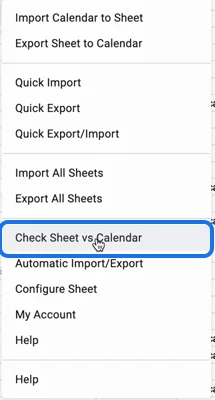
Then export, with Quick Export or "Export Sheet to Calendar", to send those changes to the calendar.
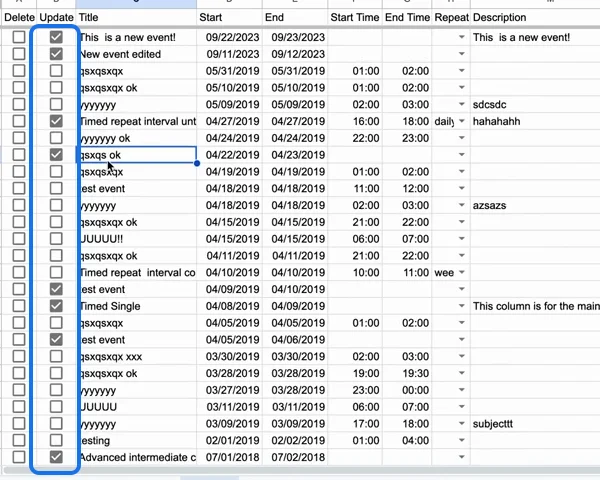
2. Pull in changes made in Google Calendar
To bring changes made in Google Calendar into the sheet, open "Import Calendar to Sheet" and click "Import Changes & New Events". It imports only what has changed since your last import, and doesn't empty the sheet.
3. Choose the sync order
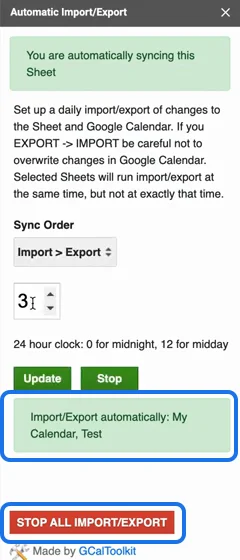
Open Extensions, Sheets2GCal, "Automatic Sync" and pick the Sync Order:
- Import > Export: brings calendar changes into the sheet, then sends the sheet's changes to the calendar. The import only brings in changes made in Google Calendar, so it's the safest way not to lose edits made in either place.
- Sync: sends the sheet's changes first, then imports.
- Export: for when you manage the calendar from the sheet and never edit it in Google Calendar.
- Import: for when you edit in Google Calendar and want a copy in the sheet, for example for others to read.
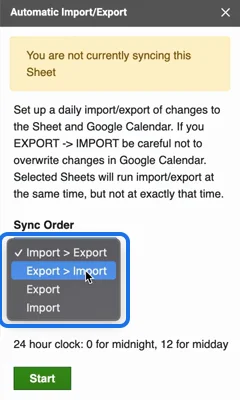
Automatic syncing also uses Check Mismatched Events to find the rows to update, besides those you ticked yourself.
4. Choose when, and start
Choose Daily and enter the hour, on a 24-hour clock (0 for midnight, 12 for midday), or choose Hourly and how many hours apart: 1, 2, 4, 6, 8 or 12. Then click Start. The sidebar confirms "You are automatically syncing this Sheet".
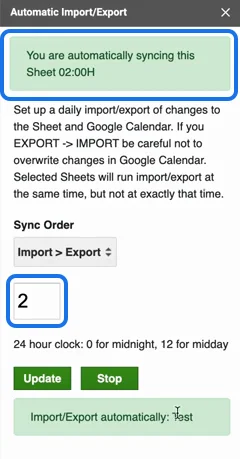
Do the same for each sheet you want synced. All your synced sheets are processed at the same time, and not at exactly the time you chose, so allow for some delay.
5. Stop syncing
Click Stop to stop syncing the sheet you're on, or "Stop all syncing" to stop every sheet.
Try it
Get Sheets2GCal to manage your Google Calendars from Google Sheets.