
Edit Google Calendar Events in Google Sheets With Sheets2GCal
To edit Google Calendar events in Google Sheets, import the calendar with Sheets2GCal ("Import Calendar to Sheet"), change or add events in the rows, then send the changes back with "Export Sheet to Calendar". Each row is one event, and Sheets2GCal ticks a row's Update box as soon as you edit it.
This is the first part of a longer video, which starts below at the import. Install Sheets2GCal first if you haven't yet.
1. Open Import Calendar to Sheet
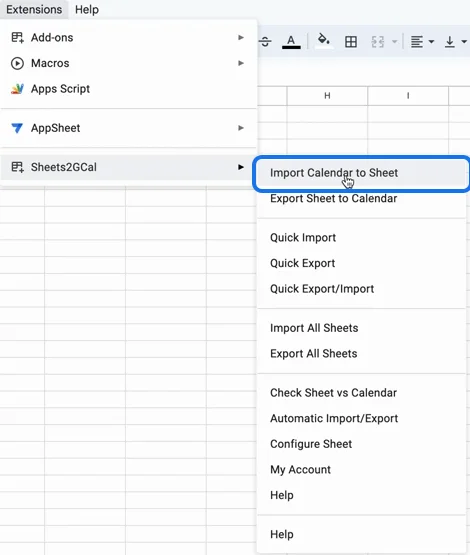
In a spreadsheet, open Extensions, Sheets2GCal, then "Import Calendar to Sheet".
2. Import the calendar
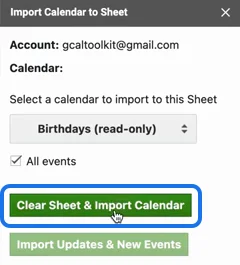
In the sidebar, select the calendar, keep "All events" ticked and click "Clear Sheet & Import Calendar". Sheets2GCal empties the sheet, after asking you to confirm, and imports the calendar's events, which links the sheet to that calendar. Rename the sheet after the calendar to keep track.
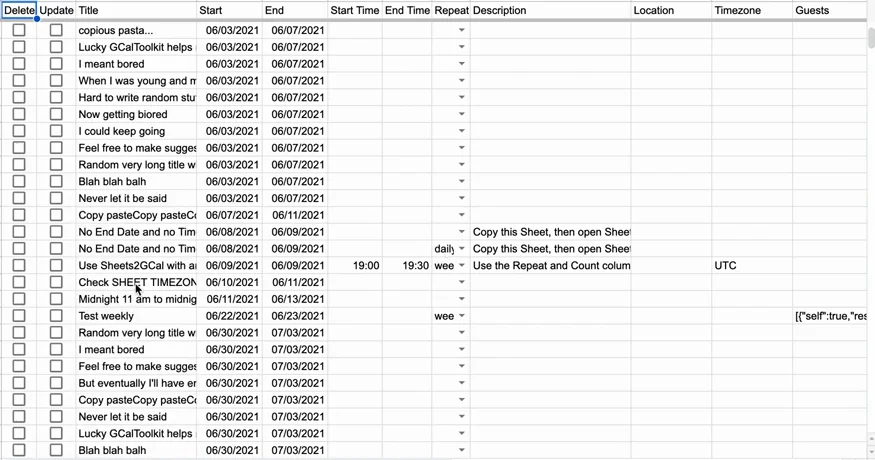
With "All events", a repeating event is a single row with its repeat rule. To get every occurrence in a date range instead, see Sheets2GCal: Import All Events or a Date Range.
3. Create and edit events in the rows
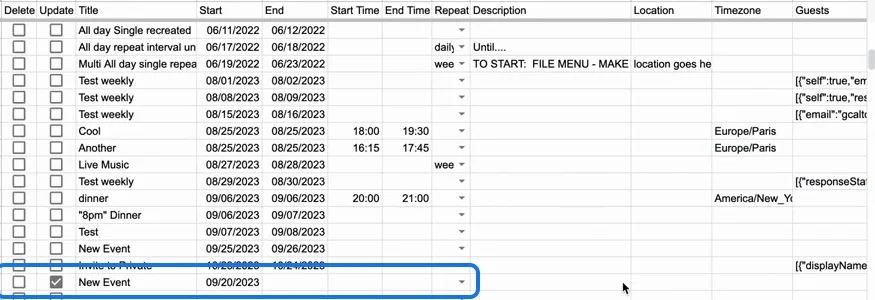
To create an event, type a title and a start date in an empty row: that's enough for an all-day event. Add an end date to make it last several days, start and end times, a repeat (daily, weekly and so on), a description, a location, guests as a list of email addresses separated by commas, and a colour.
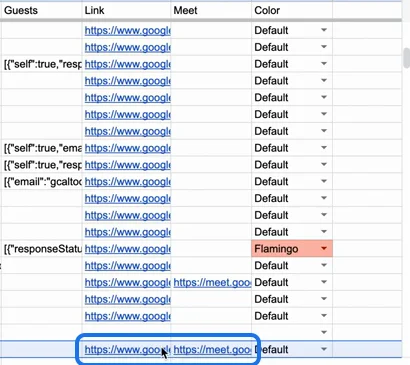
For a Google Meet link, type any text in the Meet column: it's replaced by the real Meet link when the event is created.
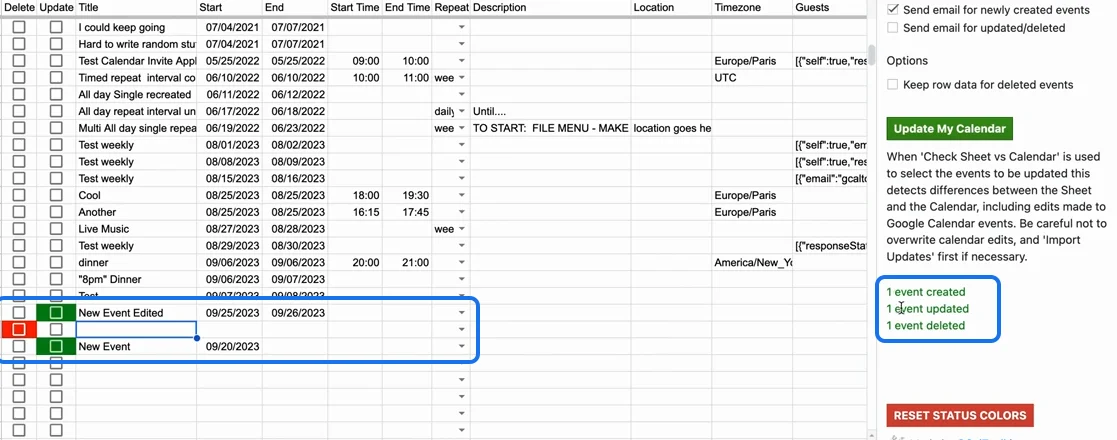
To change an event, edit its row: Sheets2GCal ticks its Update box. To delete one, tick its Delete box.
4. Export the changes to the calendar
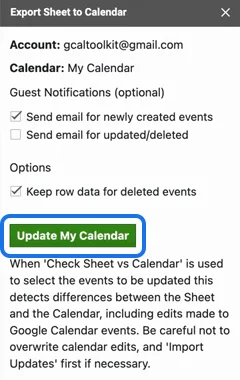
Open Extensions, Sheets2GCal, "Export Sheet to Calendar". Choose whether to email guests about new events, and about updates and deletions, and whether to keep a deleted event's row in the sheet ("Keep row data for deleted events"). Then click "Update My Calendar".
Sheets2GCal creates, updates and deletes the events whose boxes are ticked, and reports what it did.
New events get a Link to open them in Google Calendar, and, if you asked for one, their Meet link.
5. Or start with a blank sheet
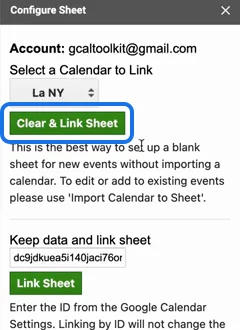
To create new events without importing any, open Extensions, Sheets2GCal, "Configure Sheet". Select the calendar and click "Clear & Link Sheet": Sheets2GCal sets up the columns and links the sheet, without importing anything.
Fill in your new events, then export them as in step 4.

Next: Quick Sync and Multiple Calendars in One Spreadsheet.
Try it
Get Sheets2GCal to manage your Google Calendars from Google Sheets.