
Back Up Google & Outlook Contacts With Photos (and Restore Them)
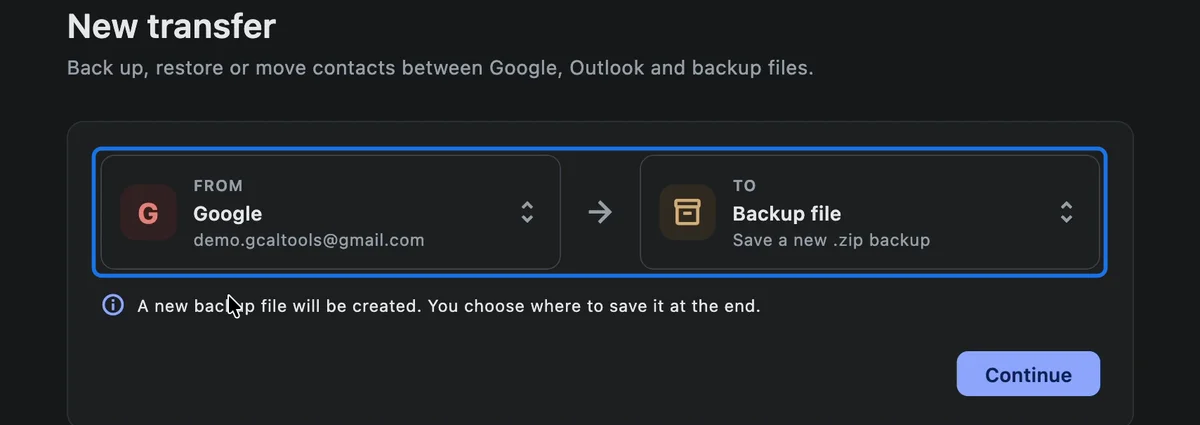
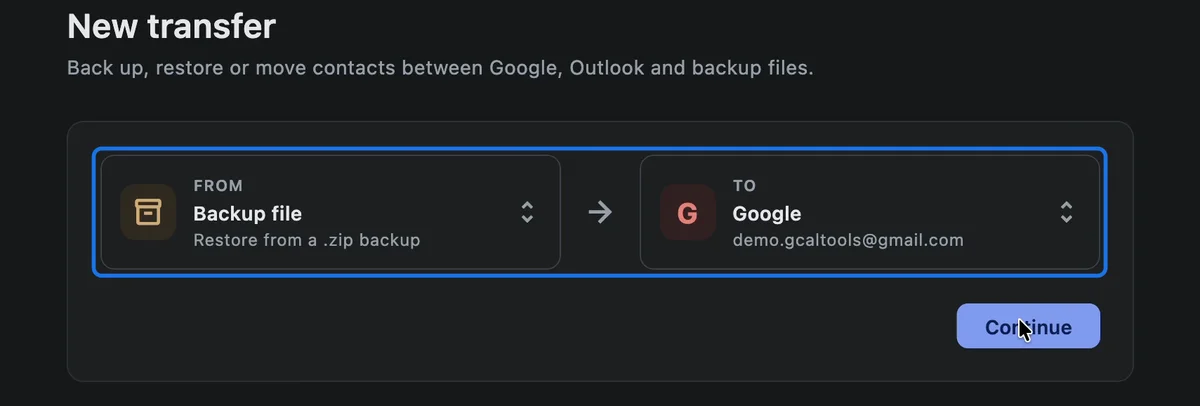
To back up Google contacts with their photos, use ContactSwap: choose From "Google" and To "Backup file", and it saves every contact, photo and label in one zip file on your computer. To restore them, choose From "Backup file" and To "Google", and they come back exactly as they were.
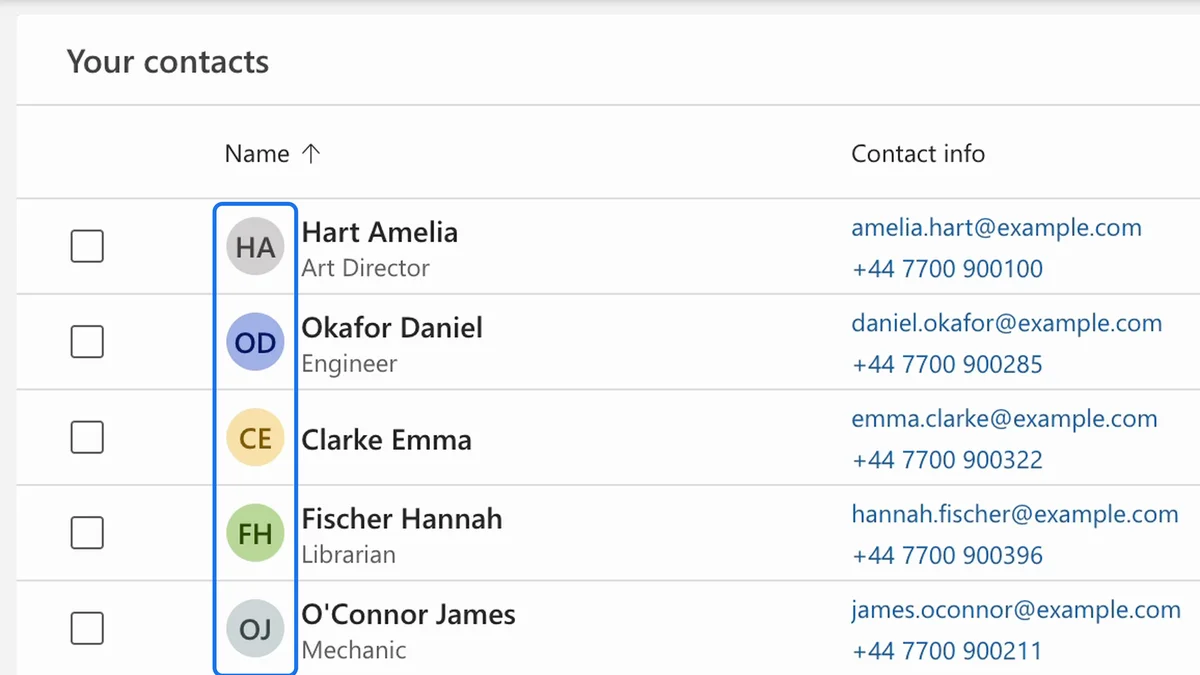
Export your Google contacts and import them elsewhere, and their photos are left behind:
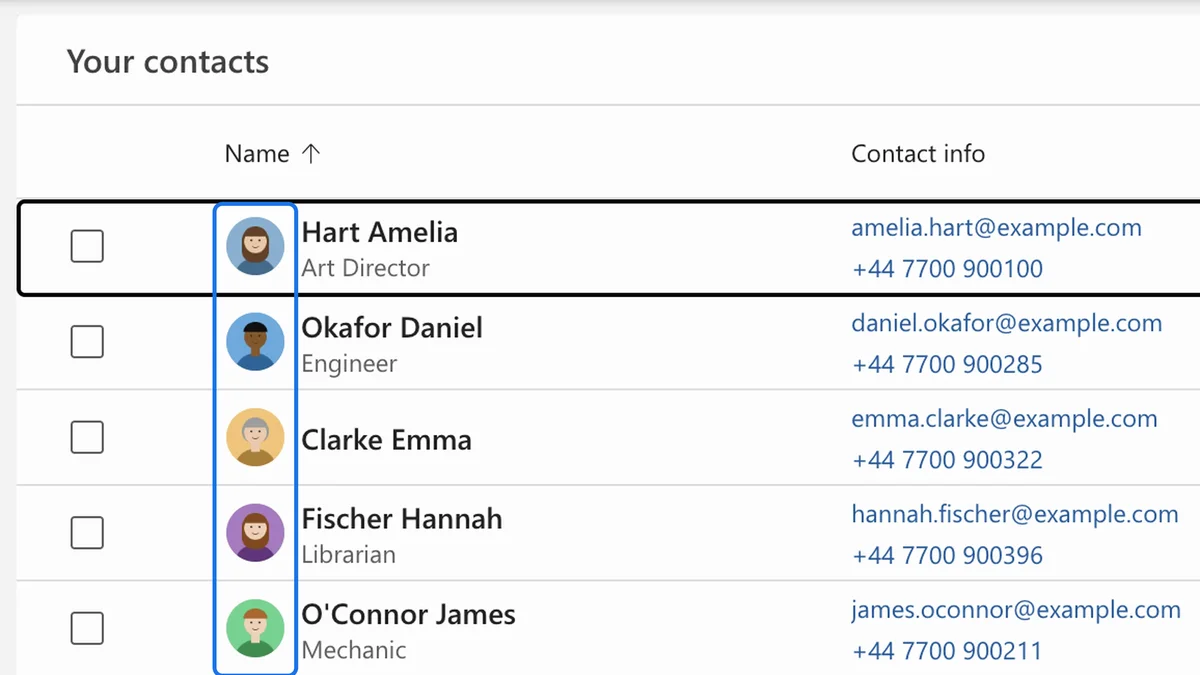
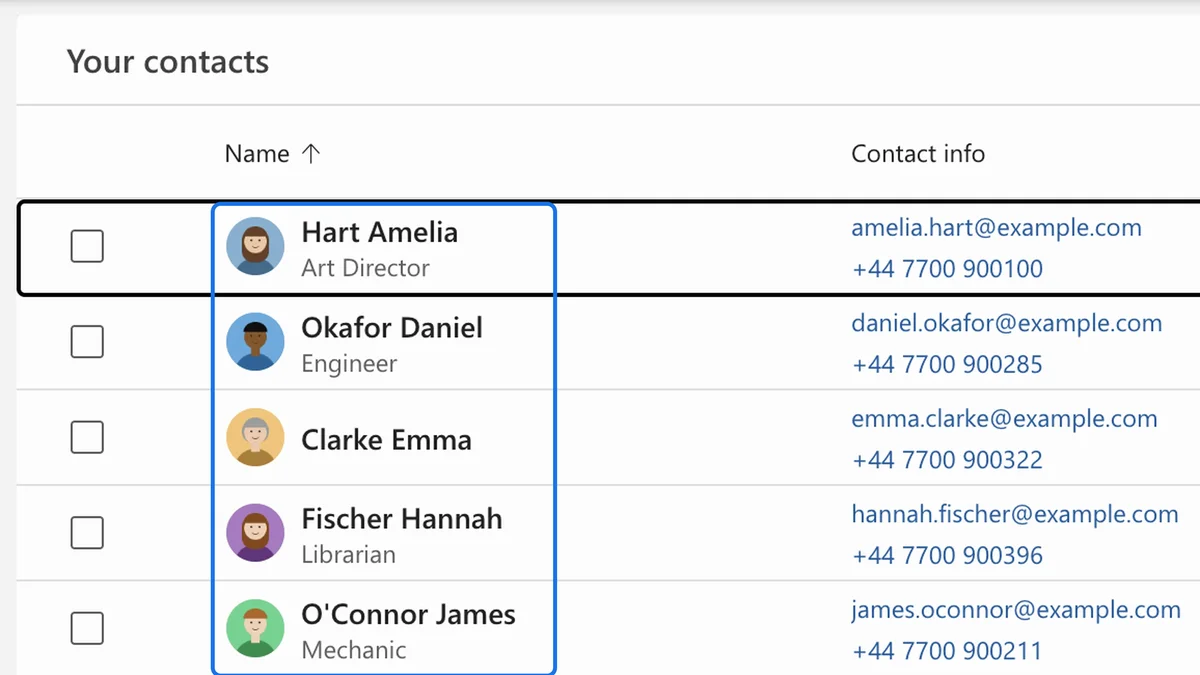
ContactSwap brings them across with their photos, between Google, Outlook and a backup file:
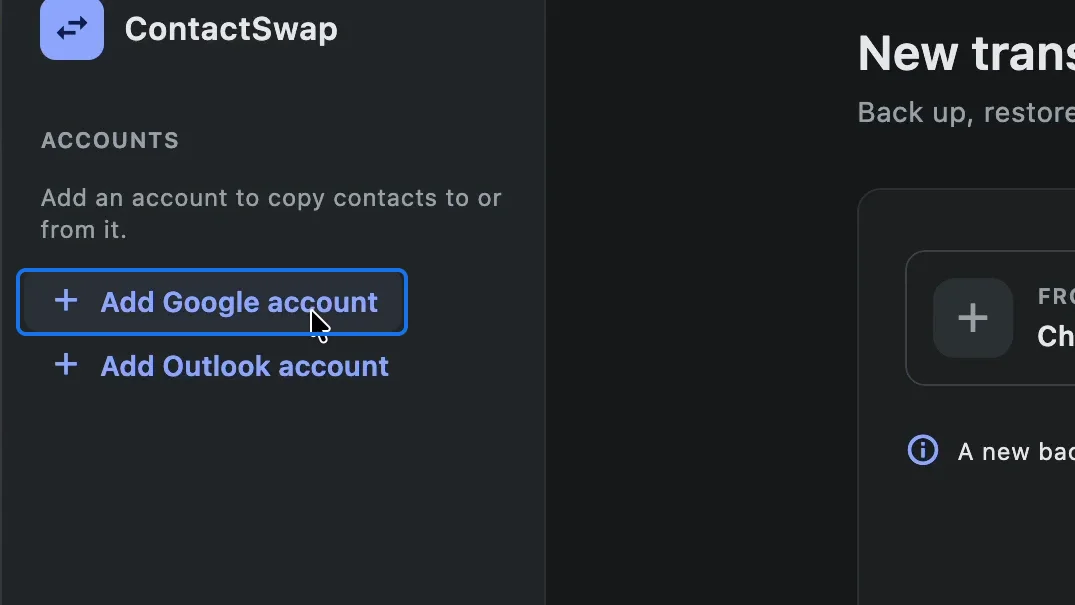
1. Add your Google account
In ContactSwap, click "Add Google account".
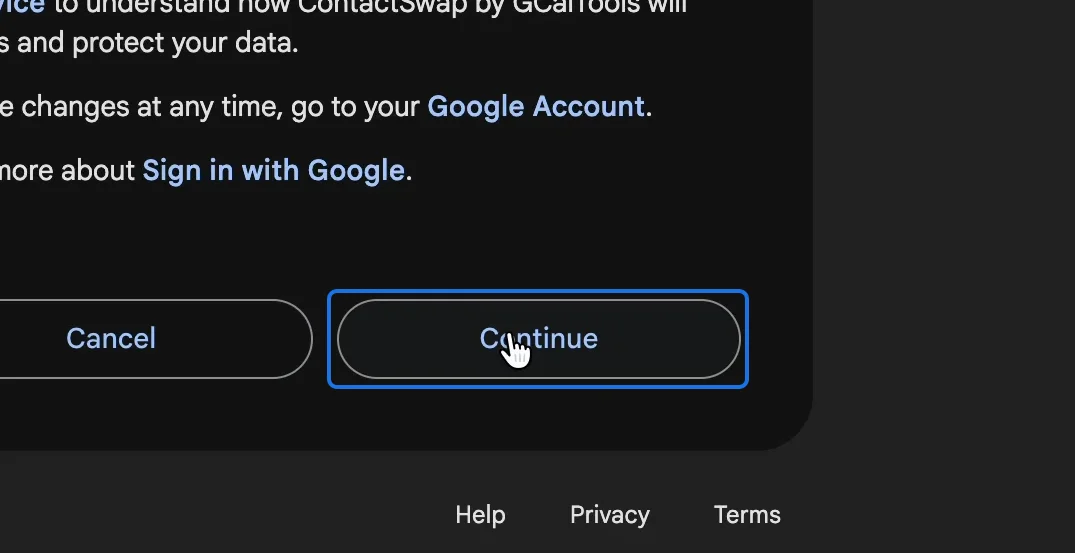
Pick your account in the browser and sign in with "Continue". Your account then appears under Accounts.
2. Choose From "Google" and To "Backup file"
Under "New transfer", choose From "Google" and To "Backup file", and click "Continue".
3. Pick the contacts
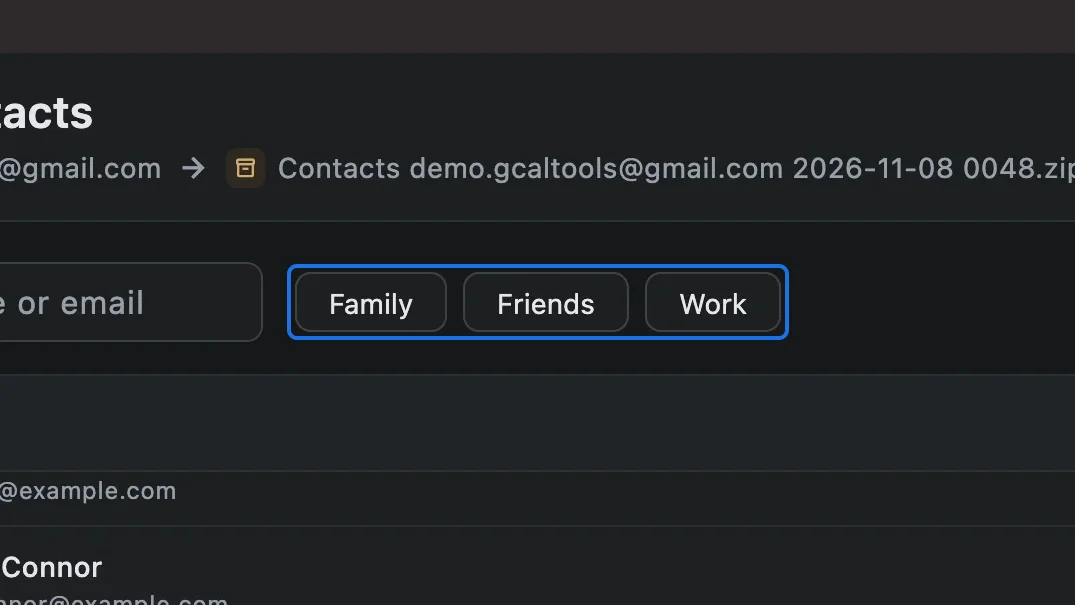
Every contact is ticked. To back up only some, search for a name or email, or filter by a label such as Family, Friends or Work. Then click "Continue".
4. Save the zip file
ContactSwap copies the contacts and their photos, then asks where to keep the file. Choose a folder and click "Save".
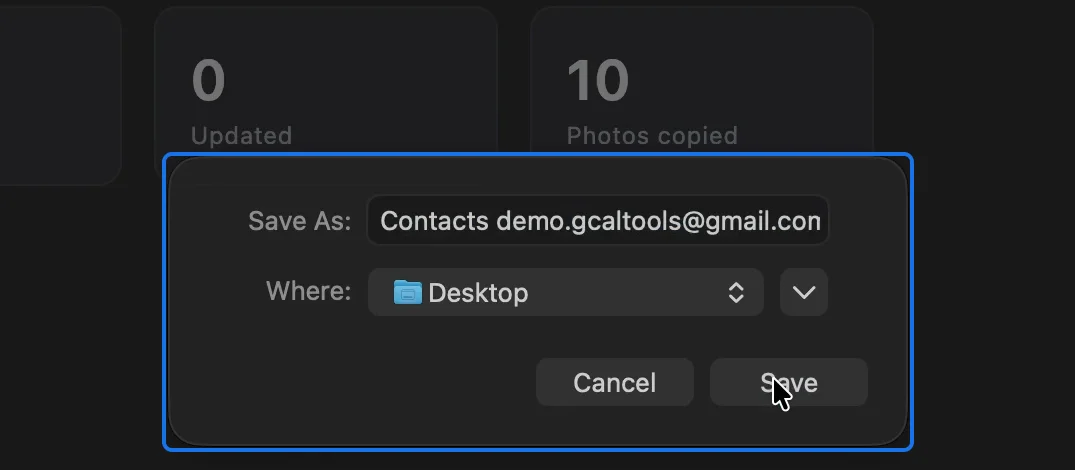
When it's done, it shows how many contacts and photos the backup holds.

5. Restore: choose From "Backup file" and To "Google"
To restore your contacts, for example after deleting them by mistake, choose From "Backup file" and To "Google", click "Continue", and open your backup file.
6. Check for duplicates and start
Select the contacts you want back. ContactSwap checks the account for duplicates first, so a contact you still have isn't added twice. Then click "Start".

ContactSwap creates the contacts, then adds their photos. In Google Contacts they're all back, each with its photo and labels.
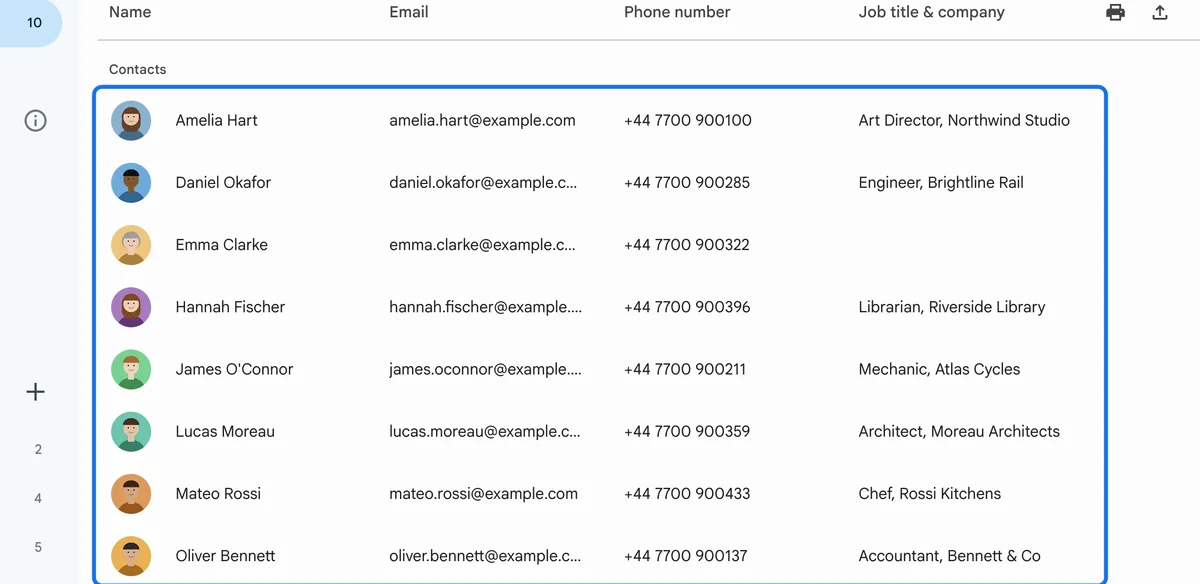
Copy your contacts to Outlook
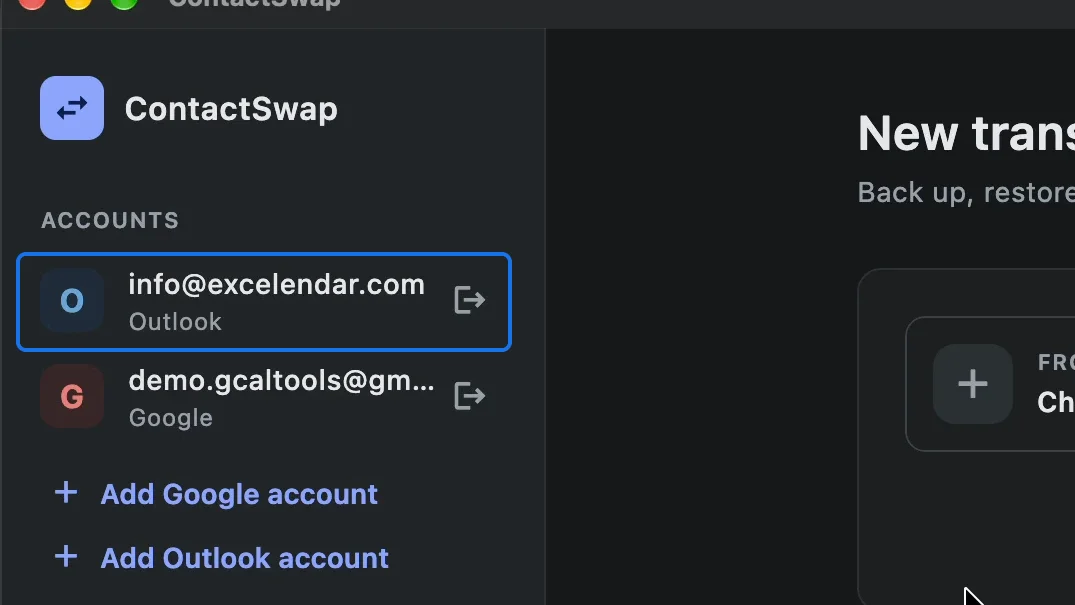
The same screen moves contacts between Google and Outlook. Click "Add Outlook account" and sign in with your Microsoft account.
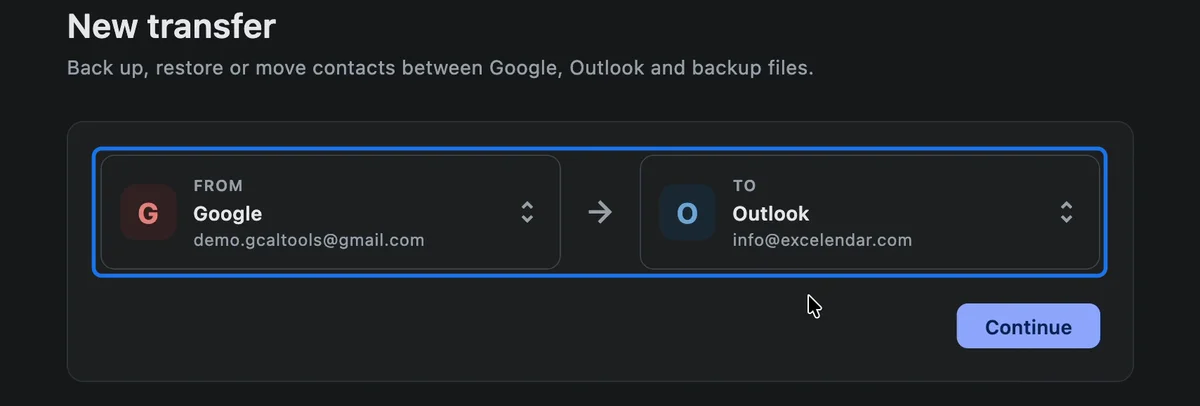
Choose From "Google" and To "Outlook", click "Continue", and "Start" after the review.
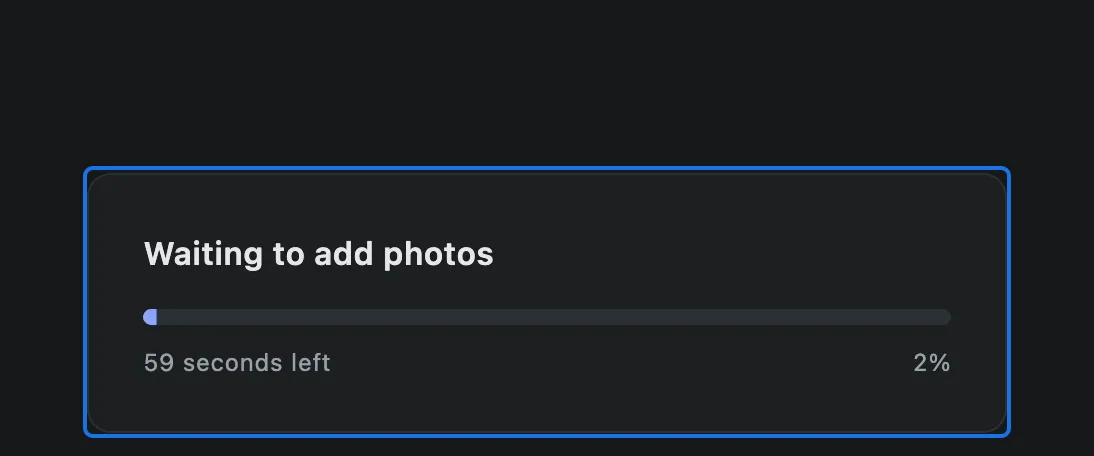
The contacts arrive in Outlook with their photos.
Watch the full playlist on YouTube
Get ContactSwap
ContactSwap backs up, restores and moves your contacts between Google, Outlook and backup files, photos included, on Mac and Windows.