
Back Up Google Calendar and Tasks with Google Takeout
To back up Google Calendar, export all your calendars with Google Takeout: tick only Calendar, create the export, and download the zip, which holds one iCal (.ics) file per calendar. Google keeps no earlier versions of your calendars or tasks and can't restore them, even on paid accounts, so once they're gone, they're gone, unless you've kept your own backup.
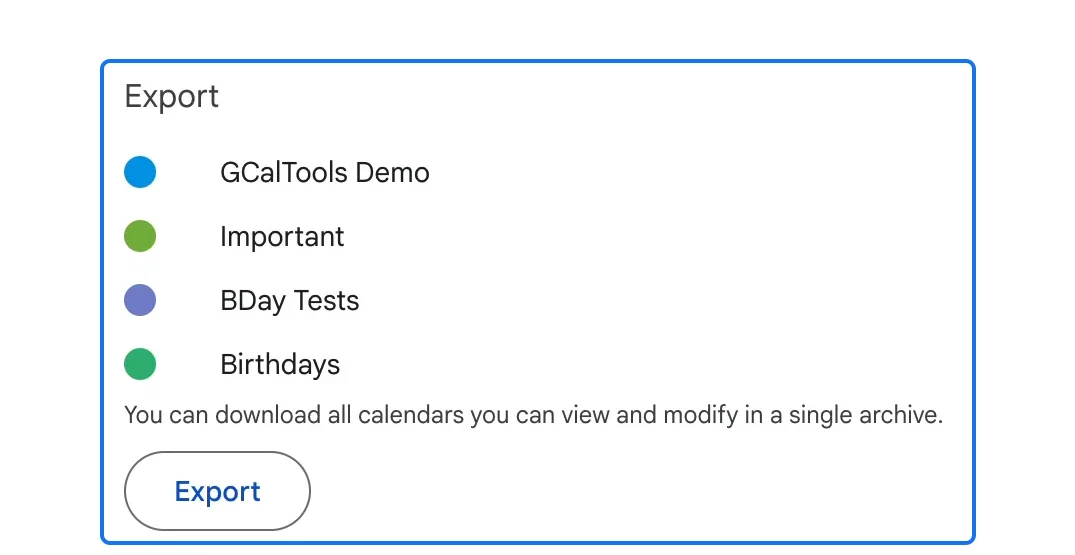
1. Open Google Takeout and select only Calendar
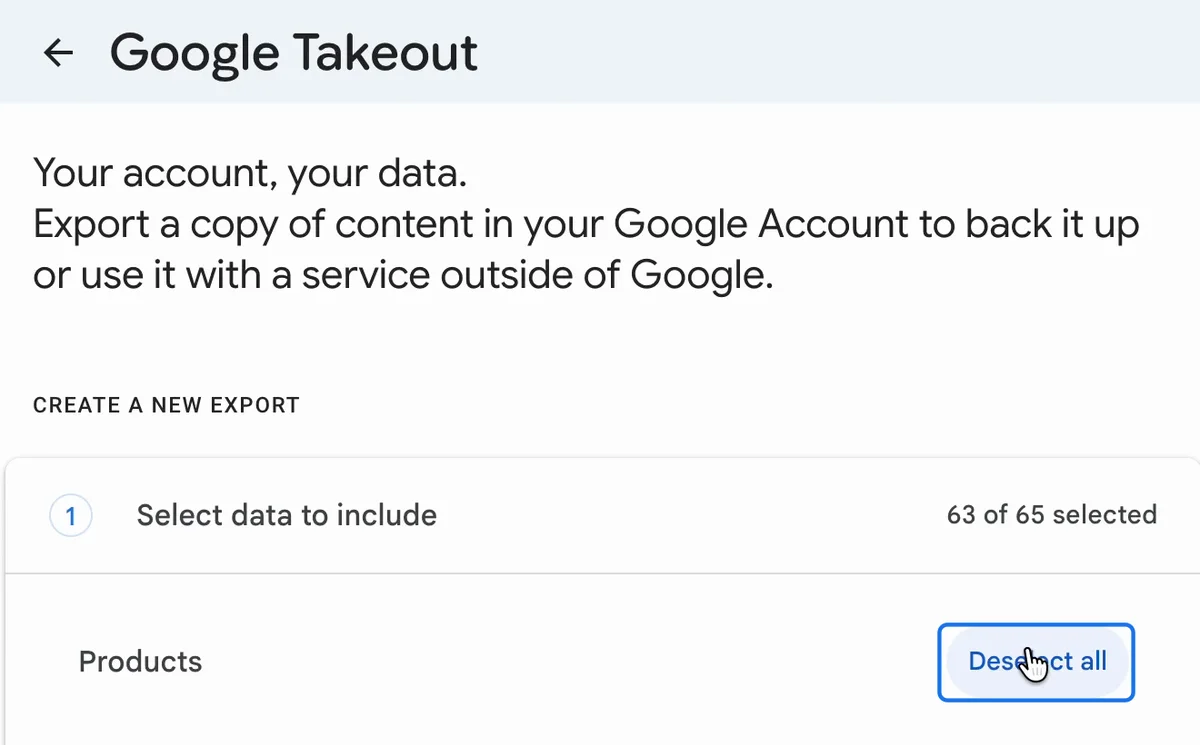
Open Google Takeout and click "Deselect all", so you export just what you need.
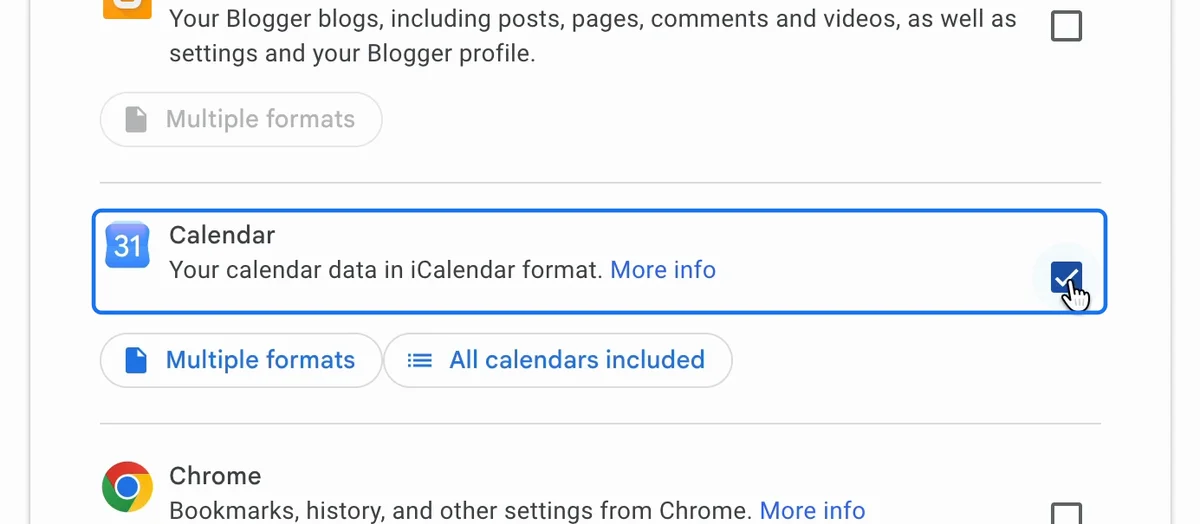
Then tick the checkbox "Calendar". It includes all your calendars, in iCalendar format.
2. Choose where it goes and how often
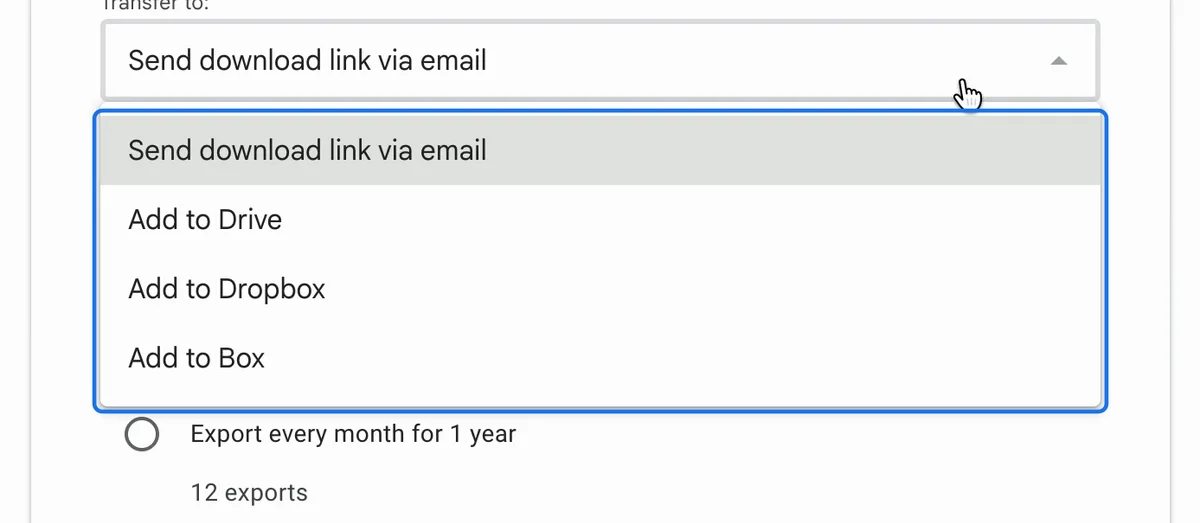
Scroll down and click "Next step". Under "Transfer to", choose a download link by email, or Google Drive, Dropbox or Box.
Under "Frequency", export once, or every month or every two months for a year.
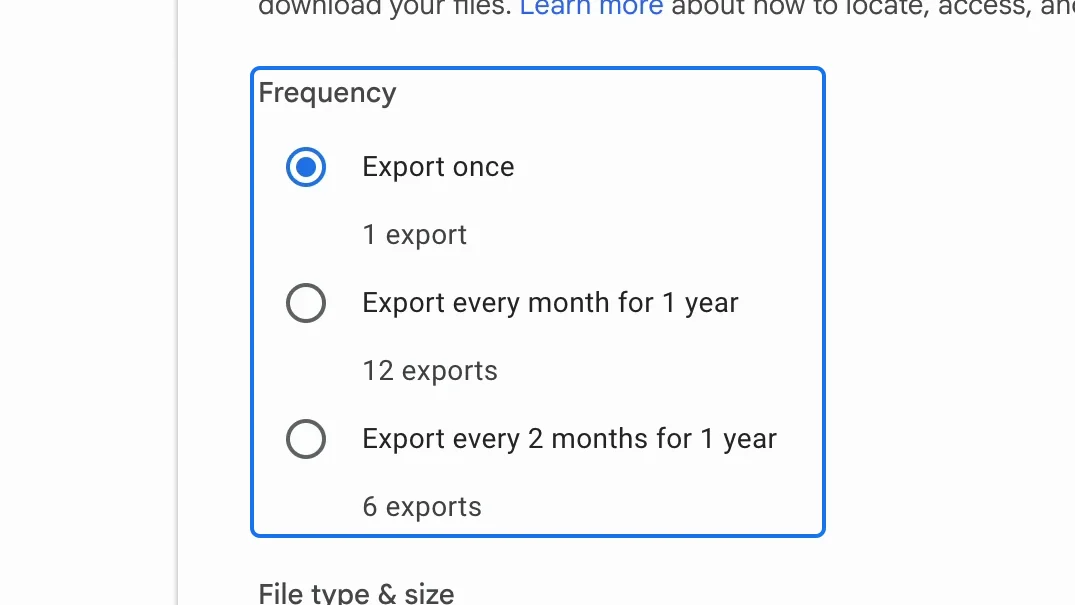
3. Create the export and wait for the email
Click "Create export". Google gathers your data and emails you when it's done. How long that takes depends on the size of your calendars.
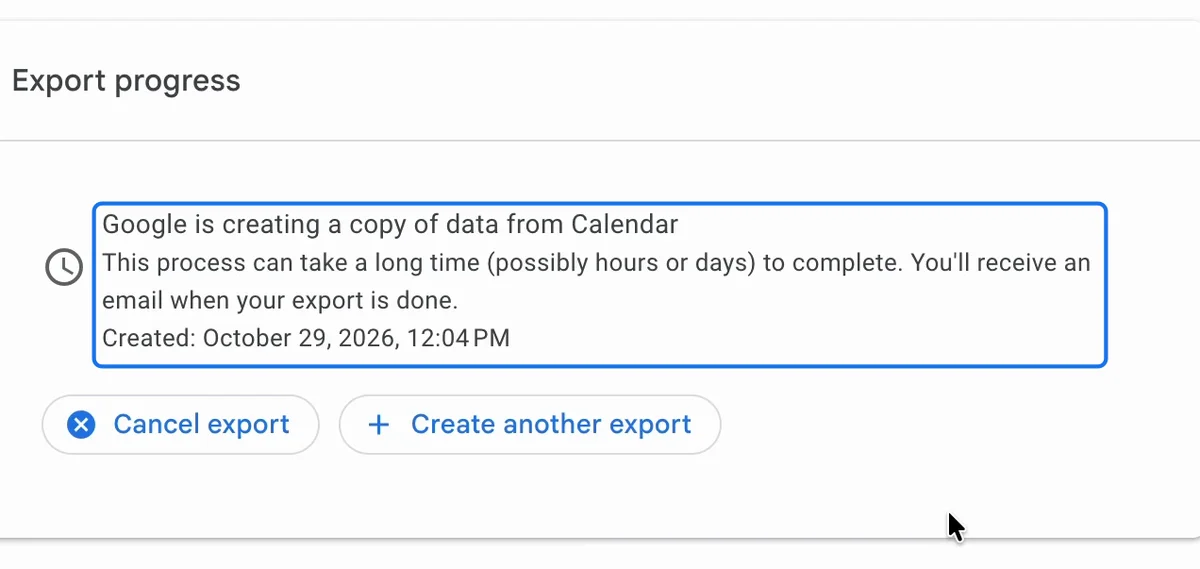
4. Download the zip
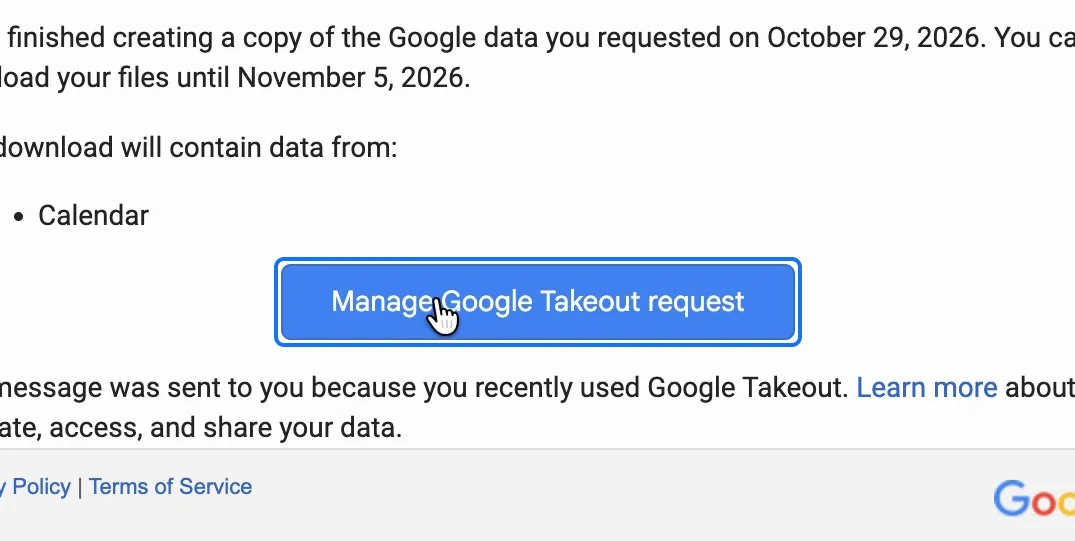
Open the email "Your Google data is ready to download" and click the button "Manage Google Takeout request".
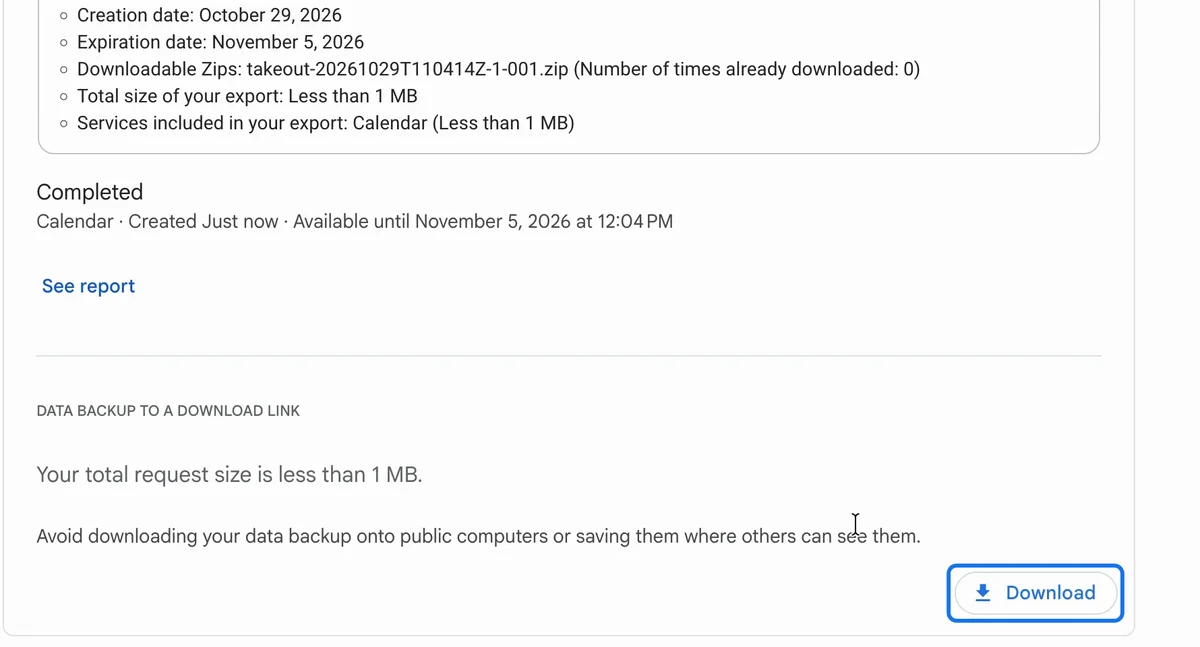
On the summary of your export, click "Download". Google may ask you to confirm it's you first.
5. Open the zip
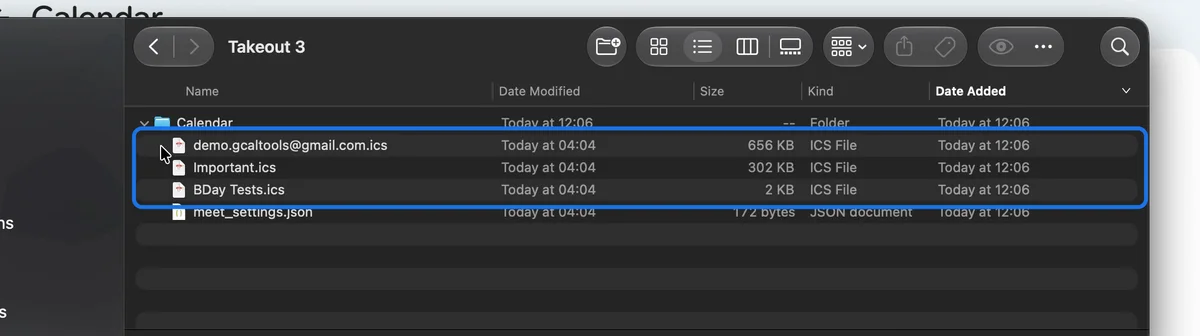
In the zip's folder Calendar, there's one iCal file per calendar.
Recover a calendar from the backup
To recover a calendar, import its file in Google Calendar's settings, under "Import & export".
Back up Google Tasks too
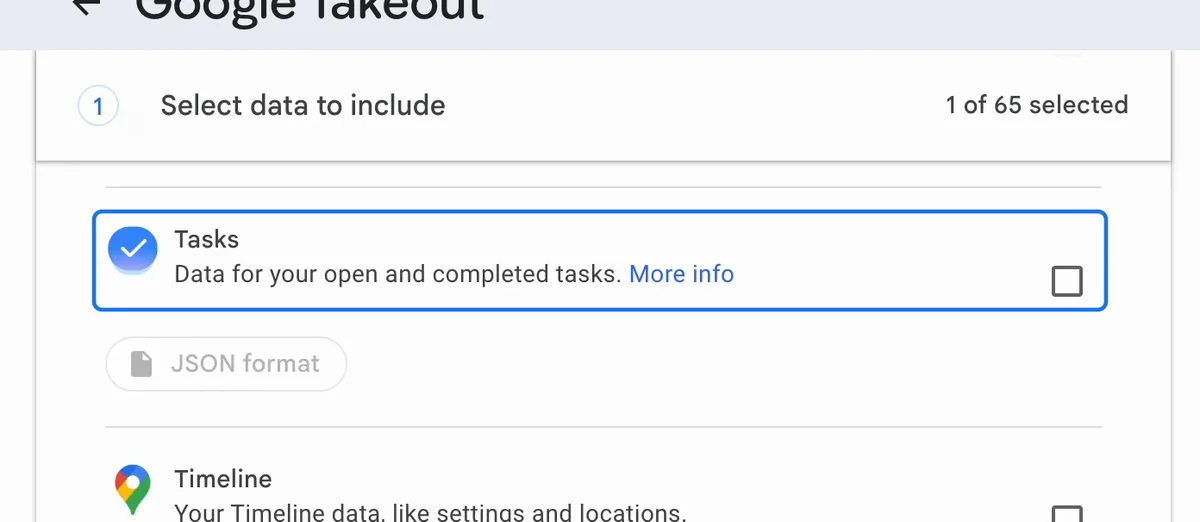
Takeout also backs up Google Tasks: tick the checkbox "Tasks". Unlike calendars, saved in the standard iCal format, tasks come as a JSON file, which only third-party tools can import, such as GTasksToolkit, which does it for free.
Watch the full playlist on YouTube
Back up automatically instead
Instead of Takeout, you can back up your calendars automatically with GCal Backup, choosing the calendars and the schedule yourself. It's free, like many of our calendar tools at gcaltools.com.