
Undo an Import to Google Calendar by Re-importing the File
Google Calendar has no undo for an import, and deleting hundreds of events one by one isn't practical. To undo an import, open the .ics file you imported, replace every STATUS:CONFIRMED with STATUS:CANCELLED, and import the edited file again into the same calendar.
This works because each event in the file has a unique ID: importing it again updates those same events, and the cancelled status removes them all in one go. Your other events stay as they are.
1. Open the imported file in a text editor
Open the .ics file you imported in a text editor that can find and replace, such as BBEdit, used in the video. Every event in it sits between BEGIN:VEVENT and END:VEVENT.
2. Check that each event has a UID
Look for a UID line in each event. This is the identifier Google Calendar uses to match the event when you import the file again.
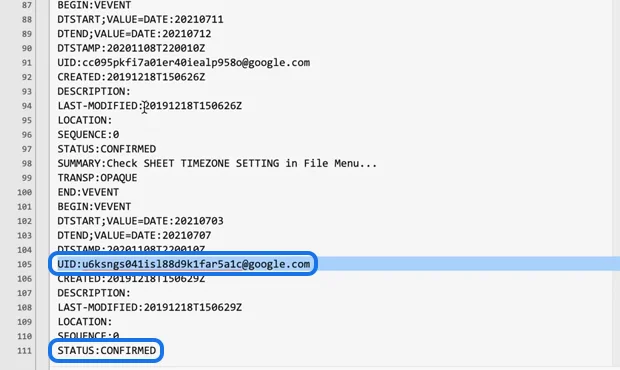
3. Replace STATUS:CONFIRMED with STATUS:CANCELLED
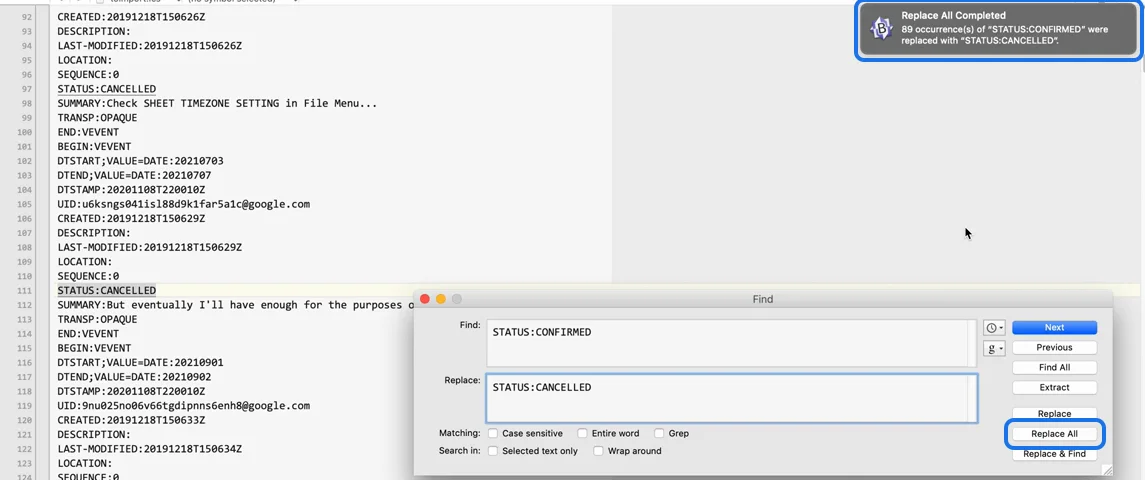
Open Find and Replace. Find "STATUS:CONFIRMED", replace it with "STATUS:CANCELLED", and click "Replace All", so every event in the file is cancelled, however large the file is. Here, 89 events were changed. Save the file.
4. Import the edited file into the same calendar
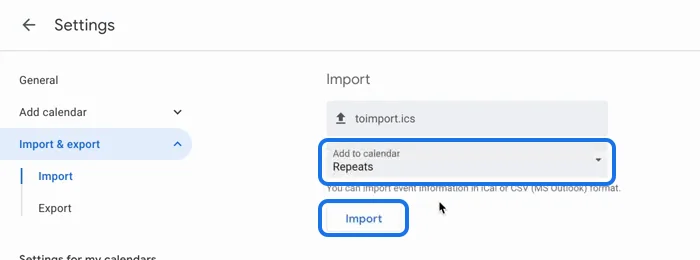
In Google Calendar, open Settings, then "Import & export". Select the edited file, and in "Add to calendar" choose the calendar you imported it into the first time. Click Import.
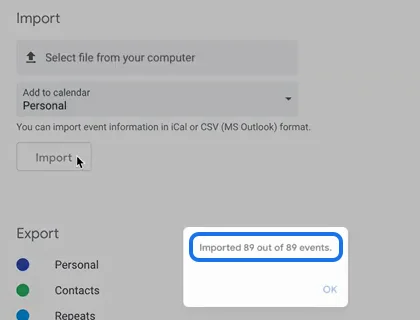
Google Calendar reports how many events it imported, here "Imported 89 out of 89 events": these are the cancellations.
5. Check the calendar
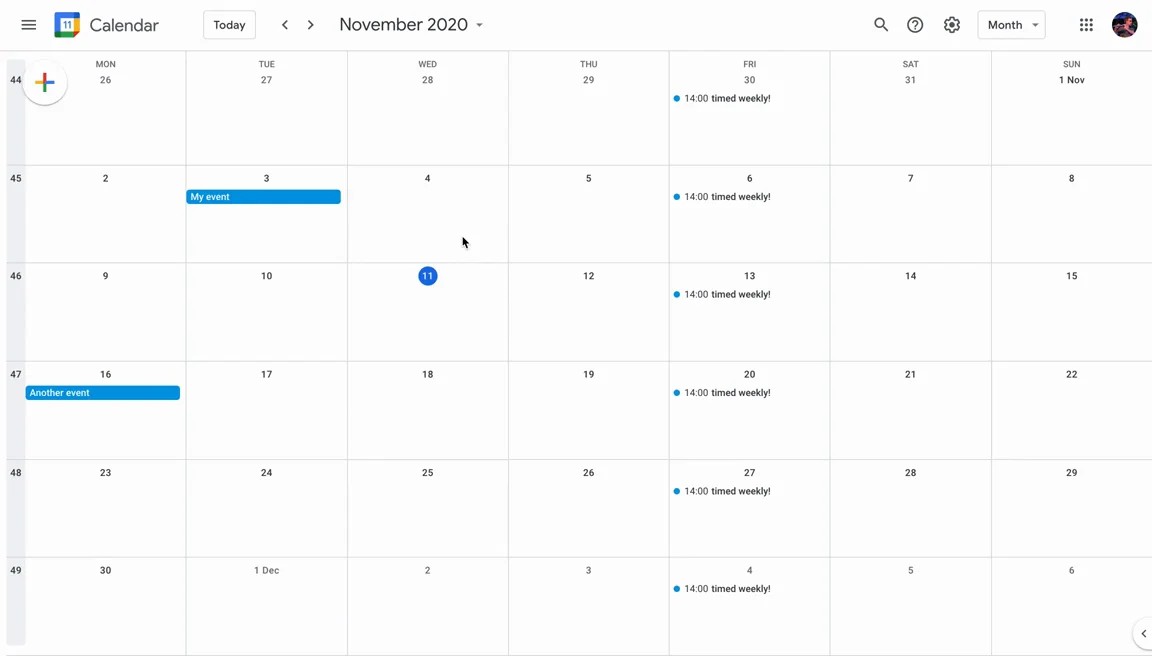
Go back to the calendar. All the events from the mistaken import are gone, and the calendar looks as it did before.
Alternative method: delete the imported events with GCalToolkit
If the file has no UIDs, or you no longer have it, GCalToolkit can remove the imported events instead. Use the "Last Modified" column to filter for the events imported at that time, mark them to be deleted, then click "Save".
Get GCalToolkit to delete, bulk edit, back up and clean up your Google Calendars.