
Print a List of Google Calendar Events with GCalToolkit
To print a list of Google Calendar events, load the calendar in GCalToolkit, choose the columns and filter the events you need, then print the list, or save it as a spreadsheet to format and print in Google Sheets or Excel. You decide exactly which events and details appear, and how they look.
If you only need a copy of what Google Calendar shows, its own Print is enough.
Basic printing: what Google Calendar shows
On a computer, choose the view (Day, Week, Month or Schedule, which lists the events in the range), then click the Settings menu and Print. You can change the font size and orientation, and print in black and white to save colour ink.
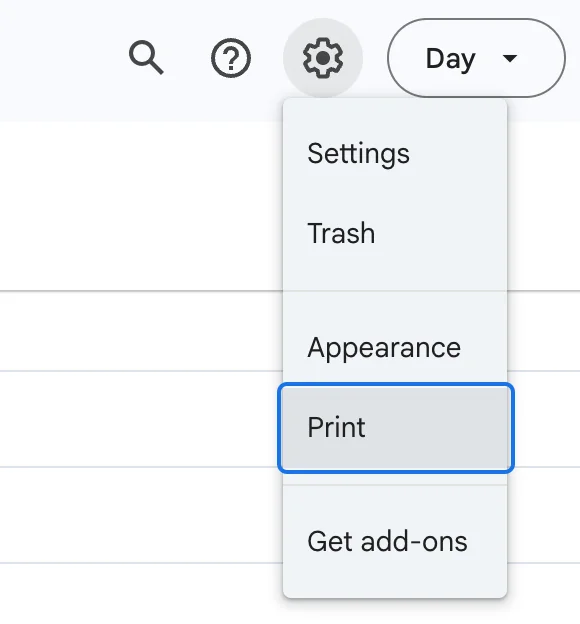
This prints the view as it is.
Advanced printing: lists with GCalToolkit
To print a list of just the events and details you choose, filtered and formatted your way, use GCalToolkit, as the video and the steps below show.
1. Load your calendar
Double-click a calendar's name to load all its events into GCalToolkit.
A repeating event is listed once, as a single row. To list every occurrence, for example to print a month of weekly meetings, tick "Download Date Range as Single Events" before loading the calendar. Only do this when you need it: downloading every occurrence uses more of Google's quota.
2. Choose the columns
Right-click a column header and tick the columns to show, such as the full description, the location or busy/free: here Guests and Delete are hidden, and Meet is added. Drag the dividers between the headers to resize the columns.
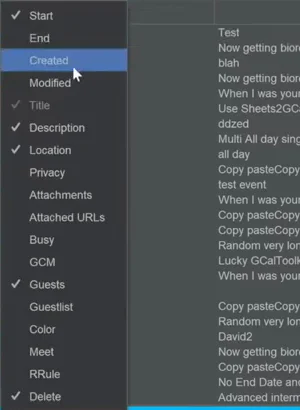
For long descriptions, set "Row Height" in the Options menu's Display tab, so each row shows several lines.
3. Filter the events
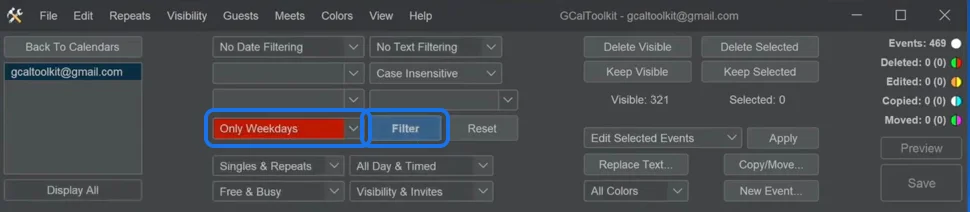
Use the filters above the list to keep only the events you need: by keyword, by day, or by type, such as free events, private events or all-day events. Here, "Only Weekdays", then Filter. The Visible count shows how many events are left.
4. Print every occurrence of a repeating event
Repeating events have a black border around their start date. To print every occurrence of just one series, right-click it and choose "Download Repeat Series". For several, select them and choose "Download Repeat Series" in the Repeats menu.
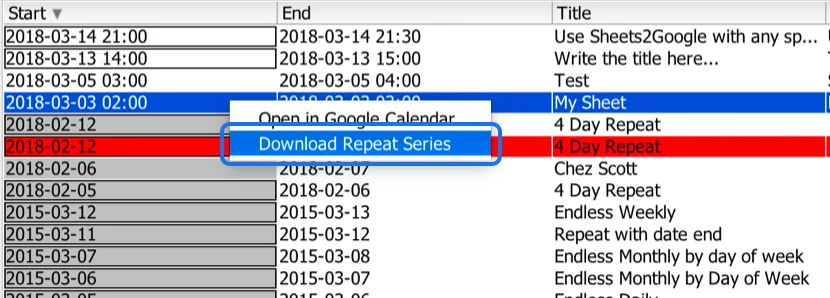
The same right-click menu opens an event in Google Calendar.
5. Print it, or save it as a spreadsheet
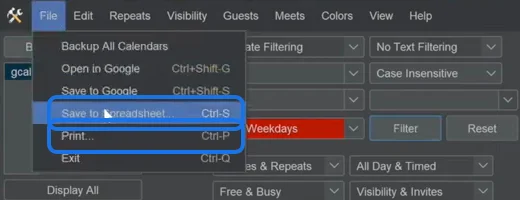
In the File menu, "Print..." prints the list as it is, to paper or to a PDF if your computer has a PDF printer, such as "Microsoft Print to PDF" on Windows. "Save to Spreadsheet..." saves the columns you show as a CSV file, with commas or tabs, to format it first in a spreadsheet.
6. Import it into Google Sheets
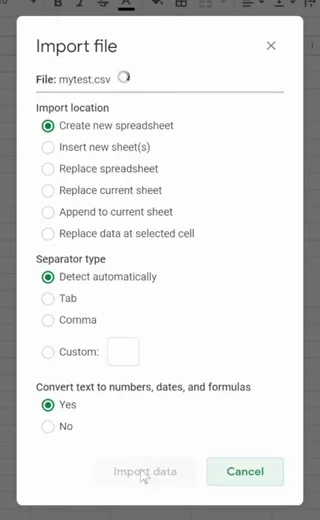
Create a new spreadsheet in Google Sheets, then in its File menu choose Import, Upload, and select the CSV file. Click "Import data". Excel and LibreOffice open the CSV file directly.
7. Format the dates and columns
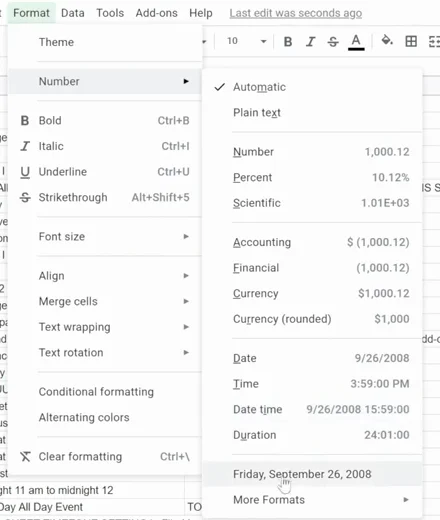
Drag the columns into the order you want. To change how dates look, select the Start column, then in the Format menu choose Number and a date format: add the day of the week, leave out the time, and so on.
8. Print
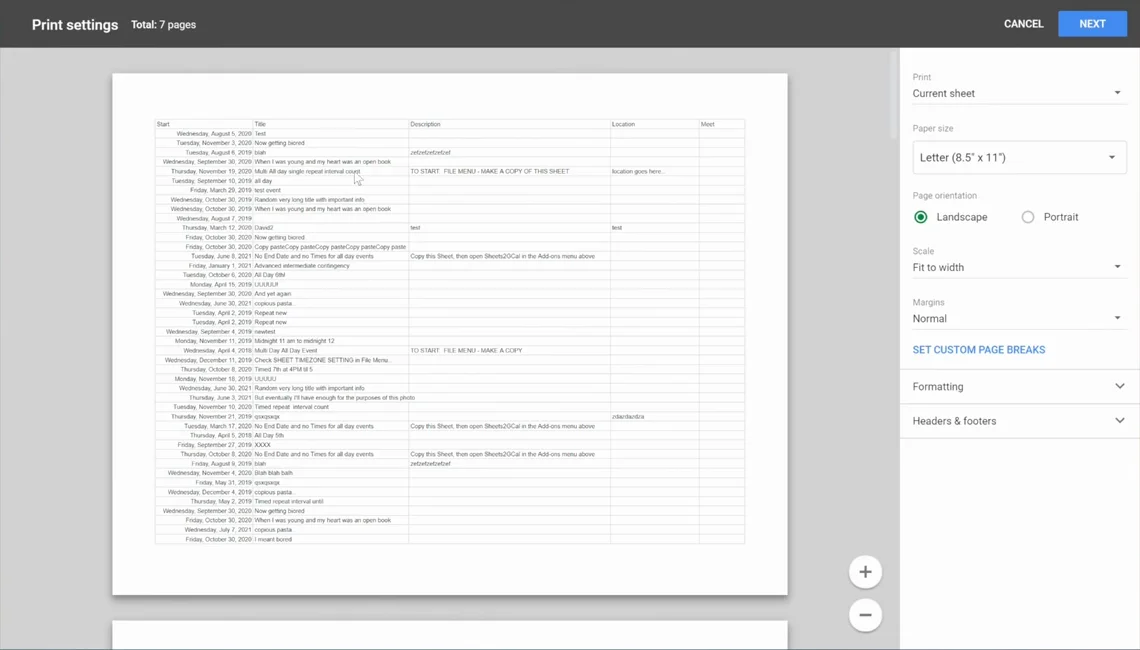
In Google Sheets' File menu, choose Print. Set the orientation and scale, for example Landscape and "Fit to width", then click Next.
Another advanced option: a spreadsheet that stays in sync
Instead of exporting a file, you can import your events straight into a spreadsheet and print them from there. Sheets2GCal imports Google Calendar events into Google Sheets (see how to import all events or a date range): arrange the columns, format the dates, filter or sort the rows, then print the sheet. For Outlook calendars, Excelendar does the same in Excel.
Because these keep the sheet in sync with the calendar, you can import again whenever the calendar changes and print an up-to-date list.
Try it
Get GCalToolkit to print, export, clean up and bulk edit your Google Calendars, and see the GCalToolkit help for every option.